> ## Documentation Index
> Fetch the complete documentation index at: https://auth0.com/llms.txt
> Use this file to discover all available pages before exploring further.
> Describes how to set up Express Configuration with Auth0 and the Okta Integration Network (OIN).
# Express Configuration with Okta
The [Okta Integration Network (OIN)](https://www.okta.com/integrations/) is a catalog of SaaS applications for which Okta provides an express setup experience for enabling Single Sign-On (SSO) with OpenID Connect, automated user provisioning with SCIM, and [Universal Logout](https://developer.okta.com/docs/guides/oin-universal-logout-overview). Okta administrators use the [Okta Admin Console](https://www.okta.com/okta-administrator-experience) to configure these integrations within their Okta tenant:
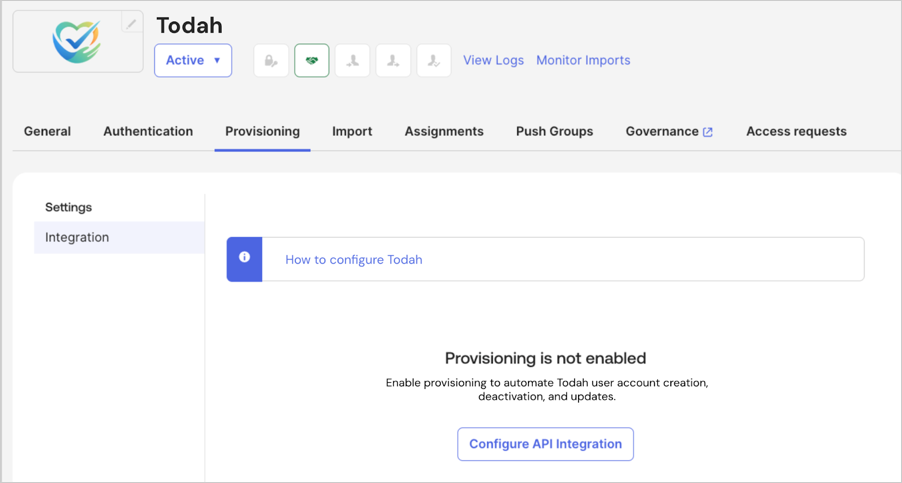 Express Configuration enables enterprise customers to securely configure identity integrations with SaaS applications without the need to copy and paste protocol-specific configuration values.
Express Configuration provides these benefits to Okta administrators and SaaS application developers:
* Reduces the time required to set up an application instance by automating the exchange of configuration information between Okta and Auth0.
* Utilizes OAuth 2.0 consent flows for the secure and authorized sharing of sensitive configuration data, reducing potential errors related to credentials and configuration settings.
* Simplifies and standardizes the integration deployment process. Automated workflow enables consistent and repeatable deployments of application integrations across multiple customers or environments, supporting a scalable application ecosystem with less opportunity for human error.
* Eliminates the complexity of manual setup, enabling Okta customer admins to quickly add instances of Auth0-enabled OIN integrations.
## How it works
The Express Configuration API allows Auth0 applications published to the OIN for customers to use Express Configuration on an [Okta connection](/docs/authenticate/identity-providers/enterprise-identity-providers/okta). Express Configuration supports OpenID Connect, SCIM, and Universal Logout within an Auth0 Organization.
Review the Express Configuration workflow for an Auth0 app in the OIN:
Express Configuration enables enterprise customers to securely configure identity integrations with SaaS applications without the need to copy and paste protocol-specific configuration values.
Express Configuration provides these benefits to Okta administrators and SaaS application developers:
* Reduces the time required to set up an application instance by automating the exchange of configuration information between Okta and Auth0.
* Utilizes OAuth 2.0 consent flows for the secure and authorized sharing of sensitive configuration data, reducing potential errors related to credentials and configuration settings.
* Simplifies and standardizes the integration deployment process. Automated workflow enables consistent and repeatable deployments of application integrations across multiple customers or environments, supporting a scalable application ecosystem with less opportunity for human error.
* Eliminates the complexity of manual setup, enabling Okta customer admins to quickly add instances of Auth0-enabled OIN integrations.
## How it works
The Express Configuration API allows Auth0 applications published to the OIN for customers to use Express Configuration on an [Okta connection](/docs/authenticate/identity-providers/enterprise-identity-providers/okta). Express Configuration supports OpenID Connect, SCIM, and Universal Logout within an Auth0 Organization.
Review the Express Configuration workflow for an Auth0 app in the OIN:
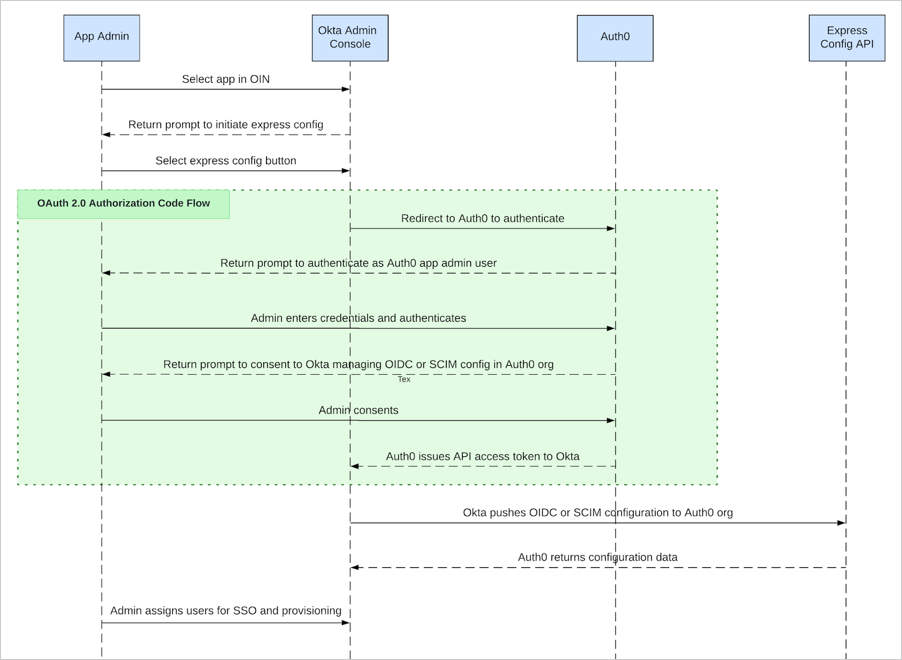 * An Okta administrator signs in to the Okta portal and selects the Express Configuration-enabled application from the OIN.
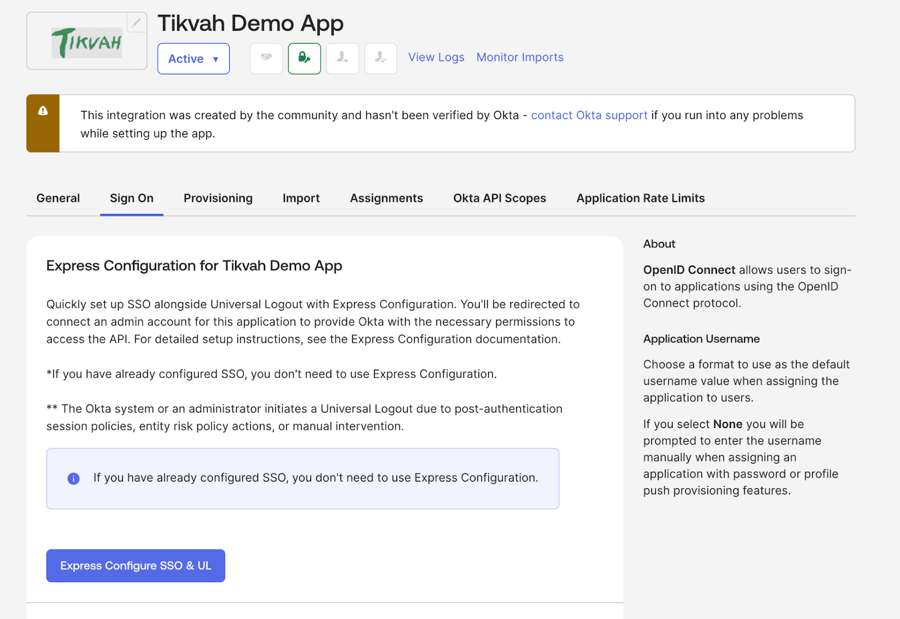
* The Okta administrator navigates to the **Sign On** section and select **Express Configure SSO & UL**. This redirects them to an [Auth0 Universal Login](/docs/authenticate/login/auth0-universal-login/universal-login-vs-classic-login/universal-experience#universal-login-experience) screen.
* An Okta administrator signs in to the Okta portal and selects the Express Configuration-enabled application from the OIN.
* The Okta administrator navigates to the **Sign On** section and select **Express Configure SSO & UL**. This redirects them to an [Auth0 Universal Login](/docs/authenticate/login/auth0-universal-login/universal-login-vs-classic-login/universal-experience#universal-login-experience) screen.
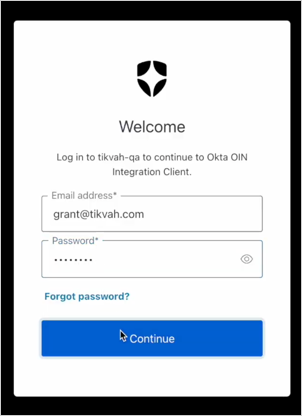
 * The Okta administrator enters the credentials of an application user who is permitted to perform Express Configuration. In Auth0, this refers to a user who is a member of an [organization](/docs/manage-users/organizations) and is authorized to perform Express Configuration using an [organizational role](/docs/manage-users/organizations/configure-organizations/add-member-roles) or other authorization method.
 * After authenticating, Auth0 prompts the Okta administrator for consent.
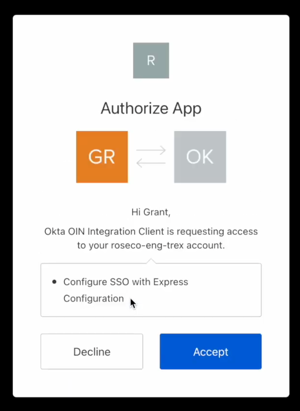 * After consenting, Okta uses the Express Configuration API to automatically configure an [Okta connection](/docs/authenticate/identity-providers/enterprise-identity-providers/okta) within the Auth0 organization to which the Okta administrator belongs.
* The Okta administrator may then assign users to the application instance and see single sign-on working immediately.
Auth0 developers can also configure their OIN integration to allow Express Configuration of SCIM and Universal Logout, both of which are recommended:
* When SCIM is enabled, Okta administrators can configure SCIM by navigating to the **Provisioning** section of the application details and selecting **Express Configure SCIM**.
* When Universal Logout is enabled, it will be automatically configured as part of the OpenID Connect integration.
## Prerequisites
To publish an application to the OIN with Express Configuration enabled, you must have the following:
* An [Okta Integrator Free Plan org](https://developer.okta.com/signup/), with access to either the Super Admin role or the App and Org Admin roles.
* An [Auth0 subscription](https://auth0.com/pricing) that enables the use of the Okta connection type and the Organizations feature for as many customers as you need.
* A SaaS application that has been integrated with Auth0 using a Multi-Organization Architecture.
* This includes registering your application as a [Regular Web Application](/docs/get-started/auth0-overview/create-applications/regular-web-apps) or [Single-Page Application](/docs/get-started/auth0-overview/create-applications/single-page-web-apps) in Auth0, and enabling each of your customers to sign into that application using their own distinct [identity providers](/docs/authenticate/enterprise-connections).
* An [Auth0 Organization](/docs/manage-users/organizations) is deployed, or can be deployed, for each customer using Express Configuration. Organizations and organizational roles are used to authorize specific users to perform express configuration and create Okta connections only within the organizations to which they belong.
* Your Auth0 tenant should have the [Enable Application Connections](/docs/get-started/tenant-settings#recommended-settings) tenant setting disabled.
**Tip**: To view a sample application that implements a multi-tenant architecture including Auth0 Organizations and organizational roles, refer to the [SaaStart reference application](https://auth0.com/blog/speed-up-your-customer-identity-journey-with-auth0-saastart/).
## Configure your application for Express Configuration
The Auth0 Dashboard guides an Auth0 developer through enabling Express Configuration for their application and publishing it to the OIN.
An [Auth0 Admin role](/docs/get-started/manage-dashboard-access/feature-access-by-role) in a production Auth0 tenant is required to complete the end-to-end setup and publishing process.
* After consenting, Okta uses the Express Configuration API to automatically configure an [Okta connection](/docs/authenticate/identity-providers/enterprise-identity-providers/okta) within the Auth0 organization to which the Okta administrator belongs.
* The Okta administrator may then assign users to the application instance and see single sign-on working immediately.
Auth0 developers can also configure their OIN integration to allow Express Configuration of SCIM and Universal Logout, both of which are recommended:
* When SCIM is enabled, Okta administrators can configure SCIM by navigating to the **Provisioning** section of the application details and selecting **Express Configure SCIM**.
* When Universal Logout is enabled, it will be automatically configured as part of the OpenID Connect integration.
## Prerequisites
To publish an application to the OIN with Express Configuration enabled, you must have the following:
* An [Okta Integrator Free Plan org](https://developer.okta.com/signup/), with access to either the Super Admin role or the App and Org Admin roles.
* An [Auth0 subscription](https://auth0.com/pricing) that enables the use of the Okta connection type and the Organizations feature for as many customers as you need.
* A SaaS application that has been integrated with Auth0 using a Multi-Organization Architecture.
* This includes registering your application as a [Regular Web Application](/docs/get-started/auth0-overview/create-applications/regular-web-apps) or [Single-Page Application](/docs/get-started/auth0-overview/create-applications/single-page-web-apps) in Auth0, and enabling each of your customers to sign into that application using their own distinct [identity providers](/docs/authenticate/enterprise-connections).
* An [Auth0 Organization](/docs/manage-users/organizations) is deployed, or can be deployed, for each customer using Express Configuration. Organizations and organizational roles are used to authorize specific users to perform express configuration and create Okta connections only within the organizations to which they belong.
* Your Auth0 tenant should have the [Enable Application Connections](/docs/get-started/tenant-settings#recommended-settings) tenant setting disabled.
**Tip**: To view a sample application that implements a multi-tenant architecture including Auth0 Organizations and organizational roles, refer to the [SaaStart reference application](https://auth0.com/blog/speed-up-your-customer-identity-journey-with-auth0-saastart/).
## Configure your application for Express Configuration
The Auth0 Dashboard guides an Auth0 developer through enabling Express Configuration for their application and publishing it to the OIN.
An [Auth0 Admin role](/docs/get-started/manage-dashboard-access/feature-access-by-role) in a production Auth0 tenant is required to complete the end-to-end setup and publishing process.
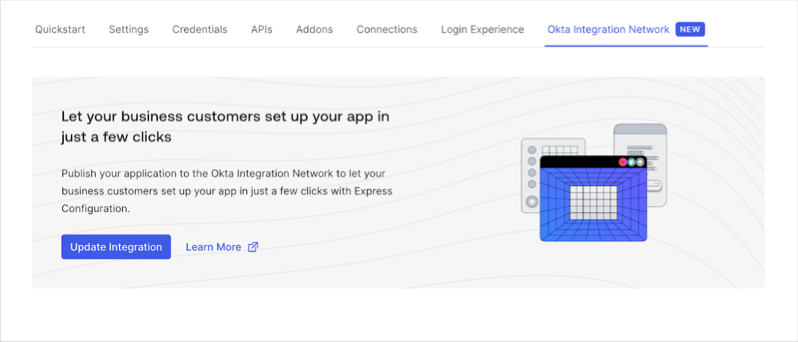 Configure the following Auth0 components to set up Express Configuration in your tenant:
* A registered application with Initiate Login URI Template
* A [Connection Profile (CP)](/docs/authenticate/enterprise-connections/connection-profile)
* A [User Attribute Profile](/docs/authenticate/enterprise-connections/user-attribute-profile)
* Organization login settings
* Administrator login and consent settings
### Register an application with Initiate Login URI Template
1. Register your application as a [Regular Web Application](/docs/get-started/auth0-overview/create-applications/regular-web-apps) or [Single-Page Application](/docs/get-started/auth0-overview/create-applications/single-page-web-apps) in Auth0 Dashboard.
2. Once registered, select the application you created and navigate to the **Okta Integration Network** tab to begin the Express Configuration setup wizard.
3. Select **Get Started**.
4. Review the Prerequisites and select **Continue**.
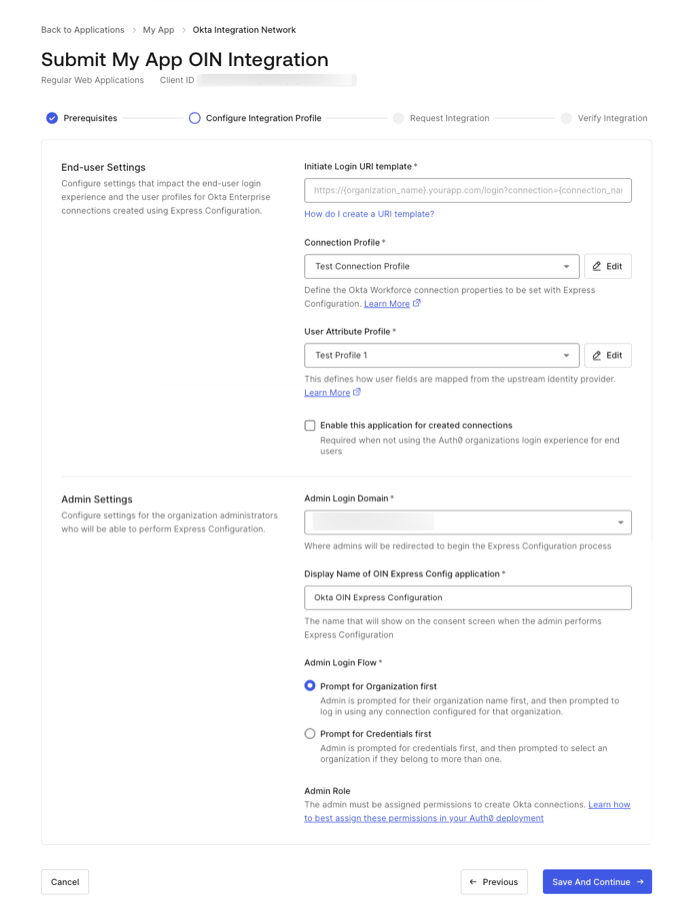
5. Register an **Initiate Login URI Template**. This template implements an endpoint on your application to automatically redirect end-users to Auth0's `/authorize` endpoint for authentication. To review an example of a login endpoint, review the `/login` route in the [Express SDK Quickstart](/docs/quickstart/webapp/express/interactive).
* After Express Configuration initiates for an application instance, Okta uses the **Initiate Login URI Template** to launch the application from the [end-user dashboard](https://help.okta.com/en-us/content/topics/settings/new-dashboard-overview.htm).
* (Optional) Set the `organization_name`, `organization_id,` and `connection_name` for Auth0's `/authorize` endpoint to identify the organization or connection to use. Okta dynamically replaces these variables when the URL is launched from the end-user dashboard. Example: `https://{organization_name}.your-app.com?connection={connection_name}`.
Configure the following Auth0 components to set up Express Configuration in your tenant:
* A registered application with Initiate Login URI Template
* A [Connection Profile (CP)](/docs/authenticate/enterprise-connections/connection-profile)
* A [User Attribute Profile](/docs/authenticate/enterprise-connections/user-attribute-profile)
* Organization login settings
* Administrator login and consent settings
### Register an application with Initiate Login URI Template
1. Register your application as a [Regular Web Application](/docs/get-started/auth0-overview/create-applications/regular-web-apps) or [Single-Page Application](/docs/get-started/auth0-overview/create-applications/single-page-web-apps) in Auth0 Dashboard.
2. Once registered, select the application you created and navigate to the **Okta Integration Network** tab to begin the Express Configuration setup wizard.
3. Select **Get Started**.
4. Review the Prerequisites and select **Continue**.
5. Register an **Initiate Login URI Template**. This template implements an endpoint on your application to automatically redirect end-users to Auth0's `/authorize` endpoint for authentication. To review an example of a login endpoint, review the `/login` route in the [Express SDK Quickstart](/docs/quickstart/webapp/express/interactive).
* After Express Configuration initiates for an application instance, Okta uses the **Initiate Login URI Template** to launch the application from the [end-user dashboard](https://help.okta.com/en-us/content/topics/settings/new-dashboard-overview.htm).
* (Optional) Set the `organization_name`, `organization_id,` and `connection_name` for Auth0's `/authorize` endpoint to identify the organization or connection to use. Okta dynamically replaces these variables when the URL is launched from the end-user dashboard. Example: `https://{organization_name}.your-app.com?connection={connection_name}`.
 **Initiate Login URI Examples:**
`https://your-app.com/login`
**Initiate Login URI Examples:**
`https://your-app.com/login`
`https://your-app.com/login?connection={connection_name}`
`https://{organization_name}.your-app.com?connection={connection_name}`
#### Connection Profile
In the Initiate Login URI Template, you have the option to add a **Connection Profile**. The [Connection Profile](/docs/authenticate/enterprise-connections/connection-profile) enables Auth0 to specify how the private settings of your connections should be configured when created using Express Configuration, including settings that govern how the connection interacts with Auth0’s Universal Login and Organizations features:
* Options for how the connection name should be created in Auth0
* Options to use SCIM and/or Universal Logout with the connection (Recommended)
* Options to allow end users of the connection to automatically become members of the consenting administrator’s organization
* Options for the **Show as button** setting for the connection on Auth0’s Universal Login page
If you do not have a Connection Profile configured, Auth0 provides a default Connection Profile with common and recommended settings implemented for Express-configured connections.
To learn how to customize the default CP, read [Connection Profile](/docs/authenticate/enterprise-connections/connection-profile).
#### User Attribute Profile
In the Initiate Login URI Template, you have the option to add a **User Attribute Profile**. The [User Attribute Profile (UAP)](/docs/authenticate/enterprise-connections/user-attribute-profile) allows Auth0 developers to define, manage, and map user attributes consistently across the various protocols supported by Auth0. When used with Express Configuration, the User Attribute Profile allows developers to customize the OpenID Connect and SCIM attribute maps that will be written to the Okta connection generated by Express Configuration.
If you do not have a User Attribute Profile configured, Auth0 provides a default User Attribute Profile with common and recommended mappings for all protocols, including OpenID Connect and SCIM, which are used by the Okta connection type.
To learn how to customize the default UAP, read [User Attribute Profile](/docs/authenticate/enterprise-connections/user-attribute-profile).
### Organization login settings
Auth0 Organizations is required to authorize specific organizational users to create isolated connections but is not required to change your application’s existing login flow to support the [organization-based login flow for business users](/docs/manage-users/organizations/configure-organizations/define-organization-behavior).
* If your application currently uses an [Identifier-First login experience](/docs/authenticate/login/auth0-universal-login/identifier-first) and home realm discovery with your applications, see the [Enabling Home Realm Discovery](/docs/authenticate/identity-providers/enterprise-identity-providers/okta/express-configuration#enable-home-realm-discovery) section for information on how to enable home realm discovery.
* If you wish to enable multiple applications in `enabled_clients` to be used with your Express Configuration connections, see Enabling Multiple Auth0 Applications Under a Single Integration.
If your application setup does not currently use an organization-based login flow, you can select the **Enable this application for created connections** setting. When enabled, each Express Configuration on an Okta connection is associated directly with your application. Use the required `enabled_clients` setting on the connection.
### Administrator login and consent settings
When Express Configuration is enabled, Auth0 creates an additional client application ID that is used by the OIN during the administrator consent flow between Okta and Auth0. Okta creates one OIN client for each distinct application integration published to the OIN.
Configure administrator login and consent settings in the application you want to publish to the OIN under **Configure Integration Profile**.
1. Navigate to [Auth0 Dashboard > Applications](https://manage.auth0.com/dashboard/#/applications).
2. Choose the application you want to publish to the OIN.
3. Select Okta Integration Network.
4. Verify you have the necessary prerequisites and select **Continue**.
5. In the **Configure Integration Profile** section, configure options in **Admin Settings**.
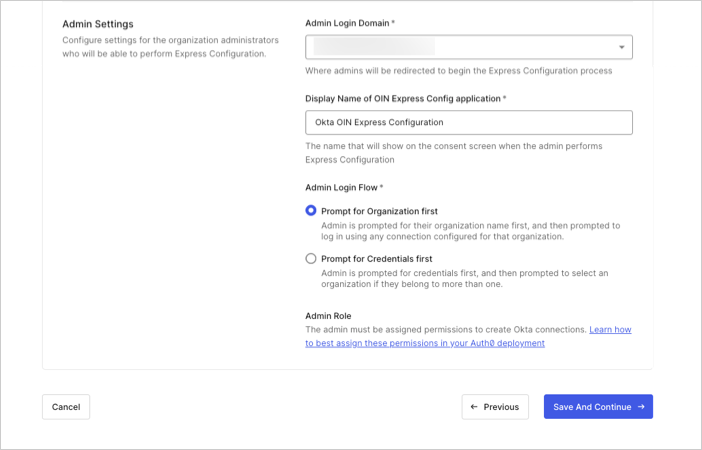 * **Admin Login Domain**: Auth0 tenant domain Okta redirects to as part of the consent flow in a Web browser. Use the custom domain name if you have one configured in Auth0. To learn more, read [Custom Domains](docs/customize/custom-domains).
* **Display Name of the OIN Express Configuration Application**: Name of the OIN client application shown in the consent dialog.
* **Admin Login Flow**: Defines the [Organization login](/docs/manage-users/organizations/login-flows-for-organizations) flow for the OIN client application and used when an Okta administrator runs Express Configuration from the Okta console. Select from:
* **Prompt for Organization**: Admins are first asked to select their Organization and are presented with the login experience for their Auth0 Organization. Admins can sign in using a [pre-existing connection](/docs/manage-users/organizations/configure-organizations/enable-connections) configured in that organization.
* **Prompt for Credentials**: Admins are first asked to provide their login credentials. When this option is selected, a button will appear that allows you to select the connections that contain the admin users. This can be a shared database connection, a passwordless email connection, or another connection that can be associated with all Auth0 Organizations.
* **Admin Role**: In order to perform Express Configuration, the admin must be assigned the appropriate permissions. Read [Assign express configuration permissions to users](/docs/authenticate/identity-providers/enterprise-identity-providers/okta/express-configuration#assign-permissions-to-users) for instructions on how to authorize admins in the way that makes the most sense for your current Auth0 deployment.
For the best consent experience, set your tenant’s `use_scope_descriptions_for_consent` flag to `true` as described in [Customize Consent Prompts](/docs/customize/login-pages/customize-consent-prompts). You will have the opportunity to view your consent prompt later in when you test and verify your integration.
## Assign permissions to users
For Okta, administrators must have an application user account with required permissions to perform Express Configuration for an Auth0-powered SaaS application.
For Auth0, any application user may be granted this permission, as long as the user is a member of an [Auth0 Organization](/docs/manage-users/organizations) where the Express-configured connections is created, including:
* A user in a dedicated database connection that has been created exclusively for a single Organization
* A user in a shared database connection who is a member of one or more Organizations
* A user with a passwordless email connection who is a member of one or more Organizations
* A user in a social or existing enterprise connection who is a member of one or more Organizations
Once conditions are met, Auth0 provides flexible ways to asign Express Configuration permissions and allow developers to choose the method most appropriate for their curret Auth0 deployment:
| **Method** | **Recommended for...** |
| ------------------------------------------------------------------------------------------------------------------------------------------------------------------------------------------------------------------------------- | ------------------------------------------------------------------------------------------------------------------------------------------------------------------------------------------------------------------------------------------------------------------------------------------------------ |
| Assign Express Configuration permissions to an existing user role | Customers with existing application user [role](/docs/manage-users/access-control/configure-core-rbac/roles) in their Auth0 tenant. |
| Assign a new role to application users requiring Express Configuration permissions as exemplified in the [SaaStart reference application](https://auth0.com/blog/speed-up-your-customer-identity-journey-with-auth0-saastart/). | Customers who want to use Auth0’s [role](/docs/manage-users/access-control/configure-core-rbac/roles) feature to grant Express Configuration permissions to individual users. This can be done withAuth0 Dashboard or the Management API. |
| Use a Post-Login Action to dynamically assign permissions using attribute-based access control | Customers not currently using Auth0’s [role](/docs/manage-users/access-control/configure-core-rbac/roles) feature and prefer using a Post-Login Action to dynamically assign permissions based on user attributes instead of using the Auth0 Dashboard or making Management API calls to assign roles. |
For tips on provisioning administator accounts to use Express Configuration, read [Customer Enablement](/docs/authenticate/identity-providers/enterprise-identity-providers/okta/express-configuration#customer-enablement).
### Assign permissions to a pre-existing application user role
Use this method of assigning Express Configuration permissions if you use [Auth0’s RBAC feature](/docs/manage-users/access-control/configure-core-rbac/roles) for application roles and API permissions and already have one or more roles that represent an administrative user that would be assigned to an IT administrator deploying the application.
Required API permissions:
| **Permission Name** | **API (Resource Server) Identifier** |
| ------------------------ | ------------------------------------ |
| `express_configure:sso` | `urn:auth0:express-configure` |
| `express_configure:scim` | `urn:auth0:express-configure` |
To learn more about assigning roles in Auth0 Dashboard and Management API, read [Add permissions to roles](/docs/manage-users/access-control/configure-core-rbac/roles/add-permissions-to-roles).
### Assign a new role to application users
Use this method of assigning Express Configuration permissions if you use [Auth0’s RBAC feature](/docs/manage-users/access-control/configure-core-rbac/roles) for application roles and API permissions, but do not have a role that represents an administrative user, such as an IT administrator, who would be assigned to deploy the application.
This method is also suitable for Auth0 developers who aren’t currently using [Auth0’s RBAC feature](/docs/manage-users/access-control/configure-core-rbac/roles) but want to utilize it to gain granular control over which users are allowed access, using either the Auth0 Dashboard or the Management API.
#### Create a role
Use Auth0 Dashboard, Management API, or [Auth0 CLI](https://auth0.github.io/auth0-cli/auth0_roles_create.html) to [create roles](/docs/manage-users/access-control/configure-core-rbac/roles/create-roles). This example uses Auth0 CLI:
```bash theme={null}
auth0 roles create \
--name "EXPRESS_CONFIGURE_ADMIN_ROLE" \
--description "Administrator role for Express Configuration"
```
#### Assign permissions to the role
Assign the `express_configuration:sso` and `express_configuration:scim` permissions to the specified role. Replace `$ROLE_ID` with the role ID that you want to grant permission.
When using this method, you will need to update your customer onboarding process to assign this role to any new organizational users who require Express Configuration permissions.
```bash theme={null}
auth0 roles permissions add "$ROLE_ID" \
--api-id "urn:auth0:express-configure" \
--permissions "express_configure:sso"
```
```bash theme={null}
auth0 roles permissions add "$ROLE_ID" \
--api-id "urn:auth0:express-configure" \
--permissions "express_configure:scim"
```
To learn more on assigning roles to existing organization users, read [Add member roles](/docs/manage-users/organizations/configure-organizations/add-member-roles).
### Assign permissions based on user attributes using a post-login Action
Use this method of assigning Express Configuration permissions if you are using an Auth0 [post-login Action](/docs/customize/actions/explore-triggers/signup-and-login-triggers/login-trigger) to dynamically assign permissions based on user attributes instead of Role-Based Access Control (RBAC), Management API, or Auth0 Dashboard to assign user roles.
This is appropriate for Auth0 customers who have deployed Auth0 using an attribute-based authorization model using custom permissions in [Auth0 metadata](/docs/manage-users/user-accounts/metadata).
**Example**
* **Admin Login Domain**: Auth0 tenant domain Okta redirects to as part of the consent flow in a Web browser. Use the custom domain name if you have one configured in Auth0. To learn more, read [Custom Domains](docs/customize/custom-domains).
* **Display Name of the OIN Express Configuration Application**: Name of the OIN client application shown in the consent dialog.
* **Admin Login Flow**: Defines the [Organization login](/docs/manage-users/organizations/login-flows-for-organizations) flow for the OIN client application and used when an Okta administrator runs Express Configuration from the Okta console. Select from:
* **Prompt for Organization**: Admins are first asked to select their Organization and are presented with the login experience for their Auth0 Organization. Admins can sign in using a [pre-existing connection](/docs/manage-users/organizations/configure-organizations/enable-connections) configured in that organization.
* **Prompt for Credentials**: Admins are first asked to provide their login credentials. When this option is selected, a button will appear that allows you to select the connections that contain the admin users. This can be a shared database connection, a passwordless email connection, or another connection that can be associated with all Auth0 Organizations.
* **Admin Role**: In order to perform Express Configuration, the admin must be assigned the appropriate permissions. Read [Assign express configuration permissions to users](/docs/authenticate/identity-providers/enterprise-identity-providers/okta/express-configuration#assign-permissions-to-users) for instructions on how to authorize admins in the way that makes the most sense for your current Auth0 deployment.
For the best consent experience, set your tenant’s `use_scope_descriptions_for_consent` flag to `true` as described in [Customize Consent Prompts](/docs/customize/login-pages/customize-consent-prompts). You will have the opportunity to view your consent prompt later in when you test and verify your integration.
## Assign permissions to users
For Okta, administrators must have an application user account with required permissions to perform Express Configuration for an Auth0-powered SaaS application.
For Auth0, any application user may be granted this permission, as long as the user is a member of an [Auth0 Organization](/docs/manage-users/organizations) where the Express-configured connections is created, including:
* A user in a dedicated database connection that has been created exclusively for a single Organization
* A user in a shared database connection who is a member of one or more Organizations
* A user with a passwordless email connection who is a member of one or more Organizations
* A user in a social or existing enterprise connection who is a member of one or more Organizations
Once conditions are met, Auth0 provides flexible ways to asign Express Configuration permissions and allow developers to choose the method most appropriate for their curret Auth0 deployment:
| **Method** | **Recommended for...** |
| ------------------------------------------------------------------------------------------------------------------------------------------------------------------------------------------------------------------------------- | ------------------------------------------------------------------------------------------------------------------------------------------------------------------------------------------------------------------------------------------------------------------------------------------------------ |
| Assign Express Configuration permissions to an existing user role | Customers with existing application user [role](/docs/manage-users/access-control/configure-core-rbac/roles) in their Auth0 tenant. |
| Assign a new role to application users requiring Express Configuration permissions as exemplified in the [SaaStart reference application](https://auth0.com/blog/speed-up-your-customer-identity-journey-with-auth0-saastart/). | Customers who want to use Auth0’s [role](/docs/manage-users/access-control/configure-core-rbac/roles) feature to grant Express Configuration permissions to individual users. This can be done withAuth0 Dashboard or the Management API. |
| Use a Post-Login Action to dynamically assign permissions using attribute-based access control | Customers not currently using Auth0’s [role](/docs/manage-users/access-control/configure-core-rbac/roles) feature and prefer using a Post-Login Action to dynamically assign permissions based on user attributes instead of using the Auth0 Dashboard or making Management API calls to assign roles. |
For tips on provisioning administator accounts to use Express Configuration, read [Customer Enablement](/docs/authenticate/identity-providers/enterprise-identity-providers/okta/express-configuration#customer-enablement).
### Assign permissions to a pre-existing application user role
Use this method of assigning Express Configuration permissions if you use [Auth0’s RBAC feature](/docs/manage-users/access-control/configure-core-rbac/roles) for application roles and API permissions and already have one or more roles that represent an administrative user that would be assigned to an IT administrator deploying the application.
Required API permissions:
| **Permission Name** | **API (Resource Server) Identifier** |
| ------------------------ | ------------------------------------ |
| `express_configure:sso` | `urn:auth0:express-configure` |
| `express_configure:scim` | `urn:auth0:express-configure` |
To learn more about assigning roles in Auth0 Dashboard and Management API, read [Add permissions to roles](/docs/manage-users/access-control/configure-core-rbac/roles/add-permissions-to-roles).
### Assign a new role to application users
Use this method of assigning Express Configuration permissions if you use [Auth0’s RBAC feature](/docs/manage-users/access-control/configure-core-rbac/roles) for application roles and API permissions, but do not have a role that represents an administrative user, such as an IT administrator, who would be assigned to deploy the application.
This method is also suitable for Auth0 developers who aren’t currently using [Auth0’s RBAC feature](/docs/manage-users/access-control/configure-core-rbac/roles) but want to utilize it to gain granular control over which users are allowed access, using either the Auth0 Dashboard or the Management API.
#### Create a role
Use Auth0 Dashboard, Management API, or [Auth0 CLI](https://auth0.github.io/auth0-cli/auth0_roles_create.html) to [create roles](/docs/manage-users/access-control/configure-core-rbac/roles/create-roles). This example uses Auth0 CLI:
```bash theme={null}
auth0 roles create \
--name "EXPRESS_CONFIGURE_ADMIN_ROLE" \
--description "Administrator role for Express Configuration"
```
#### Assign permissions to the role
Assign the `express_configuration:sso` and `express_configuration:scim` permissions to the specified role. Replace `$ROLE_ID` with the role ID that you want to grant permission.
When using this method, you will need to update your customer onboarding process to assign this role to any new organizational users who require Express Configuration permissions.
```bash theme={null}
auth0 roles permissions add "$ROLE_ID" \
--api-id "urn:auth0:express-configure" \
--permissions "express_configure:sso"
```
```bash theme={null}
auth0 roles permissions add "$ROLE_ID" \
--api-id "urn:auth0:express-configure" \
--permissions "express_configure:scim"
```
To learn more on assigning roles to existing organization users, read [Add member roles](/docs/manage-users/organizations/configure-organizations/add-member-roles).
### Assign permissions based on user attributes using a post-login Action
Use this method of assigning Express Configuration permissions if you are using an Auth0 [post-login Action](/docs/customize/actions/explore-triggers/signup-and-login-triggers/login-trigger) to dynamically assign permissions based on user attributes instead of Role-Based Access Control (RBAC), Management API, or Auth0 Dashboard to assign user roles.
This is appropriate for Auth0 customers who have deployed Auth0 using an attribute-based authorization model using custom permissions in [Auth0 metadata](/docs/manage-users/user-accounts/metadata).
**Example**
The following example uses a post-login Action to assign permissions based on the value of an existing custom user attribute, `user.app_metadata.is_admin`.
```bash theme={null}
/**
* Assigns Express Configuration permissions based on custom logic instead of role assignment
*/
exports.onExecutePostLogin = async (event, api) => {
//check if request is for EC API access token
if (event.resource_server && event.resource_server.identifier === "urn:auth0:express-configure") {
//add permissions based on a custom condition
if (event.user.app_metadata && event.user.app_metadata.is_admin === true) {
api.accessToken.addScope("express_configure:sso");
api.accessToken.addScope("express_configure:scim");
}
//else deny access if EC access token is requested
else {
api.access.deny('Access denied');
}
}
};
```
## Enable home realm discovery
Before you run Express Configuration, you must collect and verify customer email addresses as part of the customer onboarding process to enable HRD.
You can use Express Configuration with Auth0 Actions if your application relies on [Identifier-First login experience](/docs/authenticate/login/auth0-universal-login/identifier-first) and uses home realm discovery (HRD) to match users with their identity providers (IdP) based on the email address.
Email addresses should be stored in a location accessible by post-login Actions during the Express Configuration workflow, including:
* One or more email domains can be stored in [organization metadata](/docs/manage-users/organizations/configure-organizations/create-organizations) on the customer’s Auth0 Organization.
* Your post-login action can make an API call to retrieve verified domains from any system in your environment that stores them.
When the administrative user initiates express configuration in the Okta portal and authenticates, these actions add the email domains to the token that Okta receives, which it extracts and uses to set up the Okta connection with the correct HRD configuration.
**Example 1**
In this example, verified domains are stored in connection metadata in the Auth0 Organization, which requires a comma-delimited string of one or more email domains stored in the organization metadata under a key named `domains`.
Example values: `test.com`,`test2.com`
```javascript theme={null}
exports.onExecutePostLogin = async (event, api) => {
if (event?.resource_server?.identifier === "urn:auth0:express-configure") {
if (event.organization && event.organization.metadata && event.organization.metadata.domains)
{
var domain_aliases = event.organization.metadata.domains.replace(/ /g,'').split(',');
var express_configuration = {
"domain_aliases": domain_aliases
};
api.accessToken.setCustomClaim("express_configuration", express_configuration);
}
}
};
```
**Example 2**
In this example, the post-login Action makes an API call to retrieve verified domains from a storage system in your environment.
```javascript theme={null}
/**
*/
exports.onExecutePostLogin = async (event, api) => {
if (event?.resource_server?.identifier === "urn:auth0:express-configure") {
const axios = require("axios");
// configure your custom API call here
const domains = await axios.get("https://example.org/endpoint");
var express_configuration = {
"domain_aliases": domains
};
api.accessToken.setCustomClaim("express_configuration", express_configuration);
}
};
```
### Maintain admin account matching across connections
Auth0 permits provisioning user accounts with the same email address in different connections. An end user can have a database connection, social, or passwordless account with their work email address, and also have the same email address in their federated Okta account.
When using the **Prompt for Credentials** option in the [Admin login and consent flow](/docs/authenticate/identity-providers/enterprise-identity-providers/okta/express-configuration#provision-admin-accounts), home realm discovery starts matching users with a specific domain suffix to the new Okta connection instead of other connection types after it is added to the Organization. To learn more about this Organization login behavior, read [Identifier First Authentication with prompt for credentials](/docs/manage-users/organizations/login-flows-for-organizations#identifier-first-authentication-with-prompt-for-credentials).
This behavior only takes effect when customers run Express Configuration a second time after their initial Auth0 admin user session expires. If the admin account identifier is an email address that matches the new Okta connection, the admin will be redirected there.
This behavior can be managed or avoided using any of the following methods:
* Use the **Prompt for Organization** option in the [Admin login and consent flow](/docs/authenticate/identity-providers/enterprise-identity-providers/okta/express-configuration#provision-admin-accounts).
* Enable Express Configuration permissions for the new Okta account that contains the matching verified email address after it is provisioned.
* If you only use Auth0 Organizations for the Express Configuration admin consent flow and not your application experience, you can solve the issue by disabling the `enable_organization` property described in [Configure SaaS Application Properties](/docs/authenticate/identity-providers/enterprise-identity-providers/okta/express-configuration#configure-saas-application-properties).
* This is not an issue if the admin user identifier is not an email address, such as a username in a database connection.
## Enable multiple applications under a single integration
If you want end-users of a single Express Configuration on an Okta connection to access multiple applications in your tenant, you can set a `linked_clients` property on your registered web application.
To modify this setting, use the Auth0 Management API to [retrieve your registered web application](https://auth0.com/docs/api/management/v2/clients/get-clients-by-id). Replace `{yourAppId}` with the Client ID of your registered application, and `{yourAccessToken}` with a Management APIv2 access token. To learn how to get an access token to use the Management API, read [Management API Access Tokens](/docs/secure/tokens/access-tokens/management-api-access-tokens).
```curl theme={null}
curl --request GET \
--url 'https://{yourDomain}/api/v2/clients/{yourAppId}' \
--header 'authorization: Bearer {yourAccessToken}'
```
Extract the `express_configuration` property from the response, add an array of additional application IDs to a `linked_clients` property, and [update your registered web application](https://auth0.com/docs/api/management/v2/clients/patch-clients-by-id):
```curl theme={null}
curl --request PATCH \
--url 'https://{yourDomain}/api/v2/clients/{yourAppId}' \
--data '{"express_configuration":
{"admin_login_domain":"TENANT.auth0.com",
"connection_profile_id":"cop_xxxxxxxxxxxxxxx",
"enable_client":true,
"enable_organization":true,
"initiate_login_uri_template":"https://example.org",
"okta_oin_client_id":"LDiGbUeiAYjRB5a4yOGfBvxxxxxxxxxxx",
"user_attribute_profile_id":"uap_1ctMVQUg8jxxxxxxxxxxxx",
"linked_clients": [
{ "client_id": "KJM86F2susguvsasSeAsIxxxxxxxxxxx" },
{ "client_id": "FIXwZCf5iUElvqy6eidlfxxxxxxxxxxx" }
]
}
}' \
--header 'cache-control: no-cache' \
--header 'content-type: application/json' \
--header 'authorization: Bearer {yourAccessToken}'
```
When Express Configuration is run, all of these application IDs in the linked\_clients property will be added to the `enabled_clients` property of the Okta connection.
## Publish your integration to the OIN
After you create a base configuration, you are ready to start the submission process to the OIN. As part of this process, you will be able to fully test Express Configuration end-to-end prior to going live:
1. Register your application in the OIN
2. Add Express Configuration to your OIN integration
3. Configure your OIN public key
4. Test and verify your Express Configuration integration
5. Finalize your OIN submission
### Register your application in the OIN
To add Express Configuration to a new or pre-existing application in the OIN, you need:
* An instance of your Auth0-enabled web application to use for testing
* An [Okta Integrator Free Plan org](https://developer.okta.com/signup/), with access to either the Super Admin role or the App and Org Admin roles.
* Your Okta Integrator Free Plan org must be configured as an [Okta connection](/docs/authenticate/identity-providers/enterprise-identity-providers/okta) in your Auth0 tenant and enabled for use with your Auth0-enabled web application in order to complete basic tests
* Google Chrome browser with the Okta Browser Plugin installed (review [OIN Wizard requirements](https://developer.okta.com/docs/guides/submit-app-prereq/main/#oin-wizard-requirements))
1. Sign in to your Okta Integrator Free Plan org with the user account you used to sign up with, or with an account that has been assigned the `SUPER_ADMIN` role, or the `APP_ADMIN` and `ORG_ADMIN` admin roles in Okta.
2. Navigate to **Applications > Your OIN Integrations** in the Admin Console.
3. If this is a new application, select **Build new OIN integration**. Otherwise, select your existing OIN Integration. The OIN Wizard appears:
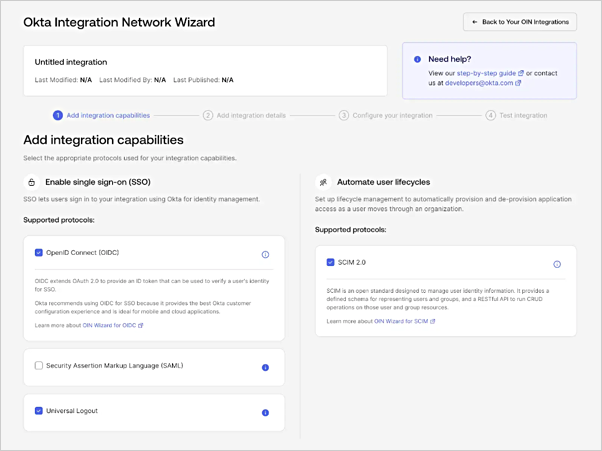 4. Under **Add integration capabilities**, select **OpenID Connect (OIDC)** as the SSO protocol.
5. You may optionally select **Universal Logout** and **SCIM 2.0**, both of which are highly recommended for all Okta integrations and supported with Express Configuration.
6. Select **Add integration details**.
7. Complete the **OIN Catalog Properties** section as desired. For reference, read [OIN Catalog Properties](https://developer.okta.com/docs/guides/submit-oin-app/openidconnect/main/#oin-catalog-properties).
8. Select **Configure your integration**. You enable Express Configuration for your application on this screen.
#### Add Express Configuration to your OIN integration
To enable Express Configuration capabilities for your registered OIN Integration:
1. On the **Configure your integration** screen of the OIN Wizard, select **Enable Express Configuration**. This shows a window asking for information you retrieve from your Auth0 tenant.
4. Under **Add integration capabilities**, select **OpenID Connect (OIDC)** as the SSO protocol.
5. You may optionally select **Universal Logout** and **SCIM 2.0**, both of which are highly recommended for all Okta integrations and supported with Express Configuration.
6. Select **Add integration details**.
7. Complete the **OIN Catalog Properties** section as desired. For reference, read [OIN Catalog Properties](https://developer.okta.com/docs/guides/submit-oin-app/openidconnect/main/#oin-catalog-properties).
8. Select **Configure your integration**. You enable Express Configuration for your application on this screen.
#### Add Express Configuration to your OIN integration
To enable Express Configuration capabilities for your registered OIN Integration:
1. On the **Configure your integration** screen of the OIN Wizard, select **Enable Express Configuration**. This shows a window asking for information you retrieve from your Auth0 tenant.
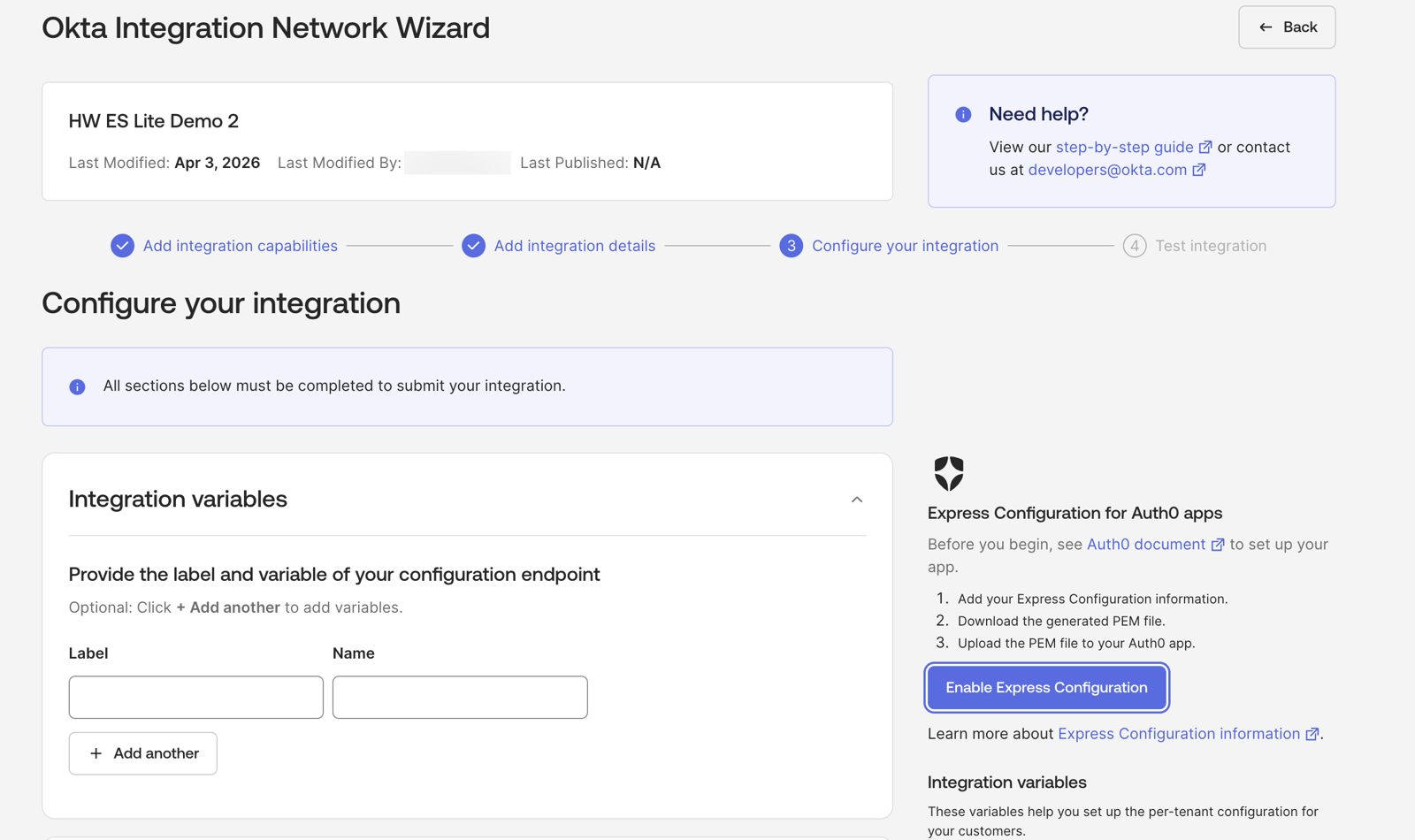 2. In a new browser window, navigate to the [Auth0 Dashboard > Applications > \[Application\] > Okta Integration Network > Create OIN Integration](https://manage.auth0.com/dashboard/#/applications/#/okta-integration-network/wizard) and copy the information indicated on the screen.
3. Return to the **Configure your integration** screen of the OIN Wizard, and paste the information into the **Express Configuration Information** field.
4. Select **Continue**.
#### Configure your OIN public key
Next, follow the prompt to download a public key file from Okta you need to upload to Auth0.
1. In the **Express Configuration for Auth0 apps** window of the OIN Wizard, choose **Download Key (.pem)** to save the key to your local device.
2. Upload the file to **[Auth0 Dashboard > Applications > \[Application\] > Okta Integration Network > Create OIN Integration](https://manage.auth0.com/dashboard/#/applications/#/okta-integration-network/wizard)**.
2. In a new browser window, navigate to the [Auth0 Dashboard > Applications > \[Application\] > Okta Integration Network > Create OIN Integration](https://manage.auth0.com/dashboard/#/applications/#/okta-integration-network/wizard) and copy the information indicated on the screen.
3. Return to the **Configure your integration** screen of the OIN Wizard, and paste the information into the **Express Configuration Information** field.
4. Select **Continue**.
#### Configure your OIN public key
Next, follow the prompt to download a public key file from Okta you need to upload to Auth0.
1. In the **Express Configuration for Auth0 apps** window of the OIN Wizard, choose **Download Key (.pem)** to save the key to your local device.
2. Upload the file to **[Auth0 Dashboard > Applications > \[Application\] > Okta Integration Network > Create OIN Integration](https://manage.auth0.com/dashboard/#/applications/#/okta-integration-network/wizard)**.
 3. Select **Save**.
4. Return to the **Configure your integration** screen of the Okta portal, and choose **Finish**. This automatically populates many of the required configuration fields for your integration.
#### Complete your integration configuration
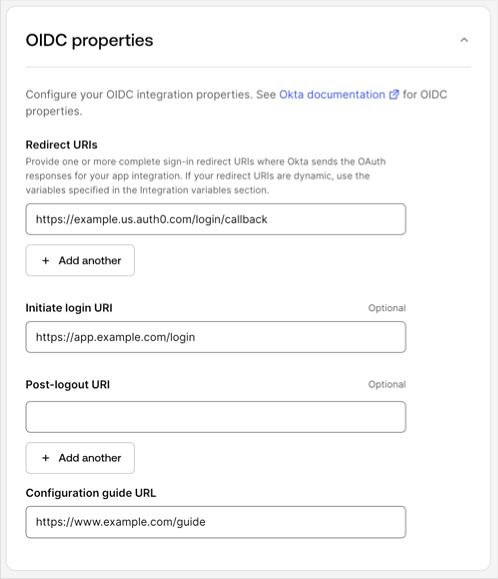
1. Under **OIDC Properties**, set the following fields:
* **Redirect URIs** should be automatically set to the callback URI for your Auth0 tenant. This can use your tenant’s custom domain or your `auth0.com` domain. Example: `https://tenant.auth0.com/login/callback`
* **Initiate Login URI** should be automatically set to the value you configured for your application in Auth0, as described in [Register an application with Initiate Login URI Template](/docs/authenticate/identity-providers/enterprise-identity-providers/okta/express-configuration#register-an-application-with-initiate-login-uri-template).. Okta will use this URL to launch your application from the end-user dashboard. Note that the variable names have been modified to correspond to the integration variables shown on this screen.
* (Optional). Set **Post-Logout URL** to the sign-out redirect URIs for your app. This is the location where you want to send your end user after they sign out of your app. You can use integration variables if your sign-out URI varies per tenant.
* Set **Configuration guide URL** to link to your customer-facing instructions on how to configure SSO between Okta and your app with Express Configuration. To learn more, read [Customer configuration document guidelines](https://developer.okta.com/docs/guides/submit-app-prereq/main/#customer-configuration-document-guidelines).
3. Select **Save**.
4. Return to the **Configure your integration** screen of the Okta portal, and choose **Finish**. This automatically populates many of the required configuration fields for your integration.
#### Complete your integration configuration
1. Under **OIDC Properties**, set the following fields:
* **Redirect URIs** should be automatically set to the callback URI for your Auth0 tenant. This can use your tenant’s custom domain or your `auth0.com` domain. Example: `https://tenant.auth0.com/login/callback`
* **Initiate Login URI** should be automatically set to the value you configured for your application in Auth0, as described in [Register an application with Initiate Login URI Template](/docs/authenticate/identity-providers/enterprise-identity-providers/okta/express-configuration#register-an-application-with-initiate-login-uri-template).. Okta will use this URL to launch your application from the end-user dashboard. Note that the variable names have been modified to correspond to the integration variables shown on this screen.
* (Optional). Set **Post-Logout URL** to the sign-out redirect URIs for your app. This is the location where you want to send your end user after they sign out of your app. You can use integration variables if your sign-out URI varies per tenant.
* Set **Configuration guide URL** to link to your customer-facing instructions on how to configure SSO between Okta and your app with Express Configuration. To learn more, read [Customer configuration document guidelines](https://developer.okta.com/docs/guides/submit-app-prereq/main/#customer-configuration-document-guidelines).
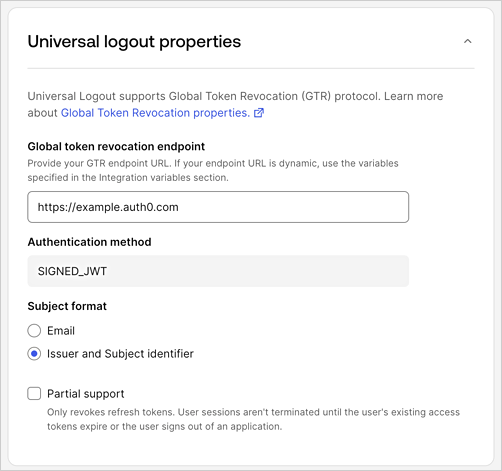
 2. If **Universal Logout** is selected, confirm the following values are set under Universal logout properties:
* The **Global token revocation** endpoint should be automatically set. This value will be dynamically replaced when Express Configuration runs.
* The **Subject format** should be automatically set to **Issuer and Subject identifier**.
* Check **Partial support** if you do not use [OIDC back-channel](https://auth0.com/docs/authenticate/login/logout/universal-logout#revoke-application-user-sessions) logout between Auth0 and your application but your application uses [refresh tokens](/docs/secure/tokens/refresh-tokens).
2. If **Universal Logout** is selected, confirm the following values are set under Universal logout properties:
* The **Global token revocation** endpoint should be automatically set. This value will be dynamically replaced when Express Configuration runs.
* The **Subject format** should be automatically set to **Issuer and Subject identifier**.
* Check **Partial support** if you do not use [OIDC back-channel](https://auth0.com/docs/authenticate/login/logout/universal-logout#revoke-application-user-sessions) logout between Auth0 and your application but your application uses [refresh tokens](/docs/secure/tokens/refresh-tokens).
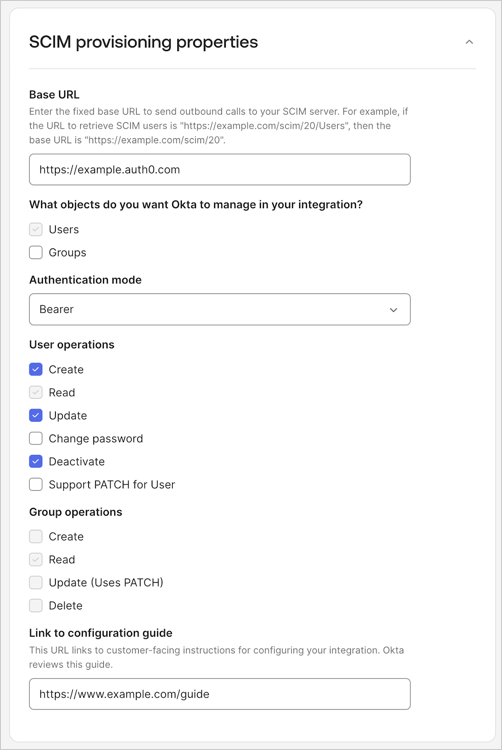
 3. If **SCIM 2.0** is selected, confirm the following values are set under **SCIM provisioning properties**:
* The **Base URL** should be set to an integration variable. This value will be dynamically replaced when Express Configuration runs.
* The **User Operations** should be automatically set to **Create**, **Read**, **Update**, and **Deactivate**.
* Set the link to your customer-facing instructions on how to configure SSO between Okta and your app with Express Configuration. Read [Customer configuration document guidelines](https://developer.okta.com/docs/guides/submit-app-prereq/main/#customer-configuration-document-guidelines).
3. If **SCIM 2.0** is selected, confirm the following values are set under **SCIM provisioning properties**:
* The **Base URL** should be set to an integration variable. This value will be dynamically replaced when Express Configuration runs.
* The **User Operations** should be automatically set to **Create**, **Read**, **Update**, and **Deactivate**.
* Set the link to your customer-facing instructions on how to configure SSO between Okta and your app with Express Configuration. Read [Customer configuration document guidelines](https://developer.okta.com/docs/guides/submit-app-prereq/main/#customer-configuration-document-guidelines).
 4. Select **Get started with testing**.
### Test and verify your integration
After you upload the public key to Auth0, you can test Express Configuration using your Okta Free Integrator organization:
1. Create an Auth0 Organization and username/password account you can share with the Okta OIN Operations team.
* Follow the instructions in the [Example customer enablement flow](/docs/authenticate/identity-providers/enterprise-identity-providers/okta/express-configuration#example-customer-enablement-flow) to create an Auth0 Organization and username/password account for this purpose.
* If needed, perform additional work required in your application to allow the test Organization to log in, such as creating a new application tenant.
2. Once you create a test account, sign in to your Okta Integrator Free organization as a user with either the super admin (`SUPER_ADMIN`) role, or the app (`APP_ADMIN`) and organization (`ORG_ADMIN`) admin [roles](https://developer.okta.com/docs/api/openapi/okta-management/guides/roles/#standard-roles).
3. Navigate to **Applications > Your OIN Integrations** in the Okta admin console. Select the name of your OIN integration.
4. Choose **Configure your integration**. Then choose **Get started with testing.**
5. Set **Account URL** to the login page of your application. An Okta OIN operations engineer navigates to this URL and use the account credentials you provide in the subsequent fields to sign in to your app.
6. Set **Username** and **Password** to be the username and password of a test Organization administrator account you configured for testing Express Configuration.
7. Set **Support Contact** to be the email for Okta to contact your company about your integration. This email isn't exposed in the OIN catalog or to your customers. It is only visible to the internal Okta team.
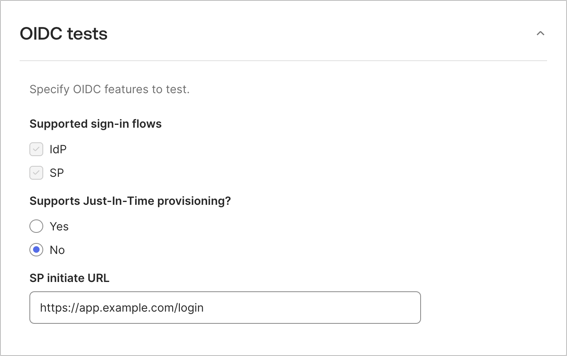
8. Under **OIDC Tests**, select **No** for Just-In Time Provisioning to skip this test, and set **SP Initiate URL** to the initiate login URL of your application instance.
4. Select **Get started with testing**.
### Test and verify your integration
After you upload the public key to Auth0, you can test Express Configuration using your Okta Free Integrator organization:
1. Create an Auth0 Organization and username/password account you can share with the Okta OIN Operations team.
* Follow the instructions in the [Example customer enablement flow](/docs/authenticate/identity-providers/enterprise-identity-providers/okta/express-configuration#example-customer-enablement-flow) to create an Auth0 Organization and username/password account for this purpose.
* If needed, perform additional work required in your application to allow the test Organization to log in, such as creating a new application tenant.
2. Once you create a test account, sign in to your Okta Integrator Free organization as a user with either the super admin (`SUPER_ADMIN`) role, or the app (`APP_ADMIN`) and organization (`ORG_ADMIN`) admin [roles](https://developer.okta.com/docs/api/openapi/okta-management/guides/roles/#standard-roles).
3. Navigate to **Applications > Your OIN Integrations** in the Okta admin console. Select the name of your OIN integration.
4. Choose **Configure your integration**. Then choose **Get started with testing.**
5. Set **Account URL** to the login page of your application. An Okta OIN operations engineer navigates to this URL and use the account credentials you provide in the subsequent fields to sign in to your app.
6. Set **Username** and **Password** to be the username and password of a test Organization administrator account you configured for testing Express Configuration.
7. Set **Support Contact** to be the email for Okta to contact your company about your integration. This email isn't exposed in the OIN catalog or to your customers. It is only visible to the internal Okta team.
8. Under **OIDC Tests**, select **No** for Just-In Time Provisioning to skip this test, and set **SP Initiate URL** to the initiate login URL of your application instance.
 9. Select **Test your integration**.
10. Select **Generate Instance**, then **Done**.
11. Navigate to the **Sign On** tab.
12. To test Express Configuration of Single Sign-On and Universal Logout and select **Express Configure SSO & UL**.
9. Select **Test your integration**.
10. Select **Generate Instance**, then **Done**.
11. Navigate to the **Sign On** tab.
12. To test Express Configuration of Single Sign-On and Universal Logout and select **Express Configure SSO & UL**.
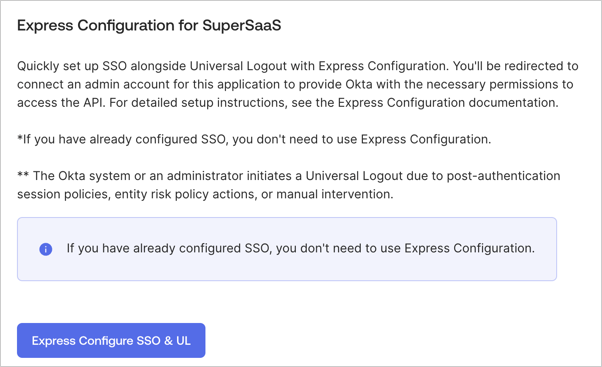 13. Once you are redirected to Auth0's Universal Login page, sign in with your Organization admin account and consent to data sharing.
14. To test SCIM: select **Provisioning**, and then **Express Configure SCIM**. When redirected to Auth0's Universal Login, continue through the consent prompt. Once complete, the SCIM integration is configured.
15. Next, select the **Assignments** tab and assign a user from your Okta Free Integrator organization for which you have credemtials. If a suitable user doesn't exist, then follow instructions to [Add users manually](https://help.okta.com/en-us/content/topics/users-groups-profiles/usgp-add-users.htm). If SCIM is enabled, the user should be provisioned to your Auth0 tenant. Confirm using the Auth0 Dashboard.
16. To test SSO: Use the user account you just assigned and the test instance. Log in with the user account credential.
17. To test Universal Logout: follow the instructions on [Test Universal Logout](/docs/authenticate/login/logout/universal-logout#test-universal-logout).
### Finalize your submission
Basic testing is complete with the previous section. To finalize your submission, your configuration must pass some automated tests:
1. On your application instance, select **Begin Testing** to finalize your submission.
2. Next to the name of the instance you just tested with Express Configuration, select **Add to Tester**.
3. To complete the automated SSO tests, select **Run test** for the **IDP flow** and/or **SP flow** tests. These tests require the Okta Browser Plugin. To learn more, read [OIN Wizard Requirements](https://developer.okta.com/docs/guides/submit-app-prereq/main/#oin-wizard-requirements).
* Sign in with the Okta Free Integration Organization user you assigned to the application instance. The tests passes as soon as the plugin detects you are able to successfully sign in to your application. For more information on these tests, read [Test your integration](https://developer.okta.com/docs/guides/submit-oin-app/openidconnect/main/#test-your-integration).
* If you receive the error message `invalid_request (no connections enabled for the client)` during the login test, wait a few minutes and then try again. Newly-created connections can take a few minutes to work with features like HRD.
4. To complete the required Runscope testing for **SCIM**, follow the instructions on [Test your SCIM API](https://developer.okta.com/docs/guides/submit-oin-app/scim/main/#generate-an-instance-for) using [Okta SCIM 2.0 Spec Tests](https://developer.okta.com/standards/SCIM/SCIMFiles/Okta-SCIM-20-SPEC-Test.json).
* For a second SCIM token, use the **Authentication > Enterprise > Okta > \[your-express-configred-connection] > Provisioning > Sync user profiles using SCIM > Setup** section.
* Once complete, enter the shareable Runscope test URL in the **Link to Runscope spec test results** and **Link to Runscope CRUD test results** fields in the OIN Wizard.
5. When complete, select **Submit Integration**.
## Customer enablement
When your application publishes in the OIN, you can update your product documentation to indicate you support Express Configuration with Okta. Your product documentation should indicate the user roles or user types have permission to perform Express Configuration.
If your application already utilizes Auth0 Organizations with Organization administrator roles as exemplified in the [SaaStart reference application](https://auth0.com/blog/speed-up-your-customer-identity-journey-with-auth0-saastart/), you can add the Express Configuration permissions to that role.
If you have not yet deployed Auth0 Organizations for your customers, or don’t implement administrative users in your application, refer to the example customer onboarding flow.
### Example customer enablement flow
In your customer onboarding process, you should collect:
* The name of the customer’s organization
* Email address of the customer administator who should have permissions to perform Express Configuration
* Verfied email domains the customer's IdP issues for users, including the domains for the administrator
Collect this information manually or using the sign up or onboarding experience for your customers. Use the information to create an Auth0 Organization and admin user account for this customer:
1. Create an Auth0 Organization
2. Create the admin user account in an Auth0 connection, such as database or email passwordless.
3. Associate the connection with the Auth0 Organization. Disable **Membership On Authentication**.
4. Add the admin user account as a member of the Auth0 Organization.
5. Assign an organizational role to the admin user with permissions to perform Express Configuration.
#### Auth0 CLI example
**Initialize Auth0 CLI and authenticate**
Authenticate with Auth0 with [Auth0 CLI](https://auth0.github.io/auth0-cli/auth0_roles_create.html).
```bash theme={null}
auth0 login --scopes "create:users,create:organizations,create:organization_members,create:organization_member_roles,create:organization_connections"
```
**Create an Auth0 Organization**
Input the name of the Organization and a short name without spaces. If you collected multiple email suffixes, add them as Organizational metadata.
```bash theme={null}
auth0 orgs create --json \
--display "organization_display_name" \
--name "organization_short_name" \
--metadata 'domains=["domain1.com", "domain2.com"]'
```
Collect the returned `org_id`.
**Create the Organization admin account**
In this example, you create a user in an email passwordless connection, requiring the [`email`](/docs/authenticate/passwordless/authentication-methods/email-otp) connection type. The command requires inputting the email address of the user you authorize to perform Express Configuration.
```bash theme={null}
auth0 api users \
--data '{"email":"user@example.com","connection":"email", "email_verified":true}'
```
If you are creating this Organization to provide a username and password test account to the Okta OIN operations team, create the test account in either a shared or dedicated database connection:
```bash theme={null}
auth0 api users \
--data '{"email":"user@example.com","connection":"db_connection_name_here", "password": "add_a_long_password_here"}'
```
Collect the returned `user_id`.
**Associate the connection with the Organization**
Retrieve the connection ID:
```bash theme={null}
auth0 api get "connections" -q "name=connection_name_here"
```
Associate the connection ID with the Organization ID, `org_id`.
```bash theme={null}
auth0 api post "organizations/org_id_here/enabled_connections" \
--data '{ "connection_id": "connection_id_here" };
```
**Add the admin user as a member of the Organization**
You need the `org_id` and `user_id`.
```bash theme={null}
auth0 api post "organizations/org_id_here/members" \
--data '{ "members": ["user_id__here"] }'
```
**Assign the Organization role with Express Configuration permissions**
Retrieve the role ID with Express Configuration permissions as configured in [Assign express configuration permissions to users](/docs/authenticate/identity-providers/enterprise-identity-providers/okta/express-configuration#assign-permissions-to-users).
```bash theme={null}
auth0 api get "roles" -q "name_filter=role_name_here"
```
Assign the role ID to the `user_id` and `org_id`.
```bash theme={null}
auth0 api post "organizations/org_id_here/members/user_id_here/roles" --data '{ "roles": ["role_id_here"] }'
```
Once complete, your customer can use the Organization administrator account to perform Express Configuration in their Okta organization with your [OIN integration](/docs/authenticate/identity-providers/enterprise-identity-providers/okta/express-configuration#publish-your-integration-to-the-oin).
### Recommendations to provision admin accounts
Whether you are using existing user accounts or deploying new ones to enable Express Configuration, follow the recommendations below.
#### Use work email
Whether the non-federated admin account is a database, passwordless email, or social user account, it is best to have the value of the `email` attribute match the user’s work email address that will be provisioned with their Okta Enterprise user account (example: `john@mycompany.com`).
Auth0 also recommends to verify these email addresses using an [email verification flow](/docs/manage-users/user-accounts/verify-emails).
#### Use multi-factor authentication
You can add an additional layer of security to the Express Configuration flow by requiring multi-factor authentication at each login.
The example [Post-Login Action](/docs/customize/actions/explore-triggers/signup-and-login-triggers/login-trigger) demonstrates how you can conditionally challenge for factors like [WebAuthN with device biometrics](/docs/secure/multi-factor-authentication/fido-authentication-with-webauthn/configure-webauthn-device-biometrics-for-mfa) and [one-time password delivered over email](/docs/secure/multi-factor-authentication/multi-factor-authentication-factors/configure-email-notifications-for-mfa) each time Express Configuration runs.
The example Action requires [enabling these factors](/docs/secure/multi-factor-authentication/enable-mfa#enable-mfa-in-the-auth0-dashboard) in your Auth0 tenant and selecting the **Customize MFA Factors using Actions** option.
```javascript theme={null}
exports.onExecutePostLogin = async (event, api) => {
if (event.resource_server && event.resource_server.identifier === "urn:auth0:express-configure") {
api.multifactor.enable('any');
api.authentication.challengeWith({ type: 'email' });
if (!event.user.enrolledFactors.some(m => m.type === 'webauthn-platform')) {
api.authentication.enrollWith({type: 'webauthn-platform'});
} else {
api.authentication.challengeWith({type: 'webauthn-platform'});
}
}
}
```
### Monitor Express Configuration usage
Express Configuration usage can be observed in the [Auth0 tenant logs](/docs/deploy-monitor/logs) by filtering on the **OIN Client ID** for each application you have configured. This includes all admin user login activity, as well as all API operations to create and manage the Okta Enterprise connections.
The OIN Client ID for your application can be viewed in these places:
* In the **Applications > \[Application] > Okta Integration Network > Create OIN Integration** section of the Auth0 Dashboard.
* In the `express_configuration.okta_oin_client_id` property of your application when viewed in the [Auth0 Management API](https://auth0.com/docs/api/management/v2/clients/get-clients-by-id).
To learn more on searching logs with Client ID, read [Log Search Query Syntax](/docs/deploy-monitor/logs/log-search-query-syntax).
## Limitations
* Only one Auth0 tenant can be used in a single OIN integration. If the same application is deployed in multiple Auth0 regions, each region requires its own OIN integration
* One OIN integration in one Okta organization can create one unique Okta connection in one corresponding Auth0 organization. Express configuration is not supported for more than one instance of an OIN application within an Okta organization
* Each unique integration listed in the OIN creates an independent Okta connection. If you have multiple applications that require an [Identifier-First login experience](https://auth0.com/docs/authenticate/login/auth0-universal-login/identifier-first) with home realm discovery, we recommend publishing [multiple applications under a single integration](/docs/authenticate/identity-providers/enterprise-identity-providers/okta/express-configuration#enable-multiple-applications-under-a-single-integration).
* When enabling [multiple applications under a single integration](/docs/authenticate/identity-providers/enterprise-identity-providers/okta/express-configuration#enable-multiple-applications-under-a-single-integration), Okta only shows the main OIN application in its [end-user dashboard](https://help.okta.com/en-us/content/topics/settings/new-dashboard-overview.htm).
## Management API reference
To use [Management API](https://auth0.com/docs/api/management/v2) instead of Auth0 Dashboard to enable Express Configuration for a given application, use the examples below.
### Create the Okta OIN Express Configuration System API
Registers the resource server which will be used to authenticate Organization Admins. This is only required if the dashboard was never used to set up Express Configuration for apps in a tenant.
Example:
```curl theme={null}
POST /api/v2/resource-servers
{
"name": "Okta OIN Express Configuration API",
"identifier": "urn:auth0:express-configure"
}
```
[Endpoint reference](/docs/api/management/v2/resource-servers/post-resource-servers)
### Create User Attribute Profile
Creates a [User Attribute Profile](/docs/authenticate/enterprise-connections/user-attribute-profile). This step is only required if there are no existing profiles, or the developer wishes to use a custom profile.
To start from a set of defaults for the User Attribute profile, call the `GET /api/v2/user-attribute-profiles/templates` endpoint first and use the response in the body of the call to create the User Attribute Profile.
Example:
```curl theme={null}
GET /api/v2/user-attribute-profiles/templates
```
[Endpoint reference](https://auth0.com/docs/api/management/v2/user-attribute-profiles/post-user-attribute-profiles)
```curl theme={null}
POST /api/v2/user-attribute-profiles
{
"name": "Okta OIN Express Configuration API",
"identifier": "urn:auth0:express-configure"
}
```
[Endpoint reference](https://auth0.com/docs/api/management/v2/user-attribute-profiles/post-user-attribute-profiles)
### Create Connection Profile
Create a Connection Profile. This step is only required if there are no existing profiles or the developer wants to use a custom profile.
To start from a set of defaults for the Connection profile, call the `GET /api/v2/connection-profiles/templates` endpoint and use the response in the body of the call to create the Connection Profile.
Example:
```curl theme={null}
GET /api/v2/connection-profiles/templates
```
[Endpoint reference](https://auth0.com/docs/api/management/v2/connection-profiles/get-connection-profile-templates)
```curl theme={null}
POST /api/v2/connection-profile
{
"name": "Okta OIN Express Configuration API",
"identifier": "urn:auth0:express-configure"
}
```
[Endpoint reference](https://auth0.com/docs/api/management/v2/connection-profiles/post-connection-profiles)
### Create OIN Express Configuration Client
Create the service application that Okta will use during Express Configuration for a given application. This client must be created with the properties shown in the example below.
The `organization_require_behavior` attribute may be customized with one of the values below, which are also explained in [Administrator login and consent settings](/docs/authenticate/identity-providers/enterprise-identity-providers/okta/express-configuration#administrator-login-and-consent-settings).
* `pre_login_prompt`: Prompts for the admin’s organization prior to prompting for credentials.
* `post_login_prompt`: Prompts for the admin’s credentials. For this option, use the `PATCH /api/v2/connections/{id}` endpoint to add the Client ID of the OIN client to the `enabled_clients` property of the connection(s) containing the admin accounts.
Example:
```curl theme={null}
POST /api/v2/clients
{
"name": "Okta OIN Express Configuration",
"app_type": "express_configuration",
"organization_require_behavior": "pre_login_prompt",
"client_authentication_methods": {
"private_key_jwt": {
"credentials": []
}
}
}
```
[Endpoint reference](https://auth0.com/docs/api/management/v2/clients/post-clients)
### Configure SaaS application properties
Set the configuration values for the `express_configuration` property on the registered application that will be published to the OIN. Replace the values in the examples with a valid Connection Profile ID, User Attribute Profile ID, OIN client application ID, initiate login URI, and Auth0 tenant domain to use for this integration.
The `linked_clients` attribute corresponds to the setting described in [Enable multiple applications under a single integration](/docs/authenticate/identity-providers/enterprise-identity-providers/okta/express-configuration#enable-multiple-applications-under-a-single-integration).
The `enable_client` attribute corresponds to the setting for `enabled_clients` described in [Organization login settings](/docs/authenticate/identity-providers/enterprise-identity-providers/okta/express-configuration#organization-login-settings).
The `enable_organization` attribute should normally be set to `true`, unless you aren't assigning created connections to their organizations. The Okta app instance can still manage the connection, but Okta users will not become members of the Auth0 Organization. Setting this to false can be useful in the case described in [Maintain admin account matching across connections](/docs/authenticate/identity-providers/enterprise-identity-providers/okta/express-configuration#maintain-admin-account-matching-across-connections).
Example:
```curl theme={null}
PATCH /api/v2/clients/{id}
{
"express_configuration": {
"admin_login_domain": "yourAuth0TenantDomain",
"connection_profile_id": "yourConnectionProfileId",
"enable_client": true,
"enable_organization": true,
"initiate_login_uri_template": "yourInitiateLoginUriTemplate",
"okta_oin_client_id": "yourOinClientId",
"user_attribute_profile_id": "yourConnectionProfileId",
"linked_clients": [
{ "client_id": "KJM86F2susguvsasSeAsIxxxxxxxxxxx" },
{ "client_id": "FIXwZCf5iUElvqy6eidlfxxxxxxxxxxx" }
]
}
}
```
[Endpoint reference](https://auth0.com/docs/api/management/v2/clients/patch-clients-by-id)
### Upload Public Key
Upload the public key provided by the Okta team as a credential of the OIN client application.
Example:
```curl theme={null}
POST /api/v2/clients/{oin_client_id}/credentials
{
"credential_type": "public_key",
"pem": "-----BEGIN PUBLIC KEY-----\nMIGf..."
}
```
[Endpoint reference](https://auth0.com/docs/api/management/v2/clients/post-credentials)
### Assign keys to OIN client application
Assign the uploaded public keys from Okta to the OIN service client. Replace `yourCredentialId` with the credential ID received in the previous step.
Example:
```curl theme={null}
PATCH /api/v2/clients/{oin_client_id}
{
"client_authentication_methods": {
"private_key_jwt": {
"credentials": [
{
"id": "yourCredentialId",
}
]
}
}
}
```
[Endpoint reference](https://auth0.com/docs/api/management/v2/clients/patch-clients-by-id)
### Customize your tenants consent prompt
Update tenant settings to display the scope details on the consent page. These settings improve the user experience by providing information about the permissions being granted. This is not required but recommended.
Example:
```curl theme={null}
PATCH /api/v2/tenants/settings
{
"flags": { "use_scope_descriptions_for_consent": true }
}
```
[Endpoint reference](https://auth0.com/docs/api/management/v2/tenants/patch-settings)
13. Once you are redirected to Auth0's Universal Login page, sign in with your Organization admin account and consent to data sharing.
14. To test SCIM: select **Provisioning**, and then **Express Configure SCIM**. When redirected to Auth0's Universal Login, continue through the consent prompt. Once complete, the SCIM integration is configured.
15. Next, select the **Assignments** tab and assign a user from your Okta Free Integrator organization for which you have credemtials. If a suitable user doesn't exist, then follow instructions to [Add users manually](https://help.okta.com/en-us/content/topics/users-groups-profiles/usgp-add-users.htm). If SCIM is enabled, the user should be provisioned to your Auth0 tenant. Confirm using the Auth0 Dashboard.
16. To test SSO: Use the user account you just assigned and the test instance. Log in with the user account credential.
17. To test Universal Logout: follow the instructions on [Test Universal Logout](/docs/authenticate/login/logout/universal-logout#test-universal-logout).
### Finalize your submission
Basic testing is complete with the previous section. To finalize your submission, your configuration must pass some automated tests:
1. On your application instance, select **Begin Testing** to finalize your submission.
2. Next to the name of the instance you just tested with Express Configuration, select **Add to Tester**.
3. To complete the automated SSO tests, select **Run test** for the **IDP flow** and/or **SP flow** tests. These tests require the Okta Browser Plugin. To learn more, read [OIN Wizard Requirements](https://developer.okta.com/docs/guides/submit-app-prereq/main/#oin-wizard-requirements).
* Sign in with the Okta Free Integration Organization user you assigned to the application instance. The tests passes as soon as the plugin detects you are able to successfully sign in to your application. For more information on these tests, read [Test your integration](https://developer.okta.com/docs/guides/submit-oin-app/openidconnect/main/#test-your-integration).
* If you receive the error message `invalid_request (no connections enabled for the client)` during the login test, wait a few minutes and then try again. Newly-created connections can take a few minutes to work with features like HRD.
4. To complete the required Runscope testing for **SCIM**, follow the instructions on [Test your SCIM API](https://developer.okta.com/docs/guides/submit-oin-app/scim/main/#generate-an-instance-for) using [Okta SCIM 2.0 Spec Tests](https://developer.okta.com/standards/SCIM/SCIMFiles/Okta-SCIM-20-SPEC-Test.json).
* For a second SCIM token, use the **Authentication > Enterprise > Okta > \[your-express-configred-connection] > Provisioning > Sync user profiles using SCIM > Setup** section.
* Once complete, enter the shareable Runscope test URL in the **Link to Runscope spec test results** and **Link to Runscope CRUD test results** fields in the OIN Wizard.
5. When complete, select **Submit Integration**.
## Customer enablement
When your application publishes in the OIN, you can update your product documentation to indicate you support Express Configuration with Okta. Your product documentation should indicate the user roles or user types have permission to perform Express Configuration.
If your application already utilizes Auth0 Organizations with Organization administrator roles as exemplified in the [SaaStart reference application](https://auth0.com/blog/speed-up-your-customer-identity-journey-with-auth0-saastart/), you can add the Express Configuration permissions to that role.
If you have not yet deployed Auth0 Organizations for your customers, or don’t implement administrative users in your application, refer to the example customer onboarding flow.
### Example customer enablement flow
In your customer onboarding process, you should collect:
* The name of the customer’s organization
* Email address of the customer administator who should have permissions to perform Express Configuration
* Verfied email domains the customer's IdP issues for users, including the domains for the administrator
Collect this information manually or using the sign up or onboarding experience for your customers. Use the information to create an Auth0 Organization and admin user account for this customer:
1. Create an Auth0 Organization
2. Create the admin user account in an Auth0 connection, such as database or email passwordless.
3. Associate the connection with the Auth0 Organization. Disable **Membership On Authentication**.
4. Add the admin user account as a member of the Auth0 Organization.
5. Assign an organizational role to the admin user with permissions to perform Express Configuration.
#### Auth0 CLI example
**Initialize Auth0 CLI and authenticate**
Authenticate with Auth0 with [Auth0 CLI](https://auth0.github.io/auth0-cli/auth0_roles_create.html).
```bash theme={null}
auth0 login --scopes "create:users,create:organizations,create:organization_members,create:organization_member_roles,create:organization_connections"
```
**Create an Auth0 Organization**
Input the name of the Organization and a short name without spaces. If you collected multiple email suffixes, add them as Organizational metadata.
```bash theme={null}
auth0 orgs create --json \
--display "organization_display_name" \
--name "organization_short_name" \
--metadata 'domains=["domain1.com", "domain2.com"]'
```
Collect the returned `org_id`.
**Create the Organization admin account**
In this example, you create a user in an email passwordless connection, requiring the [`email`](/docs/authenticate/passwordless/authentication-methods/email-otp) connection type. The command requires inputting the email address of the user you authorize to perform Express Configuration.
```bash theme={null}
auth0 api users \
--data '{"email":"user@example.com","connection":"email", "email_verified":true}'
```
If you are creating this Organization to provide a username and password test account to the Okta OIN operations team, create the test account in either a shared or dedicated database connection:
```bash theme={null}
auth0 api users \
--data '{"email":"user@example.com","connection":"db_connection_name_here", "password": "add_a_long_password_here"}'
```
Collect the returned `user_id`.
**Associate the connection with the Organization**
Retrieve the connection ID:
```bash theme={null}
auth0 api get "connections" -q "name=connection_name_here"
```
Associate the connection ID with the Organization ID, `org_id`.
```bash theme={null}
auth0 api post "organizations/org_id_here/enabled_connections" \
--data '{ "connection_id": "connection_id_here" };
```
**Add the admin user as a member of the Organization**
You need the `org_id` and `user_id`.
```bash theme={null}
auth0 api post "organizations/org_id_here/members" \
--data '{ "members": ["user_id__here"] }'
```
**Assign the Organization role with Express Configuration permissions**
Retrieve the role ID with Express Configuration permissions as configured in [Assign express configuration permissions to users](/docs/authenticate/identity-providers/enterprise-identity-providers/okta/express-configuration#assign-permissions-to-users).
```bash theme={null}
auth0 api get "roles" -q "name_filter=role_name_here"
```
Assign the role ID to the `user_id` and `org_id`.
```bash theme={null}
auth0 api post "organizations/org_id_here/members/user_id_here/roles" --data '{ "roles": ["role_id_here"] }'
```
Once complete, your customer can use the Organization administrator account to perform Express Configuration in their Okta organization with your [OIN integration](/docs/authenticate/identity-providers/enterprise-identity-providers/okta/express-configuration#publish-your-integration-to-the-oin).
### Recommendations to provision admin accounts
Whether you are using existing user accounts or deploying new ones to enable Express Configuration, follow the recommendations below.
#### Use work email
Whether the non-federated admin account is a database, passwordless email, or social user account, it is best to have the value of the `email` attribute match the user’s work email address that will be provisioned with their Okta Enterprise user account (example: `john@mycompany.com`).
Auth0 also recommends to verify these email addresses using an [email verification flow](/docs/manage-users/user-accounts/verify-emails).
#### Use multi-factor authentication
You can add an additional layer of security to the Express Configuration flow by requiring multi-factor authentication at each login.
The example [Post-Login Action](/docs/customize/actions/explore-triggers/signup-and-login-triggers/login-trigger) demonstrates how you can conditionally challenge for factors like [WebAuthN with device biometrics](/docs/secure/multi-factor-authentication/fido-authentication-with-webauthn/configure-webauthn-device-biometrics-for-mfa) and [one-time password delivered over email](/docs/secure/multi-factor-authentication/multi-factor-authentication-factors/configure-email-notifications-for-mfa) each time Express Configuration runs.
The example Action requires [enabling these factors](/docs/secure/multi-factor-authentication/enable-mfa#enable-mfa-in-the-auth0-dashboard) in your Auth0 tenant and selecting the **Customize MFA Factors using Actions** option.
```javascript theme={null}
exports.onExecutePostLogin = async (event, api) => {
if (event.resource_server && event.resource_server.identifier === "urn:auth0:express-configure") {
api.multifactor.enable('any');
api.authentication.challengeWith({ type: 'email' });
if (!event.user.enrolledFactors.some(m => m.type === 'webauthn-platform')) {
api.authentication.enrollWith({type: 'webauthn-platform'});
} else {
api.authentication.challengeWith({type: 'webauthn-platform'});
}
}
}
```
### Monitor Express Configuration usage
Express Configuration usage can be observed in the [Auth0 tenant logs](/docs/deploy-monitor/logs) by filtering on the **OIN Client ID** for each application you have configured. This includes all admin user login activity, as well as all API operations to create and manage the Okta Enterprise connections.
The OIN Client ID for your application can be viewed in these places:
* In the **Applications > \[Application] > Okta Integration Network > Create OIN Integration** section of the Auth0 Dashboard.
* In the `express_configuration.okta_oin_client_id` property of your application when viewed in the [Auth0 Management API](https://auth0.com/docs/api/management/v2/clients/get-clients-by-id).
To learn more on searching logs with Client ID, read [Log Search Query Syntax](/docs/deploy-monitor/logs/log-search-query-syntax).
## Limitations
* Only one Auth0 tenant can be used in a single OIN integration. If the same application is deployed in multiple Auth0 regions, each region requires its own OIN integration
* One OIN integration in one Okta organization can create one unique Okta connection in one corresponding Auth0 organization. Express configuration is not supported for more than one instance of an OIN application within an Okta organization
* Each unique integration listed in the OIN creates an independent Okta connection. If you have multiple applications that require an [Identifier-First login experience](https://auth0.com/docs/authenticate/login/auth0-universal-login/identifier-first) with home realm discovery, we recommend publishing [multiple applications under a single integration](/docs/authenticate/identity-providers/enterprise-identity-providers/okta/express-configuration#enable-multiple-applications-under-a-single-integration).
* When enabling [multiple applications under a single integration](/docs/authenticate/identity-providers/enterprise-identity-providers/okta/express-configuration#enable-multiple-applications-under-a-single-integration), Okta only shows the main OIN application in its [end-user dashboard](https://help.okta.com/en-us/content/topics/settings/new-dashboard-overview.htm).
## Management API reference
To use [Management API](https://auth0.com/docs/api/management/v2) instead of Auth0 Dashboard to enable Express Configuration for a given application, use the examples below.
### Create the Okta OIN Express Configuration System API
Registers the resource server which will be used to authenticate Organization Admins. This is only required if the dashboard was never used to set up Express Configuration for apps in a tenant.
Example:
```curl theme={null}
POST /api/v2/resource-servers
{
"name": "Okta OIN Express Configuration API",
"identifier": "urn:auth0:express-configure"
}
```
[Endpoint reference](/docs/api/management/v2/resource-servers/post-resource-servers)
### Create User Attribute Profile
Creates a [User Attribute Profile](/docs/authenticate/enterprise-connections/user-attribute-profile). This step is only required if there are no existing profiles, or the developer wishes to use a custom profile.
To start from a set of defaults for the User Attribute profile, call the `GET /api/v2/user-attribute-profiles/templates` endpoint first and use the response in the body of the call to create the User Attribute Profile.
Example:
```curl theme={null}
GET /api/v2/user-attribute-profiles/templates
```
[Endpoint reference](https://auth0.com/docs/api/management/v2/user-attribute-profiles/post-user-attribute-profiles)
```curl theme={null}
POST /api/v2/user-attribute-profiles
{
"name": "Okta OIN Express Configuration API",
"identifier": "urn:auth0:express-configure"
}
```
[Endpoint reference](https://auth0.com/docs/api/management/v2/user-attribute-profiles/post-user-attribute-profiles)
### Create Connection Profile
Create a Connection Profile. This step is only required if there are no existing profiles or the developer wants to use a custom profile.
To start from a set of defaults for the Connection profile, call the `GET /api/v2/connection-profiles/templates` endpoint and use the response in the body of the call to create the Connection Profile.
Example:
```curl theme={null}
GET /api/v2/connection-profiles/templates
```
[Endpoint reference](https://auth0.com/docs/api/management/v2/connection-profiles/get-connection-profile-templates)
```curl theme={null}
POST /api/v2/connection-profile
{
"name": "Okta OIN Express Configuration API",
"identifier": "urn:auth0:express-configure"
}
```
[Endpoint reference](https://auth0.com/docs/api/management/v2/connection-profiles/post-connection-profiles)
### Create OIN Express Configuration Client
Create the service application that Okta will use during Express Configuration for a given application. This client must be created with the properties shown in the example below.
The `organization_require_behavior` attribute may be customized with one of the values below, which are also explained in [Administrator login and consent settings](/docs/authenticate/identity-providers/enterprise-identity-providers/okta/express-configuration#administrator-login-and-consent-settings).
* `pre_login_prompt`: Prompts for the admin’s organization prior to prompting for credentials.
* `post_login_prompt`: Prompts for the admin’s credentials. For this option, use the `PATCH /api/v2/connections/{id}` endpoint to add the Client ID of the OIN client to the `enabled_clients` property of the connection(s) containing the admin accounts.
Example:
```curl theme={null}
POST /api/v2/clients
{
"name": "Okta OIN Express Configuration",
"app_type": "express_configuration",
"organization_require_behavior": "pre_login_prompt",
"client_authentication_methods": {
"private_key_jwt": {
"credentials": []
}
}
}
```
[Endpoint reference](https://auth0.com/docs/api/management/v2/clients/post-clients)
### Configure SaaS application properties
Set the configuration values for the `express_configuration` property on the registered application that will be published to the OIN. Replace the values in the examples with a valid Connection Profile ID, User Attribute Profile ID, OIN client application ID, initiate login URI, and Auth0 tenant domain to use for this integration.
The `linked_clients` attribute corresponds to the setting described in [Enable multiple applications under a single integration](/docs/authenticate/identity-providers/enterprise-identity-providers/okta/express-configuration#enable-multiple-applications-under-a-single-integration).
The `enable_client` attribute corresponds to the setting for `enabled_clients` described in [Organization login settings](/docs/authenticate/identity-providers/enterprise-identity-providers/okta/express-configuration#organization-login-settings).
The `enable_organization` attribute should normally be set to `true`, unless you aren't assigning created connections to their organizations. The Okta app instance can still manage the connection, but Okta users will not become members of the Auth0 Organization. Setting this to false can be useful in the case described in [Maintain admin account matching across connections](/docs/authenticate/identity-providers/enterprise-identity-providers/okta/express-configuration#maintain-admin-account-matching-across-connections).
Example:
```curl theme={null}
PATCH /api/v2/clients/{id}
{
"express_configuration": {
"admin_login_domain": "yourAuth0TenantDomain",
"connection_profile_id": "yourConnectionProfileId",
"enable_client": true,
"enable_organization": true,
"initiate_login_uri_template": "yourInitiateLoginUriTemplate",
"okta_oin_client_id": "yourOinClientId",
"user_attribute_profile_id": "yourConnectionProfileId",
"linked_clients": [
{ "client_id": "KJM86F2susguvsasSeAsIxxxxxxxxxxx" },
{ "client_id": "FIXwZCf5iUElvqy6eidlfxxxxxxxxxxx" }
]
}
}
```
[Endpoint reference](https://auth0.com/docs/api/management/v2/clients/patch-clients-by-id)
### Upload Public Key
Upload the public key provided by the Okta team as a credential of the OIN client application.
Example:
```curl theme={null}
POST /api/v2/clients/{oin_client_id}/credentials
{
"credential_type": "public_key",
"pem": "-----BEGIN PUBLIC KEY-----\nMIGf..."
}
```
[Endpoint reference](https://auth0.com/docs/api/management/v2/clients/post-credentials)
### Assign keys to OIN client application
Assign the uploaded public keys from Okta to the OIN service client. Replace `yourCredentialId` with the credential ID received in the previous step.
Example:
```curl theme={null}
PATCH /api/v2/clients/{oin_client_id}
{
"client_authentication_methods": {
"private_key_jwt": {
"credentials": [
{
"id": "yourCredentialId",
}
]
}
}
}
```
[Endpoint reference](https://auth0.com/docs/api/management/v2/clients/patch-clients-by-id)
### Customize your tenants consent prompt
Update tenant settings to display the scope details on the consent page. These settings improve the user experience by providing information about the permissions being granted. This is not required but recommended.
Example:
```curl theme={null}
PATCH /api/v2/tenants/settings
{
"flags": { "use_scope_descriptions_for_consent": true }
}
```
[Endpoint reference](https://auth0.com/docs/api/management/v2/tenants/patch-settings)