> ## Documentation Index
> Fetch the complete documentation index at: https://auth0.com/llms.txt
> Use this file to discover all available pages before exploring further.
> Learn how to create an enterprise connection between a PingFederate Server and Auth0.
# Connect Your PingFederate Server to Auth0
Auth0 lets you create [PingFederate Server](https://documentation.pingidentity.com/pingfederate/pf84/#gettingStartedGuide/concept/gettingStarted.html) connections.
## Prerequisites
Before beginning:
* [Register your Application with Auth0](/docs/get-started/auth0-overview/create-applications).
* Select an appropriate **Application Type**.
* Add an **Allowed Callback URL** of **`{https://yourApp/callback}`**.
* Make sure your Application's [Grant Types](/docs/get-started/applications/update-grant-types) include the appropriate flows.
## Steps
As long as your server is configured in the standard way, to connect your PingFederate server to Auth0 you must:
1. [Get the signing certificate from the IdP](#get-the-signing-certificate-from-the-idp) and [convert it to Base64](#convert-signing-certificate-to-base64).
2. [Create an enterprise connection in Auth0](#create-an-enterprise-connection-in-auth0).
3. [Enable the enterprise connection for your Auth0 Application](#enable-the-enterprise-connection-for-your-auth0-application).
4. [Test the connection](#test-the-connection).
If additional setup is required for your server (such as attribute mapping), then you must [create a new SAML enterprise connection](/docs/authenticate/identity-providers/enterprise-identity-providers/saml) instead.
## Get the signing certificate from the IdP
With PingFederate Server, Auth0 acts as the service provider, so you will need to retrieve an X.509 signing certificate from the IdP (in PEM or CER format); later, you will upload this to Auth0. The methods for retrieving this certificate vary, so please see the [PingFederate documentation](https://documentation.pingidentity.com/pingfederate/pf84/index.shtml#concept_digitalSignatureSettings.html) for instructions on managing your server's certificates.
### Convert signing certificate to Base64
Before you upload the X.509 signing certificate to Auth0, you must convert the file to Base64. To do this, either use a [simple online tool](https://www.base64decode.org/) or run the following command in Bash: `cat signing-cert.crt | base64`.
## Assertion encryption
If your SAML assertions are encrypted, you must [set additional values](/docs/authenticate/protocols/saml/saml-sso-integrations/algorithm-profiles) for your connection to tell Auth0 how to handle decryption.
## Create an enterprise connection in Auth0
Next, if your server is configured in the standard way, you will need to create and configure a PingFederate Enterprise Connection in Auth0 and upload your X.509 signing certificate. This task can be performed using Auth0's Dashboard.
If additional setup is required for your server (such as attribute mapping), then you must [create a new SAML enterprise connection](/docs/authenticate/identity-providers/enterprise-identity-providers/saml) instead.
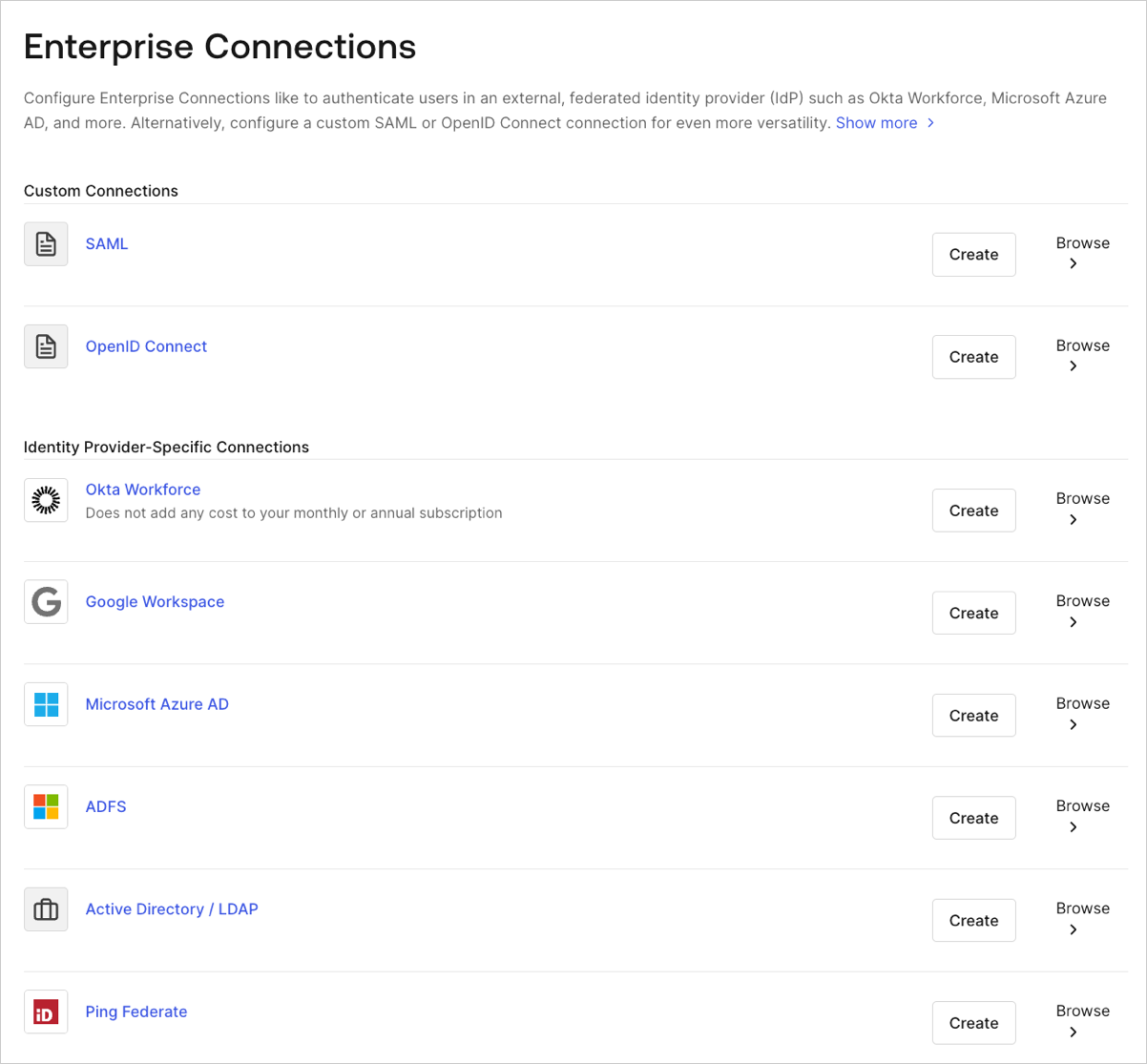
1. Navigate to [Auth0 Dashboard > Authentication > Enterprise](https://manage.auth0.com/#/connections/enterprise), locate **Ping Federate**, and select its `+`.
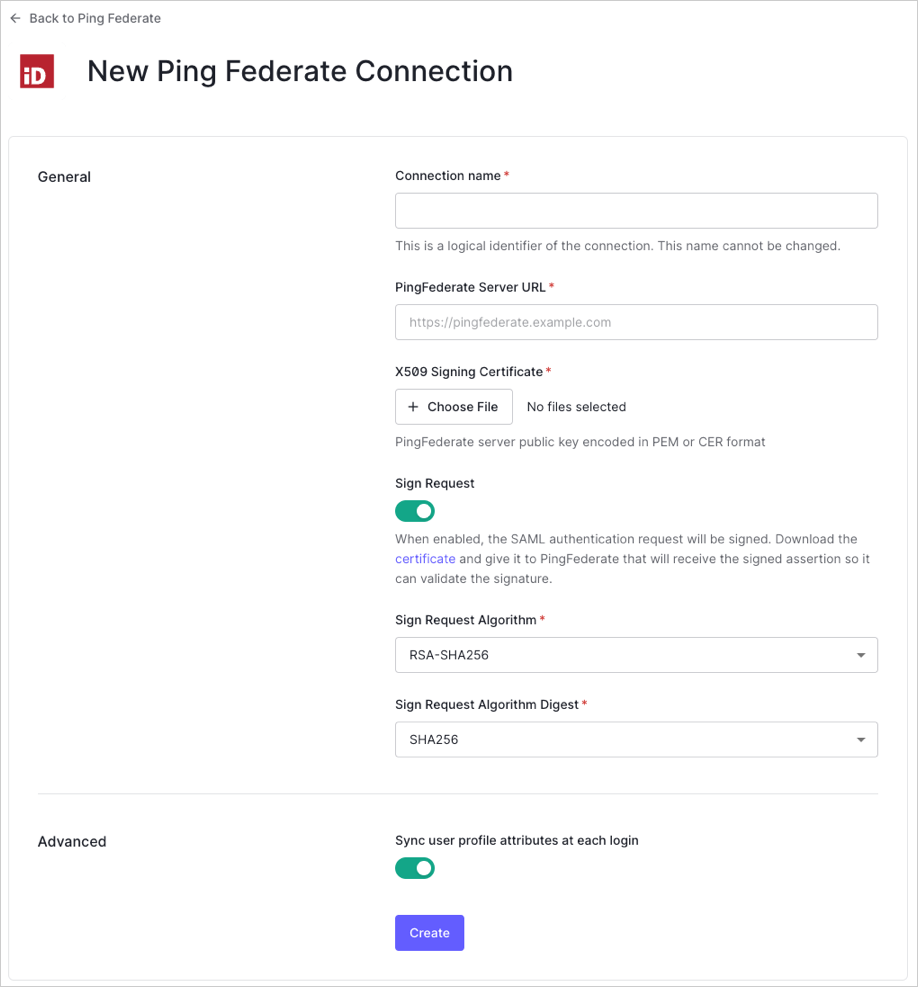
 2. Enter details for your connection, and select **Create:**
| Field | Description |
| ---------------------------------------------- | ---------------------------------------------------------------------------------------------------------------------------------------------------------------------------------------------------------------------------------------------------------------------------------------------------------------------------------------------------------------------------------------------------------------------------------------------------------------------------- |
| **Connection name** | Logical identifier for your connection; it must be unique for your tenant. Once set, this name can't be changed. |
| **PingFederate Server URL** | URL for your PingFederate Server. |
| **X.509 Signing Certificate** | PingFederate Server public key (encoded in PEM or CER) you retrieved from the IdP earlier in this process. |
| **Sign Request** | When enabled, the SAML authentication request will be signed. (Be sure to download and provide the PingFederate server with your [tenant's certificate](https://\{yourDomain}/pem).) If your SAML assertions are encrypted, you must [set additional values](/docs/authenticate/protocols/saml/saml-sso-integrations/algorithm-profiles) for your connection to tell Auth0 how to handle decryption. |
| **Sign Request Algorithm** | Algorithm Auth0 will use to sign the SAML assertions. Ensure this matches your PingFederate Server's configuration. |
| **Sign Request Digest Algorithm** | Algorithm Auth0 will use for the sign request digest. Ensure this matches your PingFederate Server's configuration. |
| **Sync user profile attributes at each login** | When enabled, Auth0 automatically syncs user profile data with each user login, thereby ensuring that changes made in the connection source are automatically updated in Auth0. |
2. Enter details for your connection, and select **Create:**
| Field | Description |
| ---------------------------------------------- | ---------------------------------------------------------------------------------------------------------------------------------------------------------------------------------------------------------------------------------------------------------------------------------------------------------------------------------------------------------------------------------------------------------------------------------------------------------------------------- |
| **Connection name** | Logical identifier for your connection; it must be unique for your tenant. Once set, this name can't be changed. |
| **PingFederate Server URL** | URL for your PingFederate Server. |
| **X.509 Signing Certificate** | PingFederate Server public key (encoded in PEM or CER) you retrieved from the IdP earlier in this process. |
| **Sign Request** | When enabled, the SAML authentication request will be signed. (Be sure to download and provide the PingFederate server with your [tenant's certificate](https://\{yourDomain}/pem).) If your SAML assertions are encrypted, you must [set additional values](/docs/authenticate/protocols/saml/saml-sso-integrations/algorithm-profiles) for your connection to tell Auth0 how to handle decryption. |
| **Sign Request Algorithm** | Algorithm Auth0 will use to sign the SAML assertions. Ensure this matches your PingFederate Server's configuration. |
| **Sign Request Digest Algorithm** | Algorithm Auth0 will use for the sign request digest. Ensure this matches your PingFederate Server's configuration. |
| **Sync user profile attributes at each login** | When enabled, Auth0 automatically syncs user profile data with each user login, thereby ensuring that changes made in the connection source are automatically updated in Auth0. |
 3\. In the **Login Experience** view, configure how users log in with this connection.
| Field | Description |
| ---------------------------------- | ------------------------------------------------------------------------------------------------------------------------------------------------------------------------------------------------------------------- |
| **Home Realm Discovery** | Compares a user's email domain with the provided identity provider domains. For more information, read [Configure Identifier First Authentication](/docs/authenticate/login/auth0-universal-login/identifier-first) |
| **Display connection button** | This option displays the following choices to customize your application's connection button. |
| **Button display name** (Optional) | Text used to customize the login button for Universal Login. When set the button reads: "Continue with \{Button display name}". |
| **Button logo URL** (Optional) | URL of image used to customize the login button for Universal Login. When set, the Universal Login login button displays the image as a 20px by 20px square. |
Optional fields are available with Universal Login only. Customers using Classic Login will not see the Add button, Button display name, or Button logo URL.
## Enable the enterprise connection for your Auth0 application
To use your new PingFederate enterprise connection, you must first [enable the connection](/docs/authenticate/identity-providers/enterprise-identity-providers/enable-enterprise-connections) for your Auth0 Applications.
## Test the connection
Now you're ready to [test your connection](/docs/authenticate/identity-providers/enterprise-identity-providers/test-enterprise-connections).
3\. In the **Login Experience** view, configure how users log in with this connection.
| Field | Description |
| ---------------------------------- | ------------------------------------------------------------------------------------------------------------------------------------------------------------------------------------------------------------------- |
| **Home Realm Discovery** | Compares a user's email domain with the provided identity provider domains. For more information, read [Configure Identifier First Authentication](/docs/authenticate/login/auth0-universal-login/identifier-first) |
| **Display connection button** | This option displays the following choices to customize your application's connection button. |
| **Button display name** (Optional) | Text used to customize the login button for Universal Login. When set the button reads: "Continue with \{Button display name}". |
| **Button logo URL** (Optional) | URL of image used to customize the login button for Universal Login. When set, the Universal Login login button displays the image as a 20px by 20px square. |
Optional fields are available with Universal Login only. Customers using Classic Login will not see the Add button, Button display name, or Button logo URL.
## Enable the enterprise connection for your Auth0 application
To use your new PingFederate enterprise connection, you must first [enable the connection](/docs/authenticate/identity-providers/enterprise-identity-providers/enable-enterprise-connections) for your Auth0 Applications.
## Test the connection
Now you're ready to [test your connection](/docs/authenticate/identity-providers/enterprise-identity-providers/test-enterprise-connections).