> ## Documentation Index
> Fetch the complete documentation index at: https://auth0.com/llms.txt
> Use this file to discover all available pages before exploring further.
> Learn how to add native login functionality to your native app with Apple.
# Add Sign In with Apple to Native iOS Apps
You can add functionality to your native iOS application to allow your users to authenticate using Sign In with Apple. For more implementation details, you can try the Auth0 [iOS Swift - Sign In with Apple Quickstart](/docs/quickstart/native/ios-swift).
## How it works
For a native app, the Sign in with Apple login flow works as follows:
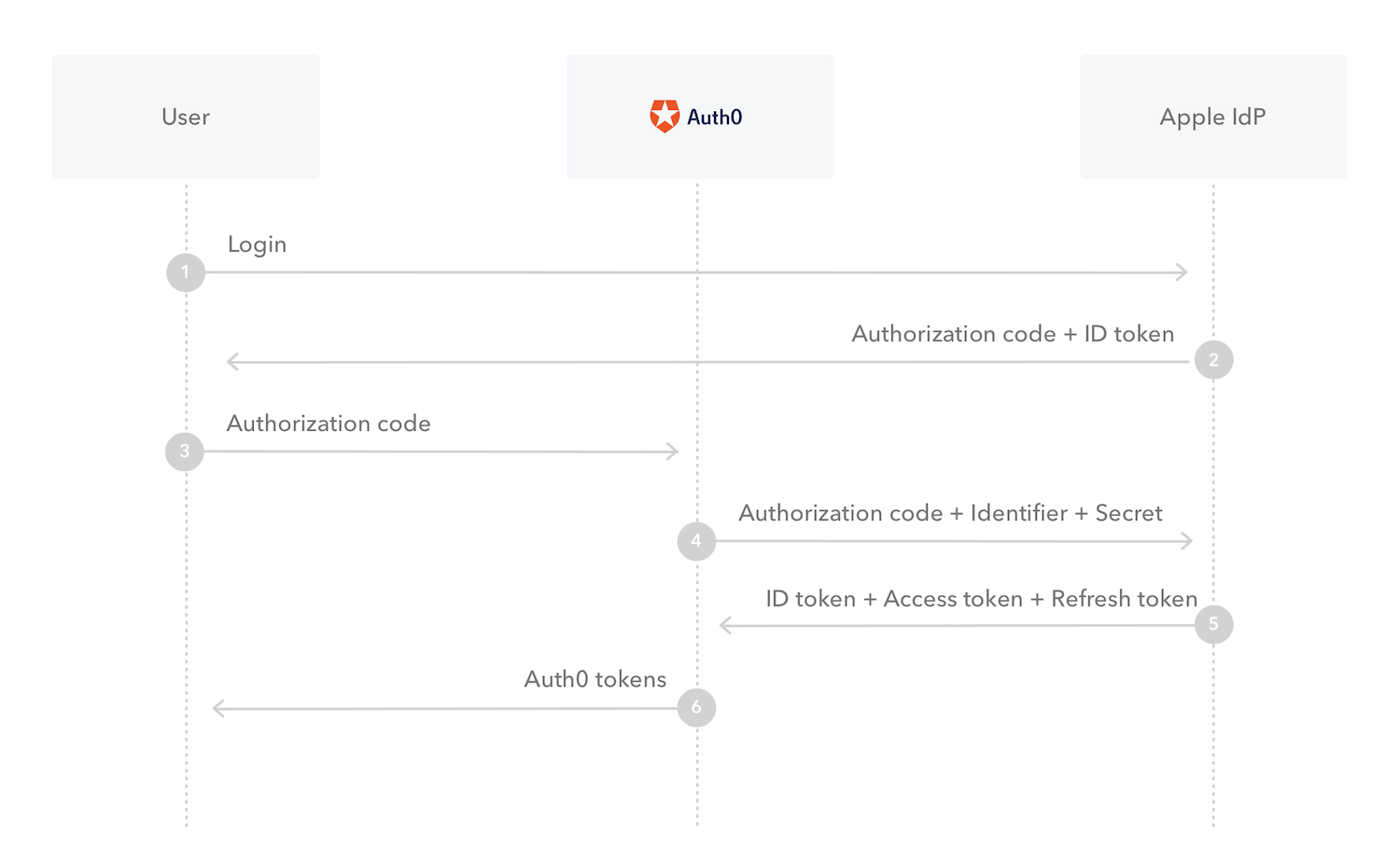 * **Steps 1 & 2**: User authenticates via Apple's SDK on their iOS device, and receive an authorization code in the response. The user does not have to leave the app and use a browser to log in.
Avoid using a nonce. It will cause the request to Apple to fail in step 4 and Auth0 will return a 400 error to the user: "Error from Apple connection."
* **Step 3**: The application calls Auth0's `/oauth/token` endpoint to exchange the Apple authorization code for Auth0 tokens.
* **Step 4 & 5**: The Auth0 platform exchanges the Authorization code with Apple for tokens. Auth0 validates the tokens, and uses the claims in the tokens to construct the identity of the user.
* **Step 6**: Auth0 saves the user profile, executes rules and authorization, then issues Auth0 access tokens (refresh tokens and ID tokens) as requested. These tokens are used to protect your APIs and users managed by Auth0.
## Prerequisites
Before you configure Sign In with Apple for your native app in Auth0, you must:
* Have an [Apple Developer](https://developer.apple.com/programs/) account, which is a paid account with Apple. (There is no free trial available unless you are part of their [iOS Developer University Program](https://developer.apple.com/support/compare-memberships/).)
* [Register Your App in the Apple Developer Portal](https://marketplace.auth0.com/integrations/apple-social-connection) if you have not already done so. Make a note of the following IDs and key for the application connection settings in the Auth0 Dashboard:
* App ID
* Apple Team ID
* Client Secret Signing Key
* Key ID
* If you are using the Classic Login flow or embedding `Lock.js` in your application, make sure you are using `Lock.js` version 11.16 or later.
## Configure and enable the connection in Auth0
Once you have the credentials you need from your Apple Developer account, you need to configure the application client and the connection settings in Auth0.
1. Navigate to [Auth0 Dashboard > Applications > Applications](https://manage.auth0.com/#/applications), choose your application, and select the gear icon to view the settings page.
2. At the bottom of the page, select **Show Advanced Settings** and then the **Device Settings** view. Under **Native Social Login**, enable the **Enable Sign In with Apple** toggle.
* **Steps 1 & 2**: User authenticates via Apple's SDK on their iOS device, and receive an authorization code in the response. The user does not have to leave the app and use a browser to log in.
Avoid using a nonce. It will cause the request to Apple to fail in step 4 and Auth0 will return a 400 error to the user: "Error from Apple connection."
* **Step 3**: The application calls Auth0's `/oauth/token` endpoint to exchange the Apple authorization code for Auth0 tokens.
* **Step 4 & 5**: The Auth0 platform exchanges the Authorization code with Apple for tokens. Auth0 validates the tokens, and uses the claims in the tokens to construct the identity of the user.
* **Step 6**: Auth0 saves the user profile, executes rules and authorization, then issues Auth0 access tokens (refresh tokens and ID tokens) as requested. These tokens are used to protect your APIs and users managed by Auth0.
## Prerequisites
Before you configure Sign In with Apple for your native app in Auth0, you must:
* Have an [Apple Developer](https://developer.apple.com/programs/) account, which is a paid account with Apple. (There is no free trial available unless you are part of their [iOS Developer University Program](https://developer.apple.com/support/compare-memberships/).)
* [Register Your App in the Apple Developer Portal](https://marketplace.auth0.com/integrations/apple-social-connection) if you have not already done so. Make a note of the following IDs and key for the application connection settings in the Auth0 Dashboard:
* App ID
* Apple Team ID
* Client Secret Signing Key
* Key ID
* If you are using the Classic Login flow or embedding `Lock.js` in your application, make sure you are using `Lock.js` version 11.16 or later.
## Configure and enable the connection in Auth0
Once you have the credentials you need from your Apple Developer account, you need to configure the application client and the connection settings in Auth0.
1. Navigate to [Auth0 Dashboard > Applications > Applications](https://manage.auth0.com/#/applications), choose your application, and select the gear icon to view the settings page.
2. At the bottom of the page, select **Show Advanced Settings** and then the **Device Settings** view. Under **Native Social Login**, enable the **Enable Sign In with Apple** toggle.
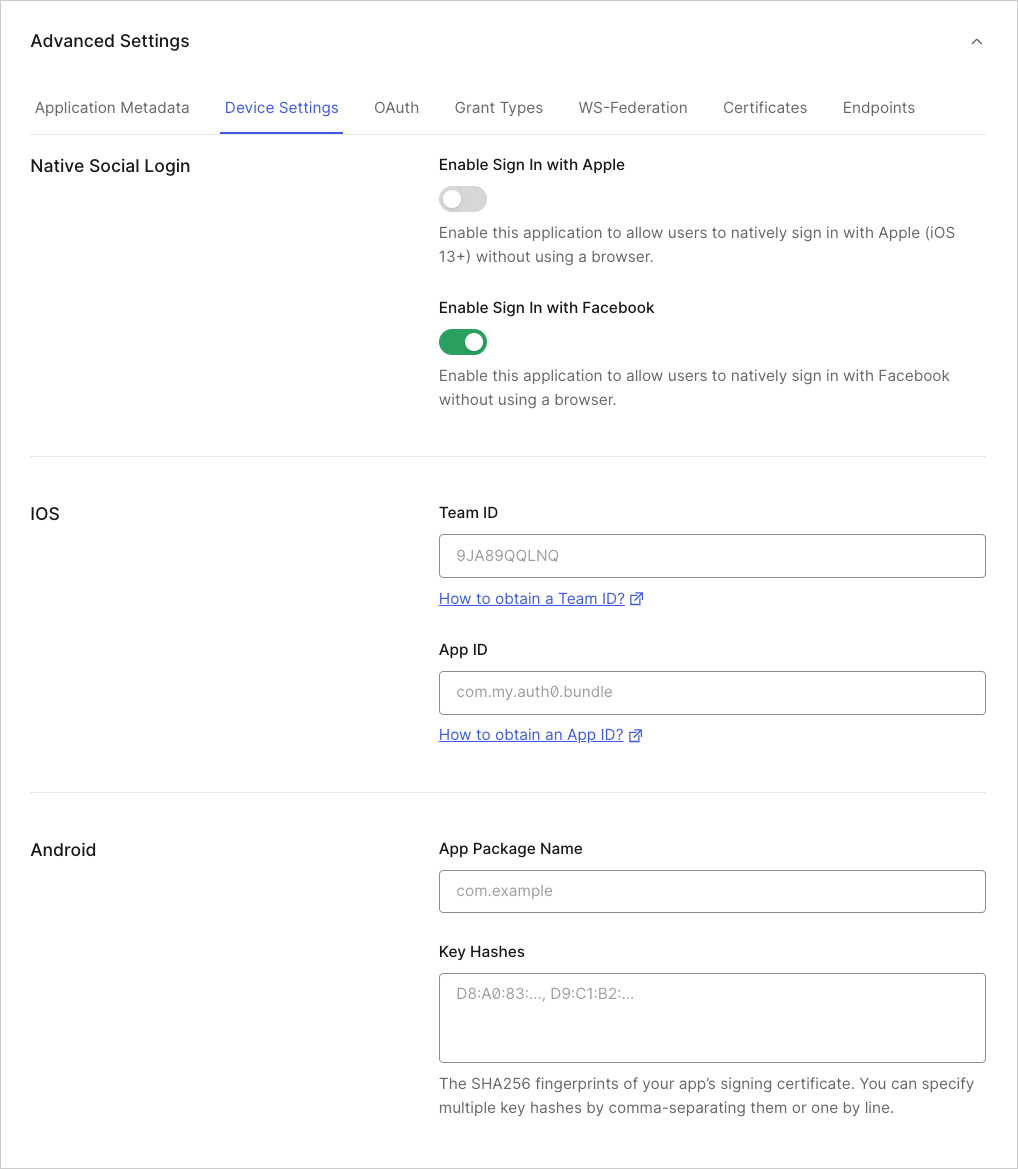 3. Under **iOS**, fill in the **App ID** field with the native app's App ID/Bundle Identifier.
4. Navigate to [Auth0 Dashboard > Authentication > Social](https://manage.auth0.com/#/connections/social), and select **Create Connection**.
5. Select the **Apple** connection and consent.
6. On the **Settings** tab, fill in the following fields:
* **Apple Team ID**
* **Client Secret Signing Key**
* **Key ID**
3. Under **iOS**, fill in the **App ID** field with the native app's App ID/Bundle Identifier.
4. Navigate to [Auth0 Dashboard > Authentication > Social](https://manage.auth0.com/#/connections/social), and select **Create Connection**.
5. Select the **Apple** connection and consent.
6. On the **Settings** tab, fill in the following fields:
* **Apple Team ID**
* **Client Secret Signing Key**
* **Key ID**
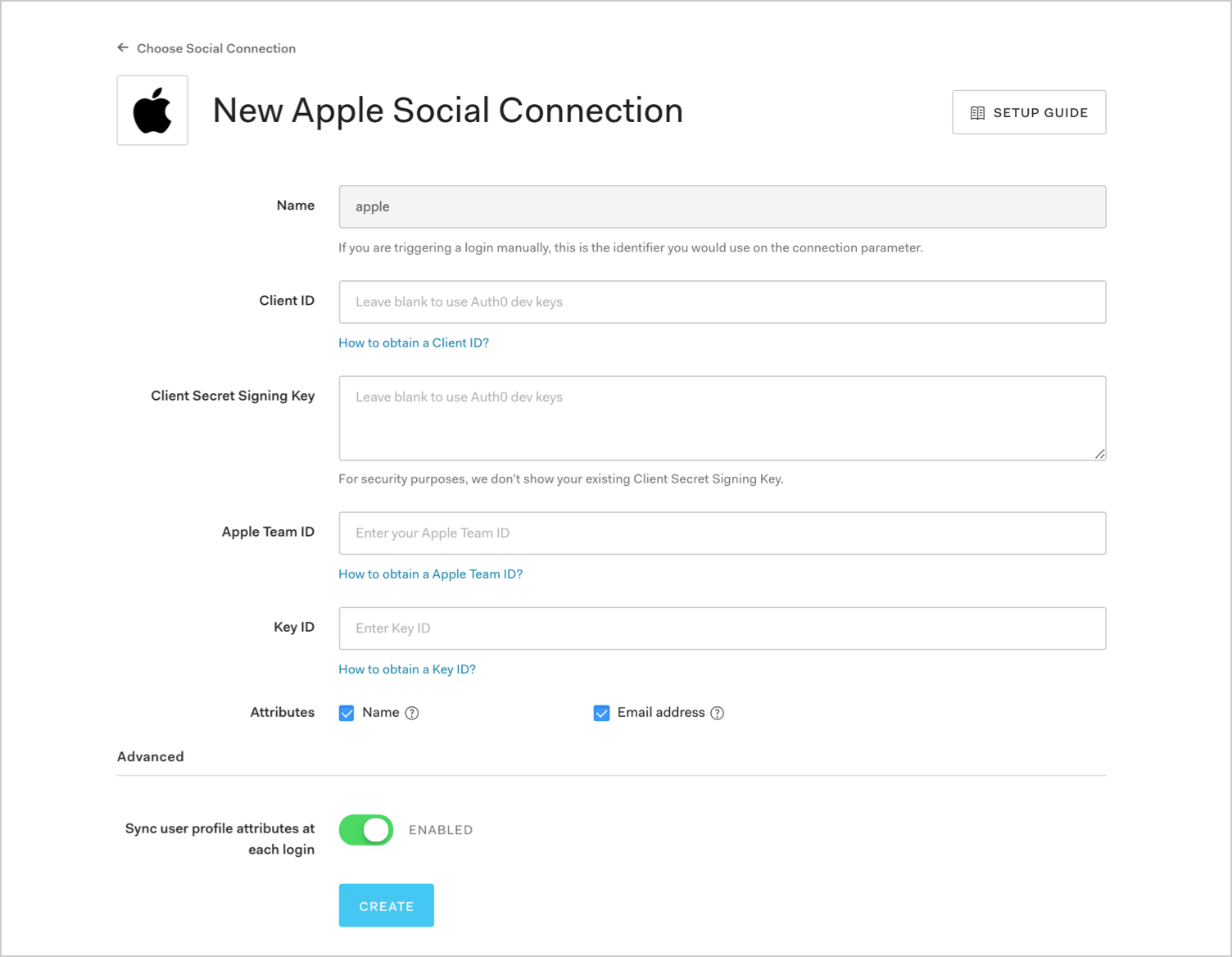 7. Select the **Applications** view to enable this connection for your application.
8. Click **Save**.
Native apps cannot be tested from the browser. This means that the **Try Connection** button on the Apple connection is used exclusively for testing web-based flows.
## Logout
Since the Native iOS login implementation does not make use of standard browser-based flows, application owners must also take care to perform logout appropriately. When an application needs to perform a logout, it must take the following actions:
* [Revoke the Auth0 Refresh Token](https://auth0.com/docs/api/authentication#revoke-refresh-token)
* Delete the Auth0 refresh token stored in the iCloud Keychain
* Delete the Apple user identifier stored in the iCloud keychain
Also, keep in mind that logout can result from user actions (for example, clicking a "log out" button) or from a user revoking access to the given app. The latter will be indicated through the native [ASAuthorizationAppleIDProvider.getCredentialState](https://developer.apple.com/documentation/authenticationservices/asauthorizationappleidprovider/3175423-getcredentialstate) method.
One nuance of Apple's IdP is that it only returns requested scopes (such as email, first name, and last name) in the ID token on the **first** response. More destructive approaches to logout (such as deleting the user) could result in loss of profile information, which would require end users to deauthorize and reauthorize an app.
## Learn more
* [Rate Limit Policy](/docs/troubleshoot/customer-support/operational-policies/rate-limit-policy)
7. Select the **Applications** view to enable this connection for your application.
8. Click **Save**.
Native apps cannot be tested from the browser. This means that the **Try Connection** button on the Apple connection is used exclusively for testing web-based flows.
## Logout
Since the Native iOS login implementation does not make use of standard browser-based flows, application owners must also take care to perform logout appropriately. When an application needs to perform a logout, it must take the following actions:
* [Revoke the Auth0 Refresh Token](https://auth0.com/docs/api/authentication#revoke-refresh-token)
* Delete the Auth0 refresh token stored in the iCloud Keychain
* Delete the Apple user identifier stored in the iCloud keychain
Also, keep in mind that logout can result from user actions (for example, clicking a "log out" button) or from a user revoking access to the given app. The latter will be indicated through the native [ASAuthorizationAppleIDProvider.getCredentialState](https://developer.apple.com/documentation/authenticationservices/asauthorizationappleidprovider/3175423-getcredentialstate) method.
One nuance of Apple's IdP is that it only returns requested scopes (such as email, first name, and last name) in the ID token on the **first** response. More destructive approaches to logout (such as deleting the user) could result in loss of profile information, which would require end users to deauthorize and reauthorize an app.
## Learn more
* [Rate Limit Policy](/docs/troubleshoot/customer-support/operational-policies/rate-limit-policy)