> ## Documentation Index
> Fetch the complete documentation index at: https://auth0.com/llms.txt
> Use this file to discover all available pages before exploring further.
> Learn how to create a custom social connection with TikTok
# Create a Custom Social Connection with TikTok
Before you start configuring your application to use TikTok as a social connection, you need:
1. A [developer TikTok account](https://developer.tiktok.com/).
2. An Auth0 account with an application using Auth0 to authenticate your users.
3. A URL for your Terms of Services page for the [TikTok Application Review Process](https://developers.tiktok.com/doc/getting-started-faq/).
4. [Node.js](https://nodejs.org/en/) and [ngrok](https://ngrok.com/) installed on your local environment.
## Configure TikTok
You can use TikTok as a social login to your application. Access and configure your TikTok developer account using the following steps:
1. In TikTok developer, select **Manage apps**.
2. Select **Connect an app**.
3. Under the **Configuration** section, add an application icon, application name, and description.
4. Under **Platforms**, choose your application type:
1. For Web applications, add a valid URL.
2. For Android, add the Android package name, Play Store URL, and application signature(s).
3. For iOS, add the App Store URL and Bundle ID.
5. Under the Product menu, select **Add Product**.
6. Select the **Login Kit**.
7. Then, select the **TikTok API**.
8. In the Product section, add the URL of your Terms of Service page, the URL of your Privacy Policy page, and your redirect domain to the Login Kit. The redirect domain is your Auth0 domain found in [Dashboard > Applications > Applications](http://manage.auth0.com/#/applications) under the **Settings** tab. For example: `dev-test-1.us.auth0.com`.
9. Select **Save Changes**. Then, select **Submit for review**.
10. Wait until your application status moves from `Staging` to `Production`. It could take up to several hours for TikTok to review your application and update the status.
## Configure Auth0
You must create a custom connection to associate your TikTok instance with Auth0.
1. Navigate to [Auth0 Dashboard > Authentication > Social](http://manage.auth0.com/#/social).
2. Choose **Create Connection**.
3. Scroll to the bottom of the list and choose **Create Custom**.
4. Enter the following to create a **New Custom Social Connection**:
1. Name: TikTok
2. Authorization URL: TikTok’s Authorization URL `https://www.tiktok.com/auth/authorize/`
3. Token URL: This will eventually be your proxy. Use a placeholder URL: `https://example.com`
4. Scope: `user.info.basic`
5. Client ID: Client key assigned to you by TikTok
6. Client Secret: Client secret assigned to you by TikTok
7. Purpose: Enable the connection for Authentication, Connected Accounts for Token Vault, or both. To learn more, read [User authentication vs Connected Accounts](/docs/secure/tokens/token-vault/connected-accounts-for-token-vault#user-authentication-vs-connected-accounts).
5. Configure the [Fetch User Profile Script](/docs/authenticate/identity-providers/social-identity-providers/oauth2#fetch-user-profile-script) to fetch profile information from [TikTok's user\_info endpoint](https://developers.tiktok.com/doc/tiktok-api-v2-get-user-info/). Map attributes to Auth0’s normalized user profile.
Auth0 only requires the `user_id attribute`, which corresponds to TikTok’s `union_id`.
```javascript lines theme={null}
function fetchUserProfile(accessToken, context, cb) {
const axios = require('axios@0.22.0');
const userInfoEndpoint = 'https://open.tiktokapis.com/v2/user/info?fields=union_id';
const headers = { 'Authorization': 'Bearer ' + accessToken };
axios
.get(userInfoEndpoint, { headers })
.then(res => {
if (res.status !== 200) {
return cb(new Error(res.data));
}
const profile = {
user_id: res.data.user.union_id,
};
cb(null, profile);
})
.catch(err => cb(err));
}
```
6. Click **Create**.
7. Navigate to the application you want to use with the TikTok connection under [Dashboard > Applications > Applications](http://manage.auth0.com/#/applications).
8. Under the **Connections** tab, toggle on the TikTok option.
## Pass customs parameters to TikTok with the Management API
Since TikTok uses a `client_key` parameter instead of `client_id`, you must use the Management API to pass the `client_key` parameter during authentication.
To use the Management API, you need to generate an access token.
1. Navigate to Auth0 [Dashboard > Applications > APIs](http://manage.auth0.com/#/apis) and select the **Auth0 Management API**.
2. Select the **API Explorer** tab.
3. Select **Create & Authorize Test Application.**
4. Copy the provided token.
5. Navigate to the [Auth0 Management API Explorer](https://auth0.com/docs/api/management/v2). You may need to open an incognito window.
6. Select **Set API Token** in the top, left-hand corner.
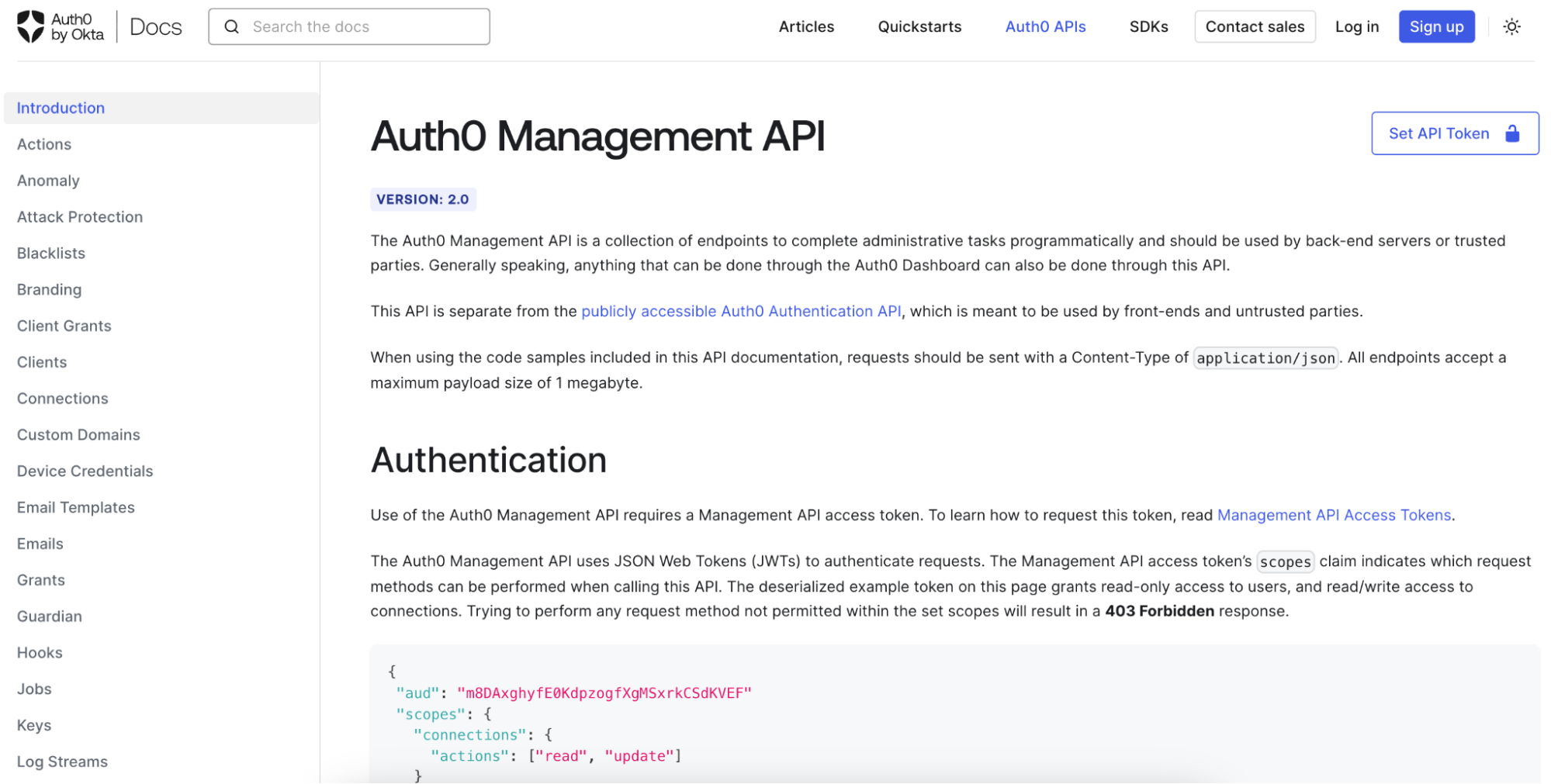 7. Paste the token and select **Set Token**.
You should now be able to configure your Auth0 tenant with the Management API.
### Configure the `client_key` field
1. Use the [Get a connection](https://auth0.com/docs/api/management/v2#!/Connections/get_connections_by_id) method to retrieve the `options` object values. The following is a sample response object:
```json lines theme={null}
{
"options": {
"client_id": "",
"client_secret": "",
"scope": "user.info.basic"
}
}
```
2. Add the `upstream_params` object with the `client_key` field:
```json lines theme={null}
{
"options": {
"client_id": "",
"client_secret": "",
"scope": "user.info.basic",
"upstream_params": {
"client_key": { "value": "" }
}
}
}
```
3. Use the [Update a connection](https://auth0.com/docs/api/management/v2#!/Connections/patch_connections_by_id) method with the `options` object as the body. Auth0 will send the `client_key=` parameter to [TikTok's authorization endpoint](https://developers.tiktok.com/doc/login-kit-web/).
## Access token request
You cannot pass custom parameters in a request to the Authentication API's [`/token`](https://developers.tiktok.com/doc/login-kit-manage-user-access-tokens/) endpoint to gain an access or ID token. You must proxy the request to the token endpoint and append the `client_key` parameter programmatically with proxy endpoints in your environment.
### Deploy TikTok integration proxy
1. Use the sample code from the [GitHub](https://github.com/tylerkeesling/tiktok-access-token-proxy) repository and follow the instructions in the README to install dependencies and start the development server.
1. The example server has one `POST` route, `/proxy/token`. The server should be running on `http://localhost:3333`.
2. Copy the proxy endpoint to be used in your TikTok Developer setup. The proxy endpoint should be something similar to `https://405a-104-129-13b-250.ngrok.io/proxy/token`.
3. In TikTok Developer, navigate back to the social connection configuration. Update the Token URL that you set to `https://example.com` and enter the proxy URL.
Once the configuration is saved, your users should be able to log in with TikTok.
7. Paste the token and select **Set Token**.
You should now be able to configure your Auth0 tenant with the Management API.
### Configure the `client_key` field
1. Use the [Get a connection](https://auth0.com/docs/api/management/v2#!/Connections/get_connections_by_id) method to retrieve the `options` object values. The following is a sample response object:
```json lines theme={null}
{
"options": {
"client_id": "",
"client_secret": "",
"scope": "user.info.basic"
}
}
```
2. Add the `upstream_params` object with the `client_key` field:
```json lines theme={null}
{
"options": {
"client_id": "",
"client_secret": "",
"scope": "user.info.basic",
"upstream_params": {
"client_key": { "value": "" }
}
}
}
```
3. Use the [Update a connection](https://auth0.com/docs/api/management/v2#!/Connections/patch_connections_by_id) method with the `options` object as the body. Auth0 will send the `client_key=` parameter to [TikTok's authorization endpoint](https://developers.tiktok.com/doc/login-kit-web/).
## Access token request
You cannot pass custom parameters in a request to the Authentication API's [`/token`](https://developers.tiktok.com/doc/login-kit-manage-user-access-tokens/) endpoint to gain an access or ID token. You must proxy the request to the token endpoint and append the `client_key` parameter programmatically with proxy endpoints in your environment.
### Deploy TikTok integration proxy
1. Use the sample code from the [GitHub](https://github.com/tylerkeesling/tiktok-access-token-proxy) repository and follow the instructions in the README to install dependencies and start the development server.
1. The example server has one `POST` route, `/proxy/token`. The server should be running on `http://localhost:3333`.
2. Copy the proxy endpoint to be used in your TikTok Developer setup. The proxy endpoint should be something similar to `https://405a-104-129-13b-250.ngrok.io/proxy/token`.
3. In TikTok Developer, navigate back to the social connection configuration. Update the Token URL that you set to `https://example.com` and enter the proxy URL.
Once the configuration is saved, your users should be able to log in with TikTok.