> ## Documentation Index
> Fetch the complete documentation index at: https://auth0.com/llms.txt
> Use this file to discover all available pages before exploring further.
> Learn how to configure WebAuthn with device biometrics for passwordless authentication.
# Configure WebAuthn with Device Biometrics for Passwordless Authentication
You can configure Universal Login to let users authenticate using [WebAuthn](/docs/secure/multi-factor-authentication/fido-authentication-with-webauthn) with Device Biometrics instead of a password.
WebAuthn with Device Biometrics is the most secure and usable authentication factor that's available today, greatly reducing login friction without sacrificing security.
You must use this feature with an Auth0 database connection. Navigate to [Auth0 Dashboard > Authentication > Database](https://manage.auth0.com/#/connections/database) to choose a database connection. To learn more, read [Database Connections](/docs/authenticate/database-connections).
## Prerequisite
To enable Passwordless with WebAuthn Device Biometrics, you need to:
1. Make sure the Universal Login experience is enabled and that the HTML for the login page is not customized in [Dashboard > Universal Login](https://manage.auth0.com/#/login_settings).
2. Select **Identifier First + Biometrics** in the [Dashboard > Authentication Profile](https://manage.auth0.com/#/authentication-profiles). This will automatically [enable WebAuthn with Device Biometrics](/docs/secure/multi-factor-authentication/fido-authentication-with-webauthn/configure-webauthn-device-biometrics-for-mfa) in the Multi-Factor authentication section if it is not enabled yet.
3. If you use a [custom database connection](/docs/authenticate/database-connections/custom-db), ensure **Import Mode** is set to **On.** If it's not, you can run the [getUser script](/docs/authenticate/database-connections/custom-db/templates/get-user) to the same effect.
## How does it work
Users that authenticate with username/email and password and have a device that [is capable of using WebAuthn with Device Biometrics](https://webauthn.me/browser-support), are given the option of enrolling their device:
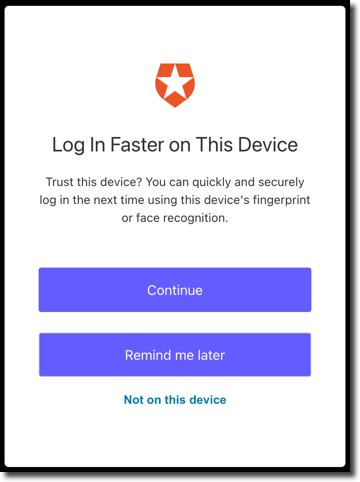
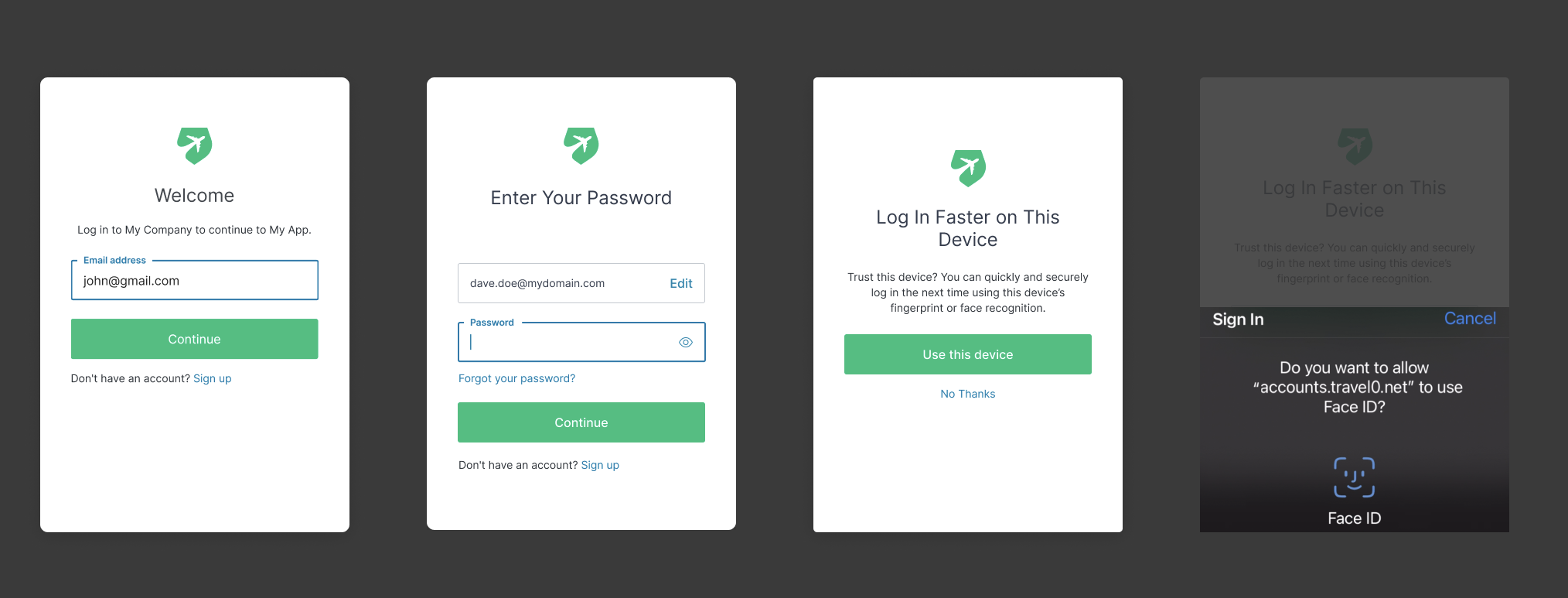 After you enable the feature, we provide a few options for users on the Login Faster on This Device dialog box. Users can choose to enroll their device or skip enrollment to reduce the number of times they are prompted:
| Option | Description |
| -------------------- | ------------------------------------------------------------------------------------------------------ |
| `Continue` | Prompts the user for Biometric Factor Enrollment |
| `Remind me later` | Skips enrollment and prompts for enrollment again in two weeks |
| `Not on this device` | Does not prompt enrollment for 1 year or as long as the Auth0 cookies are stored in the users' browser |
After you enable the feature, we provide a few options for users on the Login Faster on This Device dialog box. Users can choose to enroll their device or skip enrollment to reduce the number of times they are prompted:
| Option | Description |
| -------------------- | ------------------------------------------------------------------------------------------------------ |
| `Continue` | Prompts the user for Biometric Factor Enrollment |
| `Remind me later` | Skips enrollment and prompts for enrollment again in two weeks |
| `Not on this device` | Does not prompt enrollment for 1 year or as long as the Auth0 cookies are stored in the users' browser |
 If customers decide to enroll their device, the next time they authenticate from that device they'll be given the option of using their device biometrics or a password:
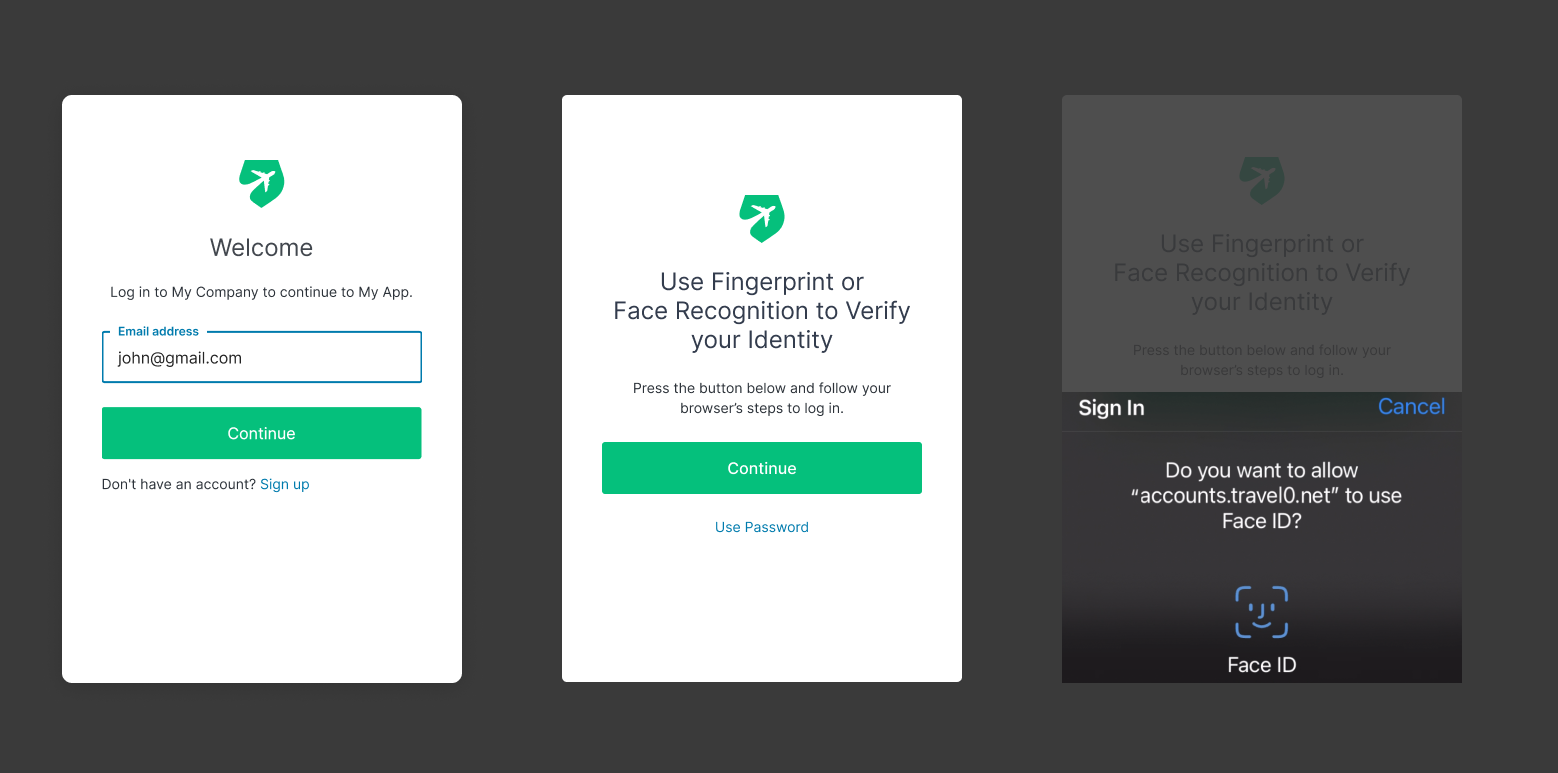 We call this feature 'progressive enrollment', and it's designed to make the transition to WebAuthn-based authentication easy as possible for both developers and users.
## Multi-Factor Authentication
WebAuthn with Device Biometrics allows avoiding requiring another authentication method for performing multi-factor authentication. **WebAuthn with Device Biometrics combines two factors in one**: something you have (the device), and something you are (biometrics) or something you know (the passcode).
This has several consequences:
* When you enable MFA in the dashboard, Auth0 will not prompt for MFA if users authenticated with WebAuthn w/Biometrics as first factor.
* When MFA is enabled and users create a new account, they will:
* Create a user with a username/password.
* Enroll in MFA, with a non-biometrics authentication method, so they can complete MFA on any device.
* Optionally enroll with Device Biometrics.
The next time they log in, they can log in with password + another authentication method or with device biometrics.
* When users authenticate using WebAuthn Biometrics as their only authentication method, the `amr` value in the ID Token will be set to `mfa`.
* If you want to enable MFA from our extensibility platform, you’ll be able to consider how users authenticated to decide if they should be prompted for MFA or not. The rule below will only perform MFA if the user did not authenticate with the `webauthn-platform` authentication method:
```javascript javascript lines theme={null}
function (user, context, callback) {
let authMethods = context.authentication.methods;
const amr = authMethods.find((method) => method.name === 'webauthn-platform');
if (!amr) {
context.multifactor = {
provider: 'any',
allowRememberBrowser: false
};
}
return callback(null, user, context);
}
```
This post-login action will have the same effect:
```javascript javascript lines theme={null}
exports.onExecutePostLogin = async (event, api) => {
let authMethods = event.authentication.methods;
let amr = authMethods.find((method) => method.name === 'webauthn-platform');
if (!amr) {
api.multifactor.enable('any');
}
};
```
## Device Recognition
Auth0 will use the rules to determine if the device is already enrolled or not, and prompt the user for enrollment. To learn more, read [Device recognition](/docs/secure/multi-factor-authentication/fido-authentication-with-webauthn/configure-webauthn-device-biometrics-for-mfa#device-recognition) in the article [Configure WebAuthn with Device Biometrics for MFA](/docs/secure/multi-factor-authentication/fido-authentication-with-webauthn/configure-webauthn-device-biometrics-for-mfa).
To avoid user enumeration attacks, Auth0 will only prompt users for biometrics as the first factor if users are logging in from a known device. If not, they'll need to login with the password.
For example:
* A user logs-in from Chrome in Windows, and is enrolled with Windows Hello. As part of the enrollment information, Auth0 knows that the user enrolled from a Windows device, and stores a 'known device' to recognize the user agent.
* The next time the user logs in from Chrome, they will be prompted to use Windows Hello instead of a password.
* If the user later logs in from Firefox in Windows, given the 'known device' cookie is not present, users will need to login with their password. As they are already enrolled with Windows Hello, they won't be prompted to enroll again.
* The next time the user logs in from Firefox, they will be prompted to use Windows Hello.
This will not let attackers know if users have an account or not, or if they used WebAuthn device biometrics to authenticate to the site.
## Webauthn.me
Auth0 maintains [webauthn.me](https://a0.to/webauthme-auth0-docs), which has [detailed information](https://webauthn.me/introduction) about WebAuthn and an up-to-date list of browsers supporting WebAuthn.
## Learn more
* [Configure Universal Login with Passwordless](/docs/authenticate/login/auth0-universal-login/passwordless-login)
* [Configure Email or SMS for Passwordless Authentication](/docs/authenticate/login/auth0-universal-login/passwordless-login/email-or-sms)
* [Configure WebAuthn with Device Biometrics for MFA](/docs/secure/multi-factor-authentication/fido-authentication-with-webauthn/configure-webauthn-device-biometrics-for-mfa)
* [FIDO Authentication with WebAuthn](/docs/secure/multi-factor-authentication/fido-authentication-with-webauthn)
We call this feature 'progressive enrollment', and it's designed to make the transition to WebAuthn-based authentication easy as possible for both developers and users.
## Multi-Factor Authentication
WebAuthn with Device Biometrics allows avoiding requiring another authentication method for performing multi-factor authentication. **WebAuthn with Device Biometrics combines two factors in one**: something you have (the device), and something you are (biometrics) or something you know (the passcode).
This has several consequences:
* When you enable MFA in the dashboard, Auth0 will not prompt for MFA if users authenticated with WebAuthn w/Biometrics as first factor.
* When MFA is enabled and users create a new account, they will:
* Create a user with a username/password.
* Enroll in MFA, with a non-biometrics authentication method, so they can complete MFA on any device.
* Optionally enroll with Device Biometrics.
The next time they log in, they can log in with password + another authentication method or with device biometrics.
* When users authenticate using WebAuthn Biometrics as their only authentication method, the `amr` value in the ID Token will be set to `mfa`.
* If you want to enable MFA from our extensibility platform, you’ll be able to consider how users authenticated to decide if they should be prompted for MFA or not. The rule below will only perform MFA if the user did not authenticate with the `webauthn-platform` authentication method:
```javascript javascript lines theme={null}
function (user, context, callback) {
let authMethods = context.authentication.methods;
const amr = authMethods.find((method) => method.name === 'webauthn-platform');
if (!amr) {
context.multifactor = {
provider: 'any',
allowRememberBrowser: false
};
}
return callback(null, user, context);
}
```
This post-login action will have the same effect:
```javascript javascript lines theme={null}
exports.onExecutePostLogin = async (event, api) => {
let authMethods = event.authentication.methods;
let amr = authMethods.find((method) => method.name === 'webauthn-platform');
if (!amr) {
api.multifactor.enable('any');
}
};
```
## Device Recognition
Auth0 will use the rules to determine if the device is already enrolled or not, and prompt the user for enrollment. To learn more, read [Device recognition](/docs/secure/multi-factor-authentication/fido-authentication-with-webauthn/configure-webauthn-device-biometrics-for-mfa#device-recognition) in the article [Configure WebAuthn with Device Biometrics for MFA](/docs/secure/multi-factor-authentication/fido-authentication-with-webauthn/configure-webauthn-device-biometrics-for-mfa).
To avoid user enumeration attacks, Auth0 will only prompt users for biometrics as the first factor if users are logging in from a known device. If not, they'll need to login with the password.
For example:
* A user logs-in from Chrome in Windows, and is enrolled with Windows Hello. As part of the enrollment information, Auth0 knows that the user enrolled from a Windows device, and stores a 'known device' to recognize the user agent.
* The next time the user logs in from Chrome, they will be prompted to use Windows Hello instead of a password.
* If the user later logs in from Firefox in Windows, given the 'known device' cookie is not present, users will need to login with their password. As they are already enrolled with Windows Hello, they won't be prompted to enroll again.
* The next time the user logs in from Firefox, they will be prompted to use Windows Hello.
This will not let attackers know if users have an account or not, or if they used WebAuthn device biometrics to authenticate to the site.
## Webauthn.me
Auth0 maintains [webauthn.me](https://a0.to/webauthme-auth0-docs), which has [detailed information](https://webauthn.me/introduction) about WebAuthn and an up-to-date list of browsers supporting WebAuthn.
## Learn more
* [Configure Universal Login with Passwordless](/docs/authenticate/login/auth0-universal-login/passwordless-login)
* [Configure Email or SMS for Passwordless Authentication](/docs/authenticate/login/auth0-universal-login/passwordless-login/email-or-sms)
* [Configure WebAuthn with Device Biometrics for MFA](/docs/secure/multi-factor-authentication/fido-authentication-with-webauthn/configure-webauthn-device-biometrics-for-mfa)
* [FIDO Authentication with WebAuthn](/docs/secure/multi-factor-authentication/fido-authentication-with-webauthn)