> ## Documentation Index
> Fetch the complete documentation index at: https://auth0.com/llms.txt
> Use this file to discover all available pages before exploring further.
# Inbound SCIM for Microsoft Entra ID SAML Connections
> Walkthrough for Microsoft Entra ID (formerly Azure Active Directory) connection setup via SAML SCIM.
To use this feature, your Auth0 plan or custom agreement must include Enterprise Connections. To learn more, read [Auth0's Pricing Page](https://auth0.com/pricing).
To test an inbound SCIM connection, you need to install [Postman](https://www.postman.com/downloads/) locally.
To provision users to your Auth0 SCIM endpoint, you need to configure a non-gallery enterprise application in Microsoft Entra ID (formerly Azure Active Directory).
## Configure SCIM settings in Auth0
1. From the [Auth0 Dashboard](https://manage.auth0.com/#/), go to **Authentication > Enterprise > SAML > \[YOUR\_AUTH0\_CONNECTION] > Provisioning**.
2. Toggle **Sync user profiles using SCIM** to on. This opens a new section on the same page with additional configuration.
3. Verify the following configuration:
A. In the **Mapping** tab, make sure the **SCIM attribute containing the User ID** field is set to **userName**.
B. In the **Additional Mappings** section, verify the following values:
```json lines theme={null}
{
"scim": "emails[type eq \"work\"].value",
"auth0": "email"
},
```
You can also view the [attribute mapping](/docs/authenticate/protocols/scim/configure-inbound-scim#attribute-mapping) and make sure the extended SCIM attributes are mapped to your preferred Auth0 attributes.
4. If necessary, select **Save Changes**.
## Retrieve SCIM endpoint URL and token
To configure SCIM in a Microsoft Entra ID tenant, you need a SCIM endpoint URL and token from Auth0. You can get these values from the Auth0 Dashboard:
1. From the [Auth0 Dashboard](https://manage.auth0.com/#/), go to **Authentication > Enterprise > SAML > \[your-connection] > Provisioning**.
2. In the **Sync user profiles using SCIM > Setup** section, copy the **SCIM Endpoint URL**.
3. In the same section, under **Bearer Token**, select **Generate New Token**. Choose the token's expiration date and scopes, then select **Generate Token**. The default requires scopes used by Azure AD are `get:users`, `post:users`, `patch:users`, and `delete:users`. You may optionally select `get:groups`, `post:groups`, `patch:groups`, and `delete:groups` to provision groups.
4. Copy the bearer token. For security, this is the only time the token is visible.
You can also get these values programmatically using the Management API's SCIM endpoints, such as [`/v2/connections/{id}/scim-configuration/tokens`](https://auth0.com/docs/api/management/v2/connections/get-scim-tokens).
For best practices, read the [Configure Inbound SCIM deployment guidelines](/docs/authenticate/protocols/scim/configure-inbound-scim#deployment-guidelines).
## Configure SCIM in Entra ID for SAML apps
If your SAML application is not already registered, follow [Configure IdP-Initiated SAML Login with Azure as the IdP](https://support.auth0.com/center/s/article/Configure-IdP-Initiated-SAML-Login-with-Azure-as-the-IdP) to register a custom, non-gallery enterprise application in an Entra ID tenant.
Then, to configure SCIM:
1. From the Microsoft Entra admin center, navigate to **Entra ID > Enterprise apps > \[YOUR\_APPLICATION]**.
2. Continue to **Manage > Properties** and set **Assignment Required** to **Yes**.
3. Go to **Manage > Users and Groups** and assign the Azure AD users you want to provision. When you assign a group, the users from that group are provisioned.
4. Navigate to **Manage > Provisioning** and select **Get started**.
5. Set the **Provisioning Mode** to **Automatic**.
6. Expand the **Admin Credentials** section and configure the following parameters:
* Set the **Tenant URL** field to the SCIM endpoint URL you saved in the previous step, and append the query parameter `?aadOptscim062020` to the end of the URL. This is [Microsoft's recommended workaround for a known SCIM 2.0 issue](https://learn.microsoft.com/en-us/entra/identity/app-provisioning/application-provisioning-config-problem-scim-compatibility).
* Set the **Secret Token** to the token value you saved in the previous step, then select **Save**.
7. Expand the **Mappings** section.
8. To optionally provision groups, confirm that **Provision Entra ID Groups** is set to **Enabled**. Otherwise set this to **Disabled**.
9. Then select **Provision Azure Active Directory Users** to open the **Attribute Mapping** screen.
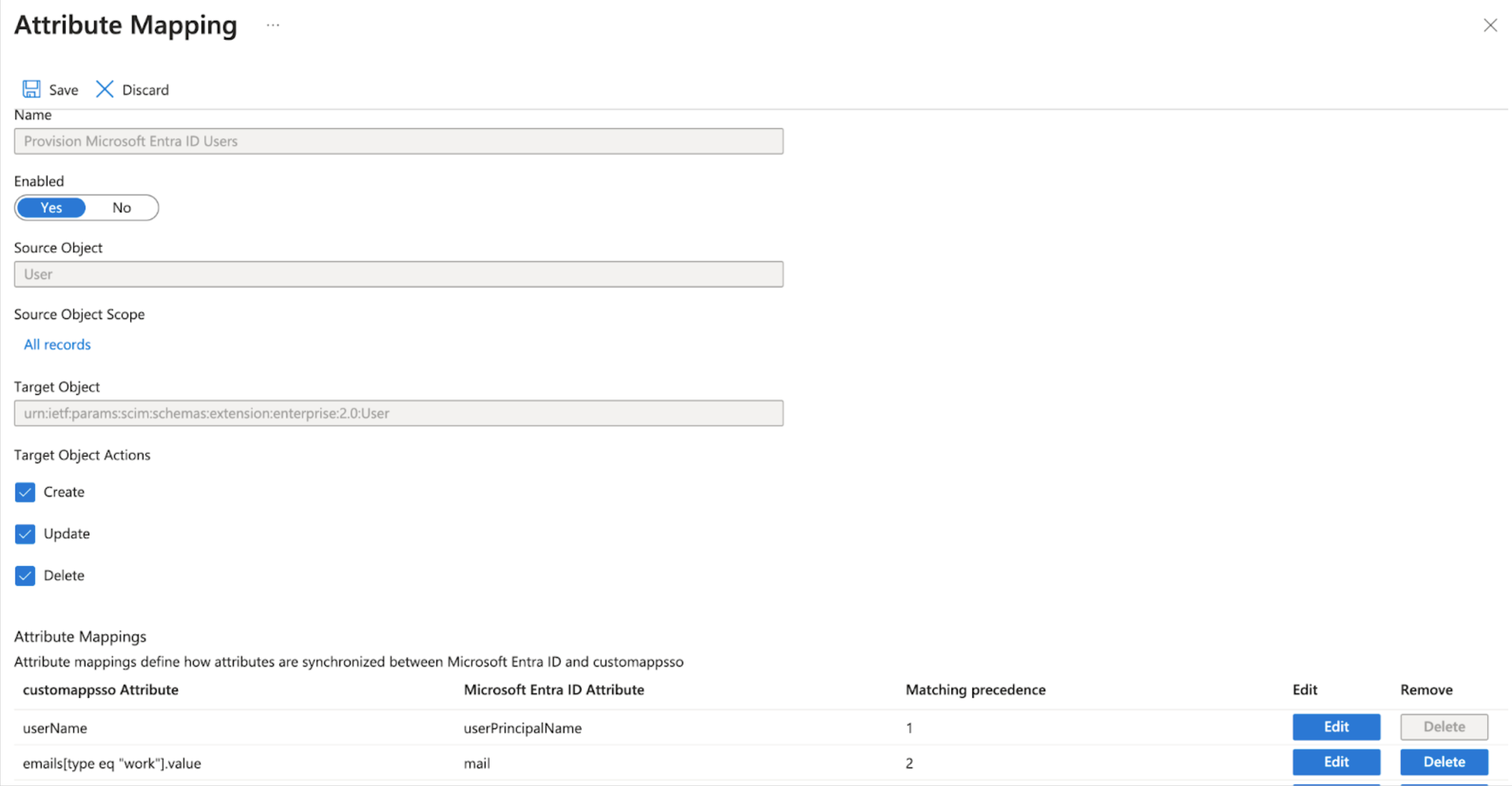 10. In the attribute mapping table row containing `emails[type eq "work"].value` and `mail`, select **Edit** to go to the **Edit Attribute** screen and configure the following parameters:
* Set **Match objects using this attribute** to **Yes**.
* Set **Matching precedence** to **2**.
11. Select **OK** to save the configuration. This closes the **Edit Attribute** screen. Then, on the **Attribute Mapping** screen, select **Save**.
## Testing
1. On the Enterprise application overview screen, go to **Manage > Provisioning > Provision on Demand** to test the SCIM connection.
2. Go to **Select a user or group** and enter the name of a user or group that you assigned to the application, then select the item and choose **Provision**. This creates the user or group in the Auth0 tenant.
3. Set the **Provisioning Status** to **On** in order to [provision all assigned users and groups](https://learn.microsoft.com/en-us/entra/identity/app-provisioning/configure-automatic-user-provisioning-portal#provisioning-status).
10. In the attribute mapping table row containing `emails[type eq "work"].value` and `mail`, select **Edit** to go to the **Edit Attribute** screen and configure the following parameters:
* Set **Match objects using this attribute** to **Yes**.
* Set **Matching precedence** to **2**.
11. Select **OK** to save the configuration. This closes the **Edit Attribute** screen. Then, on the **Attribute Mapping** screen, select **Save**.
## Testing
1. On the Enterprise application overview screen, go to **Manage > Provisioning > Provision on Demand** to test the SCIM connection.
2. Go to **Select a user or group** and enter the name of a user or group that you assigned to the application, then select the item and choose **Provision**. This creates the user or group in the Auth0 tenant.
3. Set the **Provisioning Status** to **On** in order to [provision all assigned users and groups](https://learn.microsoft.com/en-us/entra/identity/app-provisioning/configure-automatic-user-provisioning-portal#provisioning-status).