> ## Documentation Index
> Fetch the complete documentation index at: https://auth0.com/llms.txt
> Use this file to discover all available pages before exploring further.
> Learn how to configure Auth0 as the identity provider using the SAML2 Web App addon for a GitHub Enterprise Server private instance.
# Configure GitHub Enterprise Server as SAML Service Provider
You can configure Auth0 as the identity provider using the SAML2 Web App addon for [GitHub Enterprise Server](https://help.github.com/en/enterprise/2.16/admin/user-management/using-saml) (i.e. your private GitHub appliance). If you are looking for instructions to set up Auth0 as the identity provider for GitHub Enterprise Cloud (github.com), read [Configure Auth0 as Identity Provider for GitHub Enterprise Cloud](/docs/authenticate/single-sign-on/outbound-single-sign-on/configure-auth0-saml-identity-provider/configure-saml2-web-app-addon-for-github-enterprise-cloud) instead.
## Configure SAML SSO on Auth0
1. Go to [Dashboard > Applications > Applications](https://manage.auth0.com/#/applications) and create a new application. Give it a meaningful name like **GitHub**. You can choose any application type, but the **Regular Web App** type is recommended.
2. Go to the [Addons](https://manage.auth0.com/#/applications/\{yourClientId}/addons) tab and enable the **SAML2 Web App** toggle.
3. On the **Settings** tab, set the **Application Callback URL** to : `https://github.com/orgs/{yourGitHubOrgName}/saml/consume`.
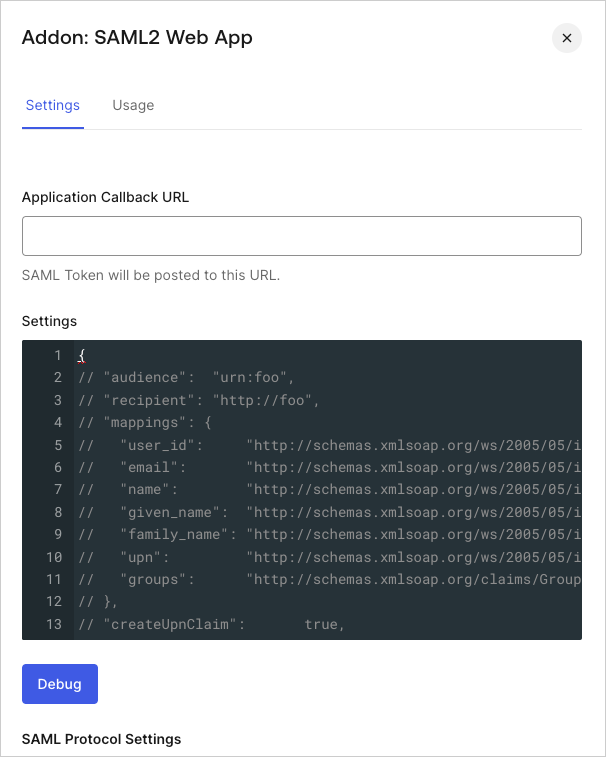 4. Paste the following code into the **Settings** text box and click **Debug**.
```json lines theme={null}
{
"audience": "{yourGitHubServerUrl}",
"mappings": {
"user_id": "http://schemas.xmlsoap.org/ws/2005/05/identity/claims/nameidentifier",
"email": "emails",
"name": "full_name"
},
"passthroughClaimsWithNoMapping": false,
"mapIdentities": false,
"signatureAlgorithm": "rsa-sha256",
"digestAlgorithm": "sha256",
"nameIdentifierProbes": [
"http://schemas.xmlsoap.org/ws/2005/05/identity/claims/nameidentifier"
]
}
```
Replace `{yourGitHubOrgName}` with the GitHub organization name that corresponds to your GitHub subscription. For example `https://github.yourname.com`.
1. The above mapping will send the `user_id` as the **Name Identifier** to GitHub. Use this option if you enable more than one connection for the GitHub application, as it will ensure uniqueness (every user will have a different ID).
2. If you are using a single connection, you might prefer to use the `nickname` or another unique identifier as a friendlier **Name Identifier**, but make sure that the property you choose is unique.
5. Scroll to the bottom of the tab and click **Enable**.
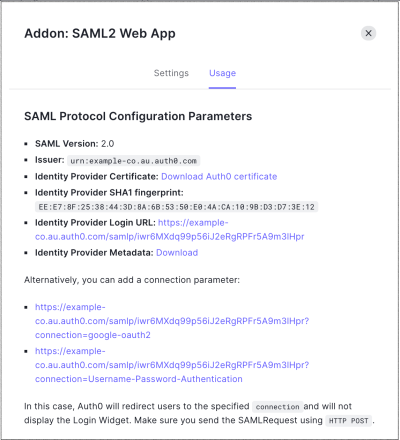
6. On the **Usage** tab, locate **Identity Provider Metadata**, and click **Download** to download the metadata file. You'll need this when you configure Auth0 as the identity provider.
4. Paste the following code into the **Settings** text box and click **Debug**.
```json lines theme={null}
{
"audience": "{yourGitHubServerUrl}",
"mappings": {
"user_id": "http://schemas.xmlsoap.org/ws/2005/05/identity/claims/nameidentifier",
"email": "emails",
"name": "full_name"
},
"passthroughClaimsWithNoMapping": false,
"mapIdentities": false,
"signatureAlgorithm": "rsa-sha256",
"digestAlgorithm": "sha256",
"nameIdentifierProbes": [
"http://schemas.xmlsoap.org/ws/2005/05/identity/claims/nameidentifier"
]
}
```
Replace `{yourGitHubOrgName}` with the GitHub organization name that corresponds to your GitHub subscription. For example `https://github.yourname.com`.
1. The above mapping will send the `user_id` as the **Name Identifier** to GitHub. Use this option if you enable more than one connection for the GitHub application, as it will ensure uniqueness (every user will have a different ID).
2. If you are using a single connection, you might prefer to use the `nickname` or another unique identifier as a friendlier **Name Identifier**, but make sure that the property you choose is unique.
5. Scroll to the bottom of the tab and click **Enable**.
6. On the **Usage** tab, locate **Identity Provider Metadata**, and click **Download** to download the metadata file. You'll need this when you configure Auth0 as the identity provider.
 ## Configure SAML SSO on GitHub
Follow the instructions in [Using SAML on Enterprise Server- GitHub Help](https://help.github.com/en/enterprise/admin/user-management/using-saml#configuring-saml-settings) to complete the configuration on GitHub Enterprise Cloud. You will need the following information:
| Field | Entry |
| ------------------ | ---------------------------------------------------------------------------------------------------------------------------------------------------- |
| Sign On URL | `https://{yourDomain}/samlp/{CLIENT_ID}`
## Configure SAML SSO on GitHub
Follow the instructions in [Using SAML on Enterprise Server- GitHub Help](https://help.github.com/en/enterprise/admin/user-management/using-saml#configuring-saml-settings) to complete the configuration on GitHub Enterprise Cloud. You will need the following information:
| Field | Entry |
| ------------------ | ---------------------------------------------------------------------------------------------------------------------------------------------------- |
| Sign On URL | `https://{yourDomain}/samlp/{CLIENT_ID}`
`{'{CLIENT_ID}'}` will be the `client_id` for the GitHub application you just created in Auth0. |
| Issuer | `urn:auth0:{yourTenant}` |
| Public Certificate | Download it from `https://{yourDomain}/pem`. Open the downloaded file with a text editor, copy the contents and paste it in the text area on GitHub. |
| Signature method | `RSA256-SHA256` |
| Digest method | `SHA256` |