> ## Documentation Index
> Fetch the complete documentation index at: https://auth0.com/llms.txt
> Use this file to discover all available pages before exploring further.
> Description on how to use the Rule migration tooling in the Auth0 dashboard
# Migration tooling
Simplify the migration process of Rules to Actions by using the Rule Migration tooling in the [Auth0 Dashboard](https://manage.auth0.com/). In addition to facilitating the switch from a Rule to an Action, the new tooling also offers built-in guidance and fixes for common Rule patterns.
## Before migration
Before you start the migration, visit [Migrate from Rules to Actions](/docs/customize/actions/migrate/migrate-from-rules-to-actions). This migration guide is an excellent resource that explains the differences between Rules and Actions and is a helpful tool in the migration journey.
### Rule migration order
Rules execute before Actions, which implies that Rules should be migrated in reverse runtime order. Migrate the last Rule to execute in your existing flow and work your way to the first Rule in reverse, chronological order.
Failing to migrate in this order can result in errors due to unanticipated side effects caused by dependencies in the ordering of Rules and Actions.
### Safely rolling back
The migration tooling allows you to safely and easily roll back if something goes wrong. Re-enable your Rule and skip the corresponding Action logic.
## Migrating a Rule
To begin migrating your Rule, select **Auth Pipeline > Rules**. Once selected, your Rules appear with an option to migrate each of them individually.
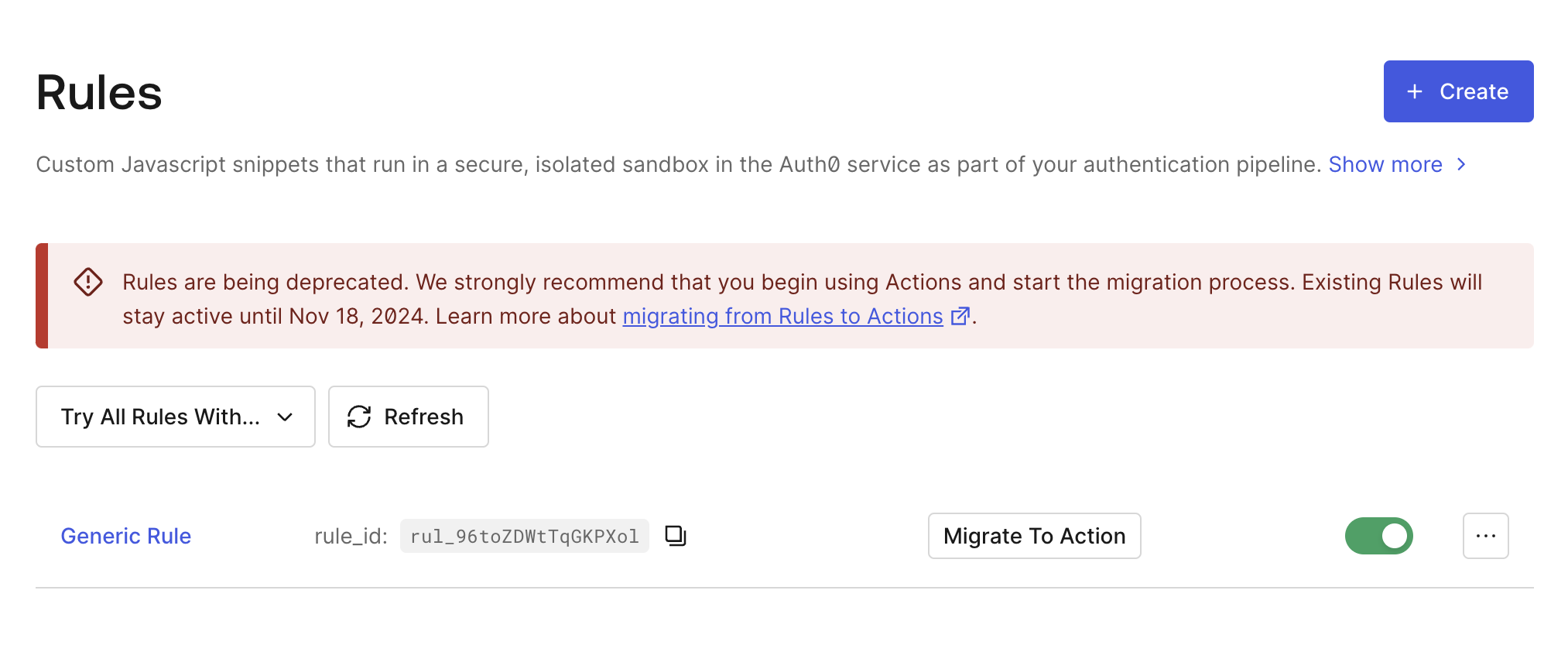 Only migration begins when you chose Migrate to Action. As a developer, you can choose when to activate the new Action.
### Migrate to Action
After selecting **Migrate to Action**, the tooling prompts you to create a new Action.
Only migration begins when you chose Migrate to Action. As a developer, you can choose when to activate the new Action.
### Migrate to Action
After selecting **Migrate to Action**, the tooling prompts you to create a new Action.
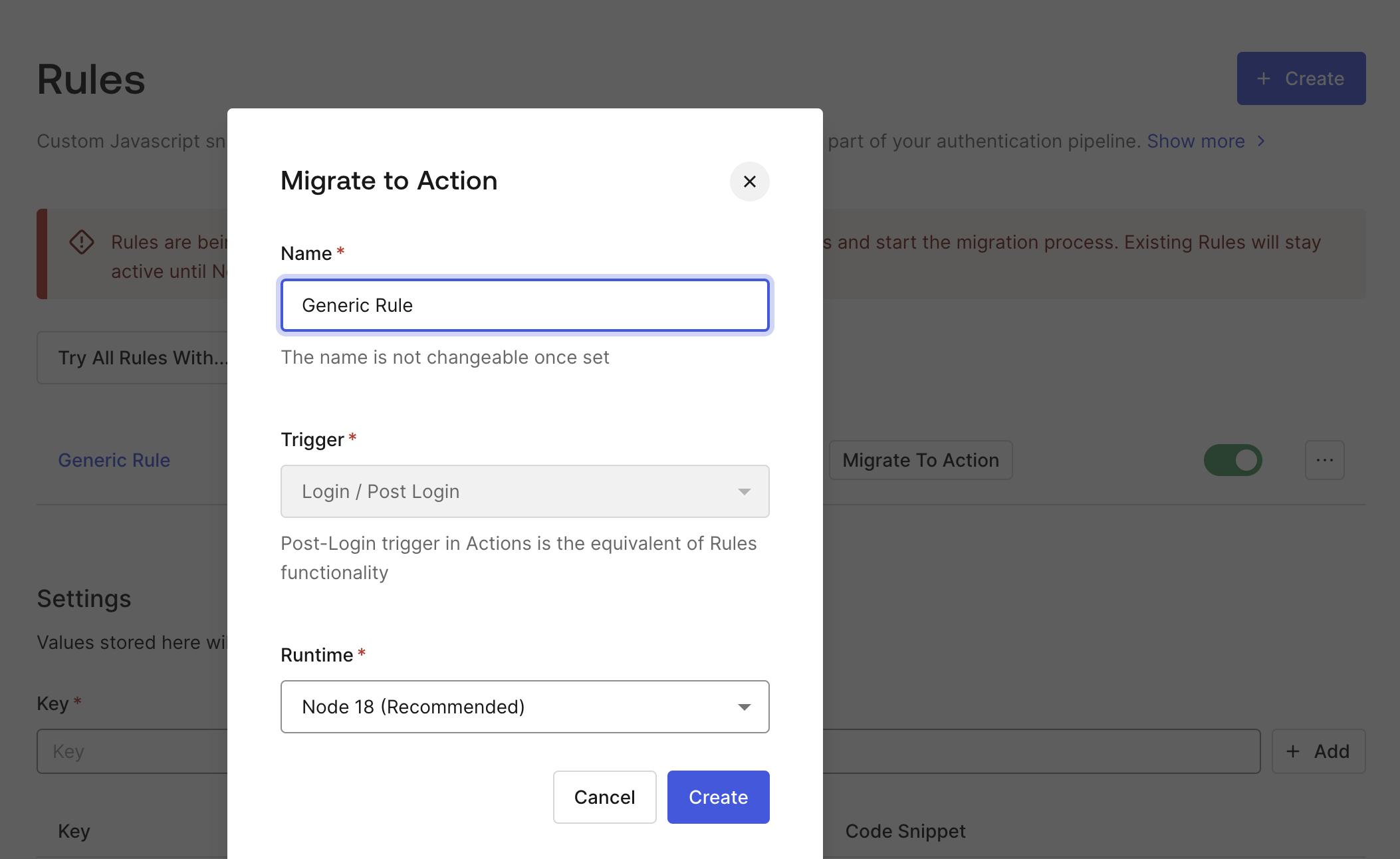 After you select **Create,** the new Action is created and you are presented with the Actions Editor.
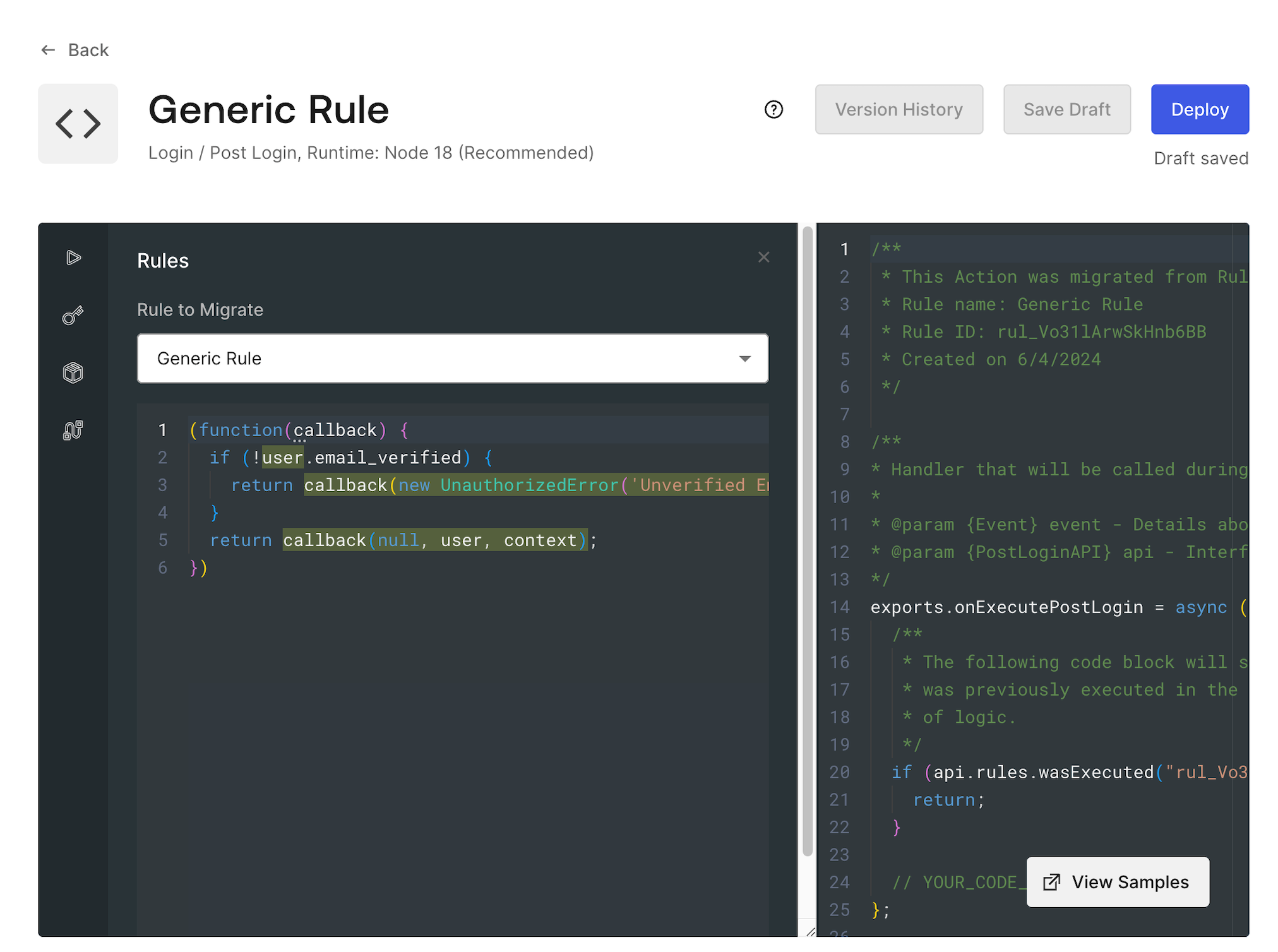 If the Rule is migrated to Actions and still active, the Rule exits before the logic runs.
This runs by calling `api.rules.wasExecuted()`. If the `wasExecuted` function consumes a string containing the Rule ID, it returns `true` if the Rule has already run (and otherwise, returns `false`).
This is a helpful tool to prevent your logic from running twice. As soon as you disable the referenced Rule, the function returns `false` and the business logic now executes in the Action.
The Rule ID value populates automatically for any rule that is migrated using the **Migrate to Action** feature.
For more information about the `api.rules.wasExecuted()` function, refer to [Actions Triggers: post-login - API Object](/docs/customize/actions/explore-triggers/signup-and-login-triggers/login-trigger/post-login-api-object).
## Rewrite Rule code
Select the **Rules** button in the Actions Editor to load the Rules Migration tool. There, you can quickly reference the code of the migrated Rule. You should review the code of the selected Rule in the sidebar.
Copy the contents of the Rule function and paste it under the `// YOUR CODE HERE` comment in the Action. It’s likely that this code is not adapted for the Actions programming model.
If the Rule is migrated to Actions and still active, the Rule exits before the logic runs.
This runs by calling `api.rules.wasExecuted()`. If the `wasExecuted` function consumes a string containing the Rule ID, it returns `true` if the Rule has already run (and otherwise, returns `false`).
This is a helpful tool to prevent your logic from running twice. As soon as you disable the referenced Rule, the function returns `false` and the business logic now executes in the Action.
The Rule ID value populates automatically for any rule that is migrated using the **Migrate to Action** feature.
For more information about the `api.rules.wasExecuted()` function, refer to [Actions Triggers: post-login - API Object](/docs/customize/actions/explore-triggers/signup-and-login-triggers/login-trigger/post-login-api-object).
## Rewrite Rule code
Select the **Rules** button in the Actions Editor to load the Rules Migration tool. There, you can quickly reference the code of the migrated Rule. You should review the code of the selected Rule in the sidebar.
Copy the contents of the Rule function and paste it under the `// YOUR CODE HERE` comment in the Action. It’s likely that this code is not adapted for the Actions programming model.
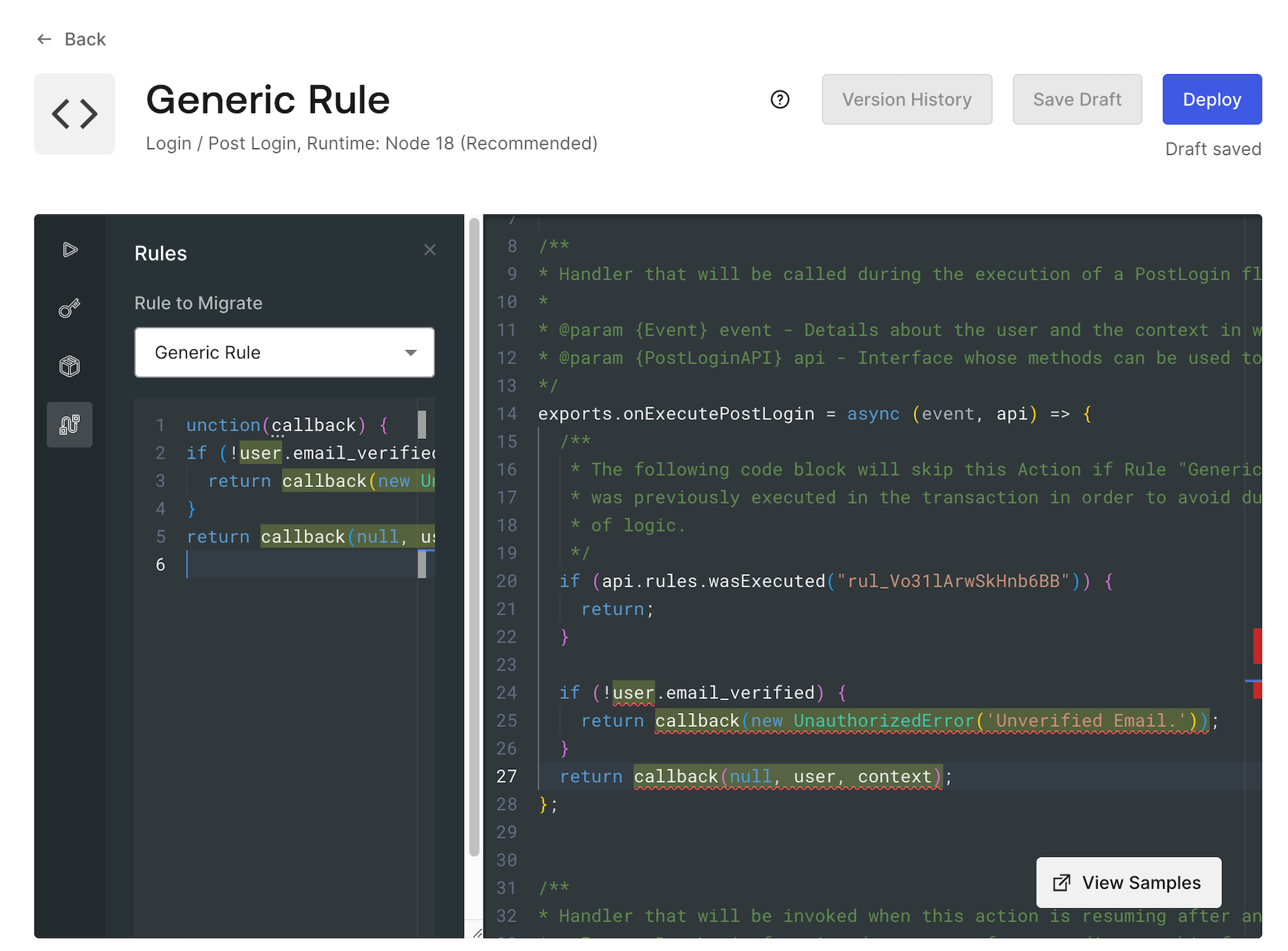 The Actions Editor provides feedback where code must be refactored. The editor also provides suggestions on how to automatically fix most situations - to review the suggestion or fix, hover over the underlined code:
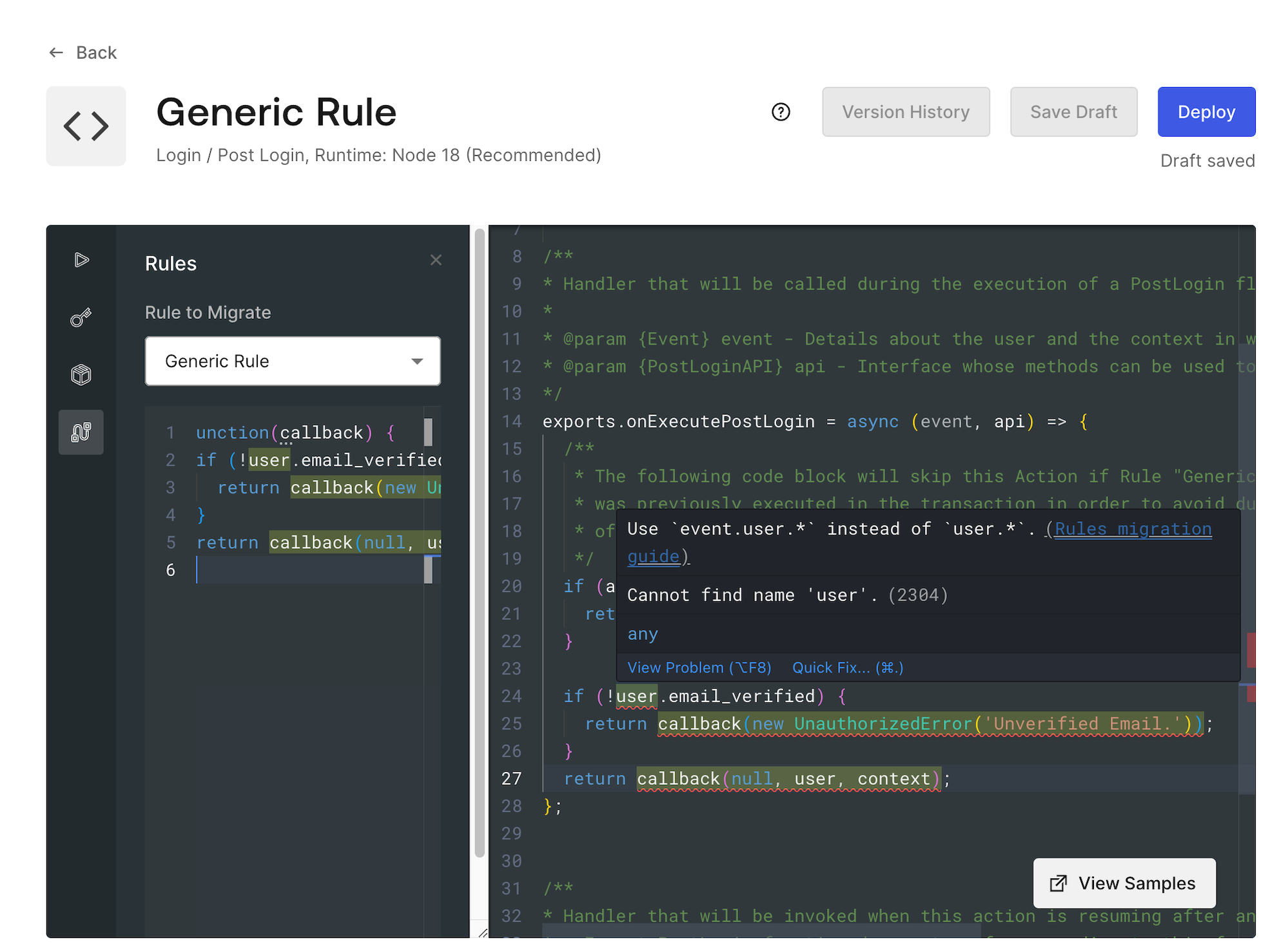 You may be able to apply Action-specific updates by selecting an option from the **Quick Fix** modal.
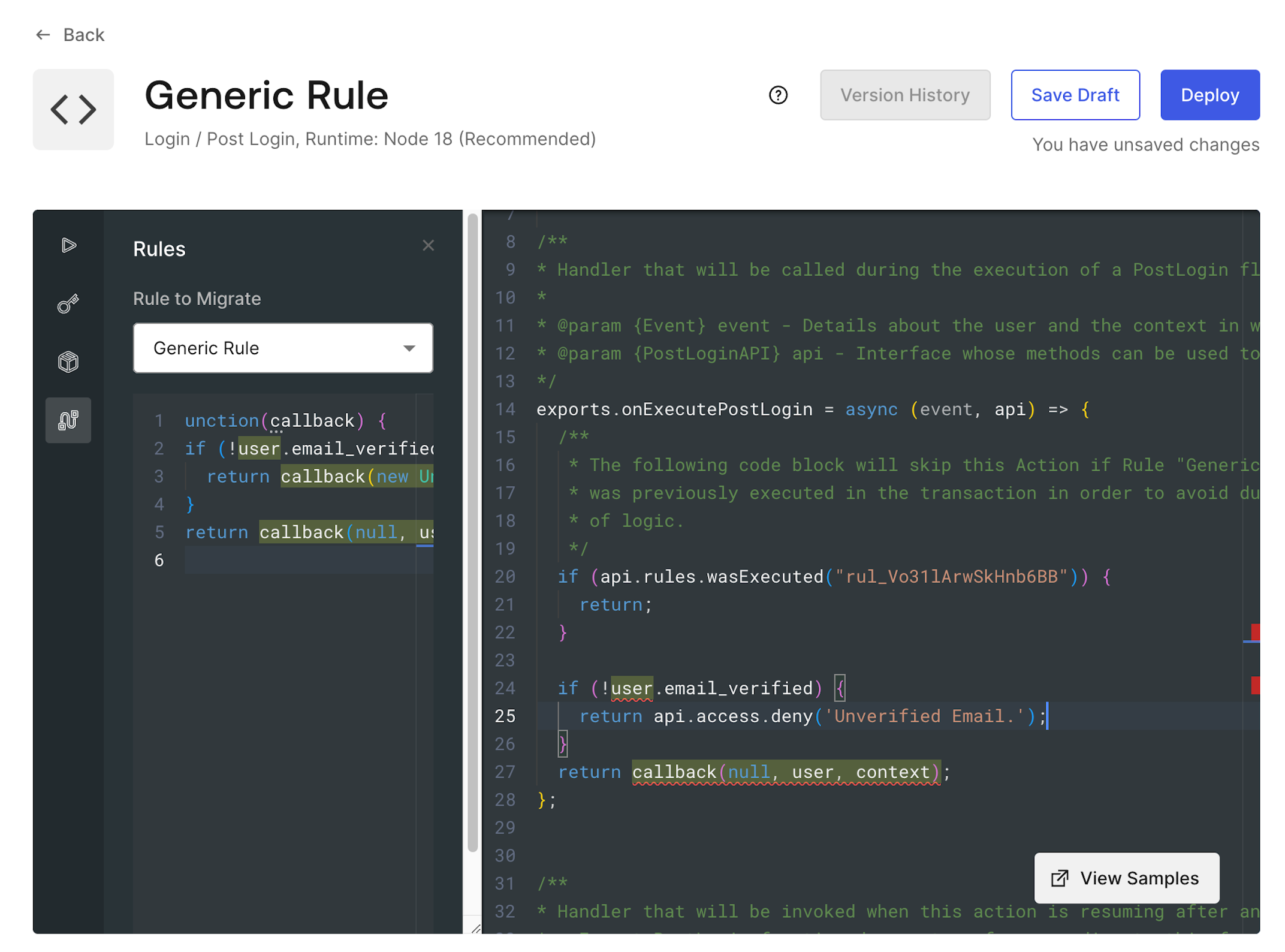
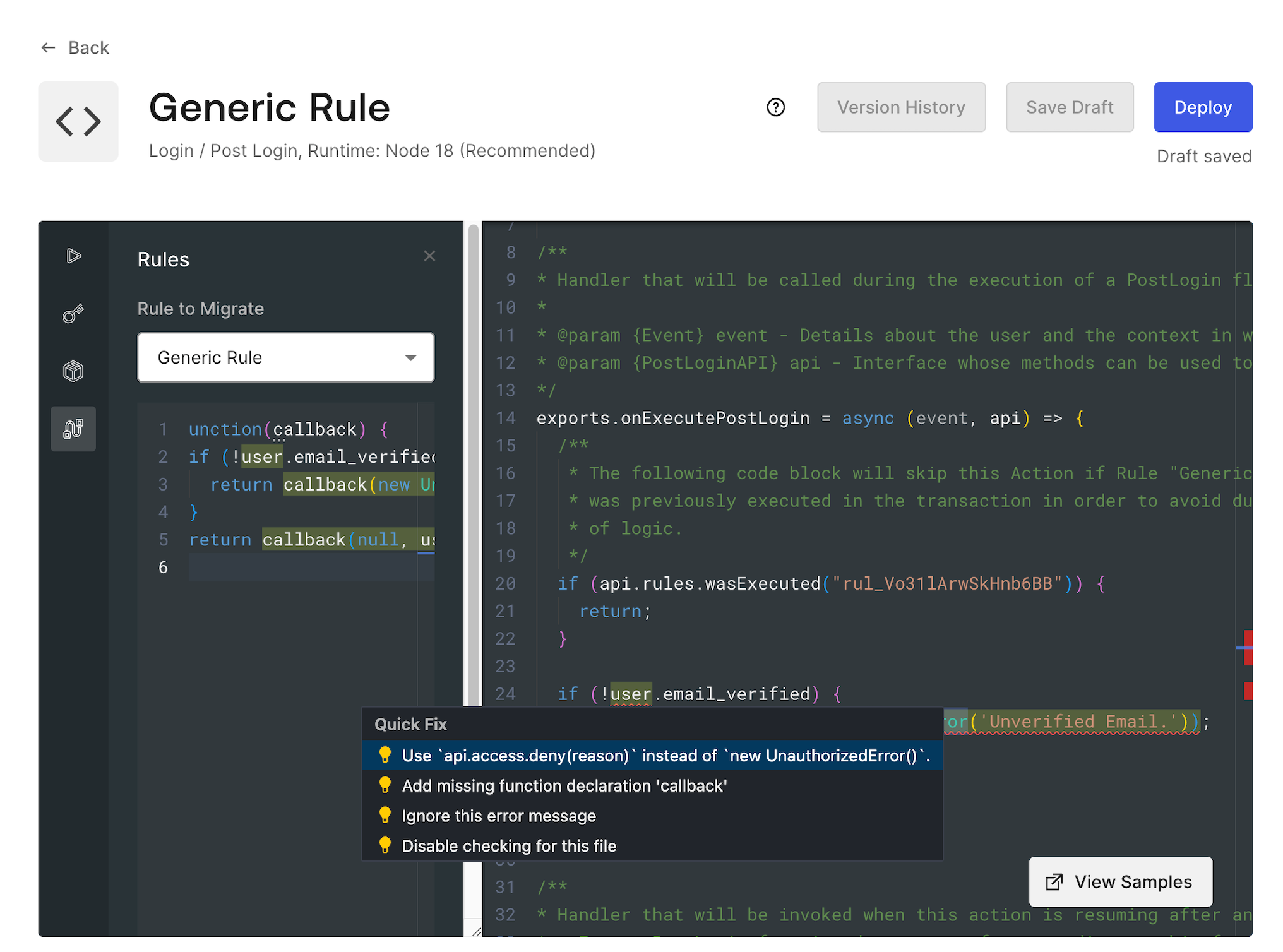 When you select the recommended fix, your code automatically updates to be compatible.
 There are some situations where fixes cannot be applied automatically but guidance is still provided:
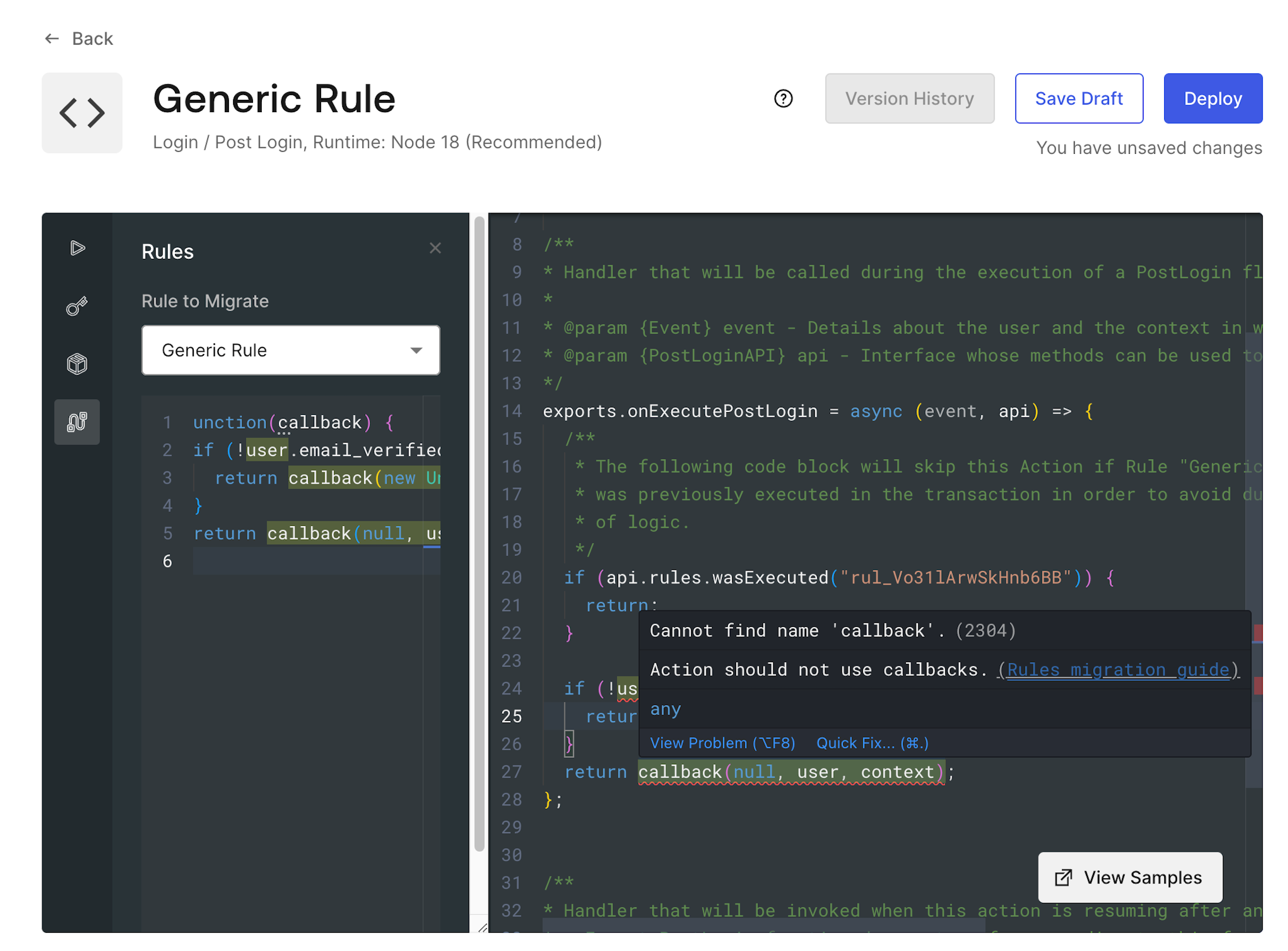 For example: in the case of the Rule’s `callback` function, it is recommended to use [`api.access.deny`](/docs/customize/actions/explore-triggers/signup-and-login-triggers/pre-user-registration-trigger/pre-user-registration-api-object) for errors, or just `return` in successful cases.
### Test the new Action
Actions can be tested directly in the editor, as this is an essential part of the migration journey. For more information, review [Test Actions](/docs/customize/actions/test-actions).
We highly recommend you validate all migration logic in a development tenant before you enable it in production.
### Automatically enabling the Action
When the Action code is updated and you are ready to make the switch:
1. Select **Deploy**.
2. On the alert that confirms your deployment, select **Add to flow**.
3. Add your newly created Action to the flow, then select **Apply.**
4. Select **Continue**, **and disable any Rules selected** to simultaneously enable the new Action and disable the original Rule. If you are not ready, select **Cancel**, and you can disable the Rule later to activate the migrated Action logic.
For more information on adding your Action to the flow, refer to [Write your first Action](/docs/customize/actions/write-your-first-action).
If you re-enable a Rule, the corresponding Action logic is skipped.
## Migrate remaining rules
This process can be repeated to migrate each Rule in your login flow. Remember, Rules should be migrated in the reverse order they execute during the login flow.
For example: in the case of the Rule’s `callback` function, it is recommended to use [`api.access.deny`](/docs/customize/actions/explore-triggers/signup-and-login-triggers/pre-user-registration-trigger/pre-user-registration-api-object) for errors, or just `return` in successful cases.
### Test the new Action
Actions can be tested directly in the editor, as this is an essential part of the migration journey. For more information, review [Test Actions](/docs/customize/actions/test-actions).
We highly recommend you validate all migration logic in a development tenant before you enable it in production.
### Automatically enabling the Action
When the Action code is updated and you are ready to make the switch:
1. Select **Deploy**.
2. On the alert that confirms your deployment, select **Add to flow**.
3. Add your newly created Action to the flow, then select **Apply.**
4. Select **Continue**, **and disable any Rules selected** to simultaneously enable the new Action and disable the original Rule. If you are not ready, select **Cancel**, and you can disable the Rule later to activate the migrated Action logic.
For more information on adding your Action to the flow, refer to [Write your first Action](/docs/customize/actions/write-your-first-action).
If you re-enable a Rule, the corresponding Action logic is skipped.
## Migrate remaining rules
This process can be repeated to migrate each Rule in your login flow. Remember, Rules should be migrated in the reverse order they execute during the login flow.