> ## Documentation Index
> Fetch the complete documentation index at: https://auth0.com/llms.txt
> Use this file to discover all available pages before exploring further.
> Learn how to set up Google Cloud Platform (GCP) with load balancing for use as the custom domain proxy for Auth0.
# Configure Google Cloud Platform with Load Balancing as Reverse Proxy
Auth0 custom domains are available with any paid [subscription plan](https://manage.auth0.com/#/tenant/billing/subscription). If you want to manage the SSL/TLS certificates yourself, you will need an **Enterprise** subscription. For more information, see [Auth0 pricing plans](https://auth0.com/pricing).
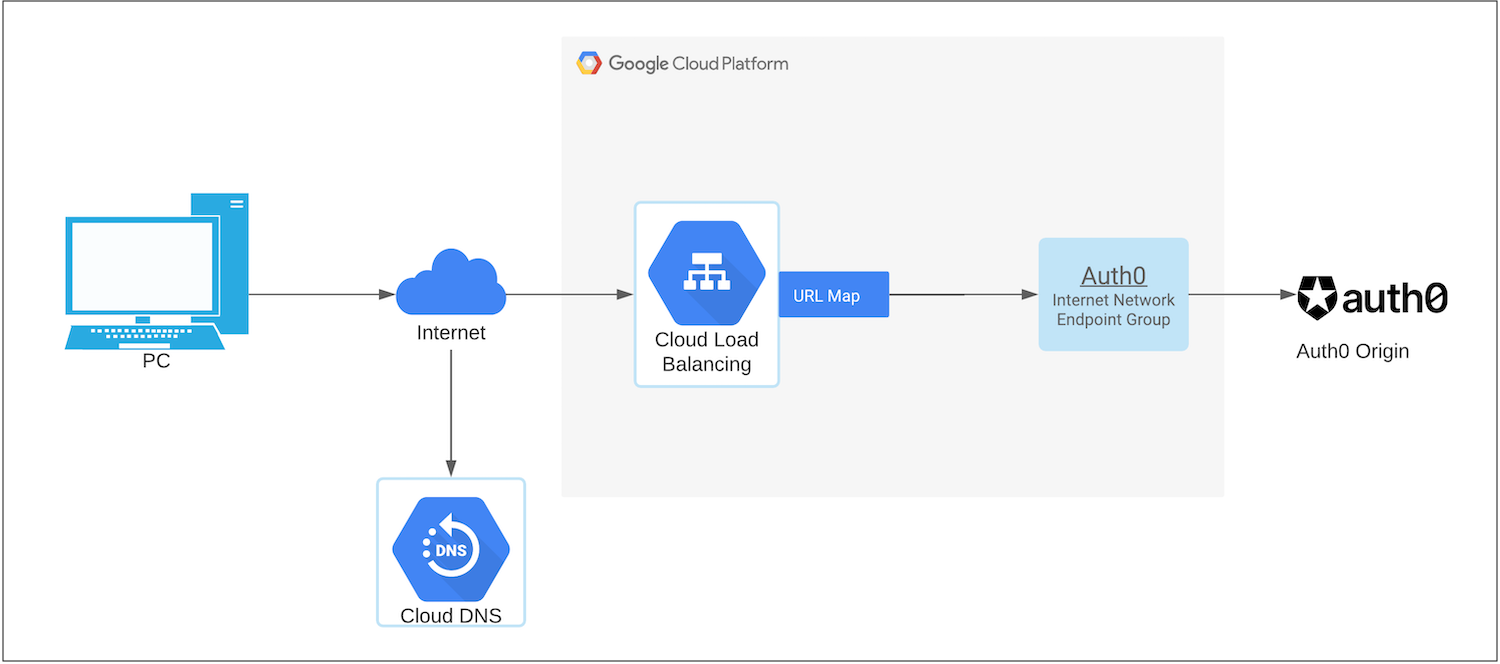
You can set up Google Cloud Platform (GCP) with load balancing as a reverse proxy. The following diagram describes components in the configuration.
* **Google Cloud Platform Load Balancer** distributes traffic across multiple instances of applications.
* **Internet Network Endpoint Group** is a backend that resides outside of Google Cloud. See [Internet Network endpoint group](https://cloud.google.com/load-balancing/docs/negs/internet-neg-concepts) for details.
 1. [Configure Custom Domains with Self-Managed Certificates](/docs/customize/custom-domains/self-managed-certificates) if you haven't already. Make note of the **Origin Domain Name** and `cname-api-key` values for use later.
2. Verify ownership of the domain by adding a TXT record in your DNS server in the [Auth0 Dashboard > Tenant Settings > Custom Domains](https://manage.auth0.com/#/tenant/custom_domains) and click **Verify**.
3. Once GCP has verified your domain, log in to the [GCP console](https://console.cloud.google.com).
4. Go to **Network Services > Load Balancing**. Click **Create Load Balancer**. To learn more, read [Google Cloud Platform Load Balancing](https://cloud.google.com/load-balancing/docs) in Google Cloud documentation.
1. Select **HTTP(S) Load Balancing**.
2. Select **From Internet to my VMs** because we need to route the traffic from Internet to Auth0. Click **Continue**.
3. Provide a name for the load balancer such as `auth0-reverse-proxy` and click **Create**.
5. Configure the backend.
1. Create an internet network endpoint group (NEG) which is a backend that resides outside of Google Cloud. To learn more, see [Internet network endpoint groups overview](https://cloud.google.com/load-balancing/docs/negs/internet-neg-concepts) in Google Cloud documentation.
2. Select the newly created Internet NEG as a backend in the backend service configuration and set the `cname-api-key` and `host` value (origin domain name) from your Auth0 tenant.
3. Click **Done**.
6. Set up the `host` and `path` rules.
1. Choose **Action** as **Route traffic to a single backend**.
2. In **Host rewrite**, enter your origin domain name from your Auth0 tenant that you saved earlier.
3. Click **Create**.
7. Configure the frontend.
1. Create a certificate. The easiest method is to choose **Google-managed certificate** because Google automatically provisions the SSL certificate for you.
2. If you do not choose a Google-managed certificate, then it is your responsibility to renew and upload the SSL certificate with your certificate authority before it expires.
8. Review and finalize the configuration.
It will take a minute for GCP to configure the load balancer. Typical issues that might cause an error include:
* **Invalid API key**: The `cname-api-key` was not set to Auth0 from GCP.
* **403 Forbidden**: The `host` header was not sent to Auth0 from GCP.
9. Update your DNS records to [connect your domain to your load balancer](https://cloud.google.com/load-balancing/docs/https/setup-global-ext-https-external-backend#update_dns).
## Learn more
* [Configure Features to Use Custom Domains](/docs/customize/custom-domains/configure-features-to-use-custom-domains)
* [TLS (SSL) Versions and Ciphers](/docs/customize/custom-domains/self-managed-certificates/tls-ssl)
1. [Configure Custom Domains with Self-Managed Certificates](/docs/customize/custom-domains/self-managed-certificates) if you haven't already. Make note of the **Origin Domain Name** and `cname-api-key` values for use later.
2. Verify ownership of the domain by adding a TXT record in your DNS server in the [Auth0 Dashboard > Tenant Settings > Custom Domains](https://manage.auth0.com/#/tenant/custom_domains) and click **Verify**.
3. Once GCP has verified your domain, log in to the [GCP console](https://console.cloud.google.com).
4. Go to **Network Services > Load Balancing**. Click **Create Load Balancer**. To learn more, read [Google Cloud Platform Load Balancing](https://cloud.google.com/load-balancing/docs) in Google Cloud documentation.
1. Select **HTTP(S) Load Balancing**.
2. Select **From Internet to my VMs** because we need to route the traffic from Internet to Auth0. Click **Continue**.
3. Provide a name for the load balancer such as `auth0-reverse-proxy` and click **Create**.
5. Configure the backend.
1. Create an internet network endpoint group (NEG) which is a backend that resides outside of Google Cloud. To learn more, see [Internet network endpoint groups overview](https://cloud.google.com/load-balancing/docs/negs/internet-neg-concepts) in Google Cloud documentation.
2. Select the newly created Internet NEG as a backend in the backend service configuration and set the `cname-api-key` and `host` value (origin domain name) from your Auth0 tenant.
3. Click **Done**.
6. Set up the `host` and `path` rules.
1. Choose **Action** as **Route traffic to a single backend**.
2. In **Host rewrite**, enter your origin domain name from your Auth0 tenant that you saved earlier.
3. Click **Create**.
7. Configure the frontend.
1. Create a certificate. The easiest method is to choose **Google-managed certificate** because Google automatically provisions the SSL certificate for you.
2. If you do not choose a Google-managed certificate, then it is your responsibility to renew and upload the SSL certificate with your certificate authority before it expires.
8. Review and finalize the configuration.
It will take a minute for GCP to configure the load balancer. Typical issues that might cause an error include:
* **Invalid API key**: The `cname-api-key` was not set to Auth0 from GCP.
* **403 Forbidden**: The `host` header was not sent to Auth0 from GCP.
9. Update your DNS records to [connect your domain to your load balancer](https://cloud.google.com/load-balancing/docs/https/setup-global-ext-https-external-backend#update_dns).
## Learn more
* [Configure Features to Use Custom Domains](/docs/customize/custom-domains/configure-features-to-use-custom-domains)
* [TLS (SSL) Versions and Ciphers](/docs/customize/custom-domains/self-managed-certificates/tls-ssl)