> ## Documentation Index
> Fetch the complete documentation index at: https://auth0.com/llms.txt
> Use this file to discover all available pages before exploring further.
> Learn how to view logs in the Dashboard including user authentication and administrative actions such as adding and updating applications, connections, and rules.
# View Logs
Use the Auth0 Dashboard to view all the logs that occur in your tenants, including user authentication and administrative actions such as adding and updating applications, connections, and rules. Administrative actions will show up in the logs as **API Operation** logs.
By default, logs may not display in the exact order in which they occurred. If you are streaming tenant logs and require chronological sorting, it is recommended that you implement log sorting through your stream processing.
1. Go to [Dashboard > Monitoring > Logs](https://manage.auth0.com/#/logs).
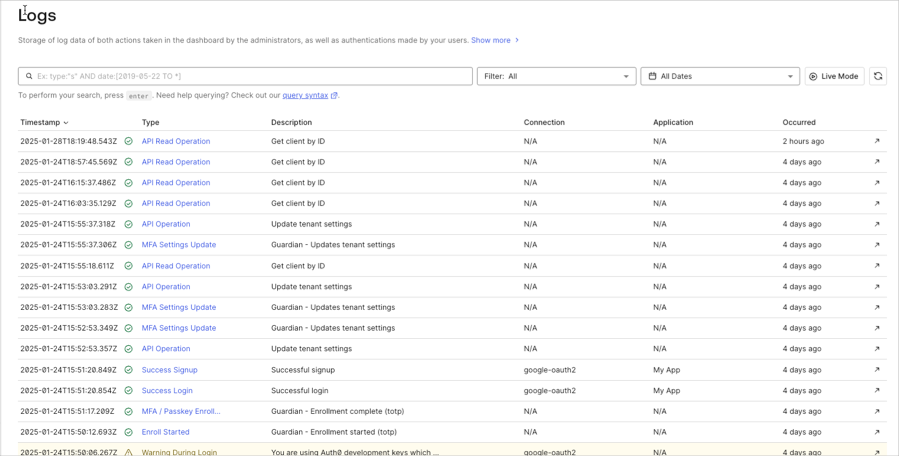 2. The list displays the latest logs. To perform a search, put your cursor in the search field, enter a query and press **Enter**. For example, to search all logs with connections that contain "Pass," enter `connection:*pass*`. To learn more about the search query syntax and examples, read [Log Search Query Syntax](/docs/deploy-monitor/logs/log-search-query-syntax).
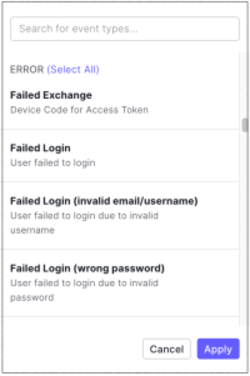
3. You can choose to filter your search by log types. Choose a filter from the drop-down list and click **Apply**. For example, you can choose the **Failed Login** to filter for failed user login logs. To learn about log event filters and examples, read [Log Event Filters](/docs/deploy-monitor/logs/log-event-filters).
2. The list displays the latest logs. To perform a search, put your cursor in the search field, enter a query and press **Enter**. For example, to search all logs with connections that contain "Pass," enter `connection:*pass*`. To learn more about the search query syntax and examples, read [Log Search Query Syntax](/docs/deploy-monitor/logs/log-search-query-syntax).
3. You can choose to filter your search by log types. Choose a filter from the drop-down list and click **Apply**. For example, you can choose the **Failed Login** to filter for failed user login logs. To learn about log event filters and examples, read [Log Event Filters](/docs/deploy-monitor/logs/log-event-filters).
 4. You can choose a date range for your search. Click the drop-down next to the date field, choose a specific date or range, and click **Apply**.
## Learn more
* [Log Data Retention](/docs/deploy-monitor/logs/log-data-retention)
* [Filter Log Events](/docs/deploy-monitor/logs/log-event-filters)
* [Log Search Query Syntax](/docs/deploy-monitor/logs/log-search-query-syntax)
4. You can choose a date range for your search. Click the drop-down next to the date field, choose a specific date or range, and click **Apply**.
## Learn more
* [Log Data Retention](/docs/deploy-monitor/logs/log-data-retention)
* [Filter Log Events](/docs/deploy-monitor/logs/log-event-filters)
* [Log Search Query Syntax](/docs/deploy-monitor/logs/log-search-query-syntax)