> ## Documentation Index
> Fetch the complete documentation index at: https://auth0.com/llms.txt
> Use this file to discover all available pages before exploring further.
> Learn how to check Auth0 public cloud service availability, incident reports, and historical uptime reports.
# Check Auth0 Status
Go to the [Auth0 Public Cloud Status](https://status.auth0.com) page to check the service availability of the public cloud version of Auth0.
Select a **Region** from the dropdown menu to see the status of Core Services (such as User Authentication and Machine-to-Machine Authentication) and Supporting Services (such as MFA, Management API, Tenant Logs, and CDN).
For more information on available regions, refer to the [Region, locality, and sub-locality](/docs/get-started/auth0-overview/create-tenants#region-locality-and-sub-locality) table in [Create Tenants](/docs/get-started/auth0-overview/create-tenants).
## Subscribe to Public Cloud status updates
Select a **Region**, and then select **Subscribe** to get updates. You can choose from two options to view status:
1. Follow [@auth0status](https://x.com/auth0status) on X to get the latest status updates.
2. Subscribe to the Auth0 Atom or RSS feed to get status updates that affect your tenant. Replace `{YOUR_TENANT_DOMAIN}` with your tenant's **Domain**.
To find your tenant's **Domain**, go to [Auth0 Dashboard > Applications](https://manage.auth0.com/dashboard/#/applications), select an application, and then go to **Settings**. Your tenant's **Domain** is listed under **Basic Information**.
## Check Auth0 status for Private Cloud
Go to the [Auth0 Public Cloud Status](https://status.auth0.com), and then select **Private Cloud Login**.
Once authenticated, you can see the status of any non-development environment (for example, `travel0-prod-1`) if it's available on the Auth0 Converged Platform.
In order to access status for your Private Cloud environment, you need to be a member of the associated Public Cloud support tenant. For more information, please read [Open and Manage Support Tickets](/docs/troubleshoot/customer-support/open-and-manage-support-tickets) and [Manage Dashboard Access](/docs/get-started/manage-dashboard-access).
To go back to the Auth0 Public Cloud Status page, select **Auth0 Public Cloud Status** from the top-right navigation.
## Subscribe to Private Cloud status updates
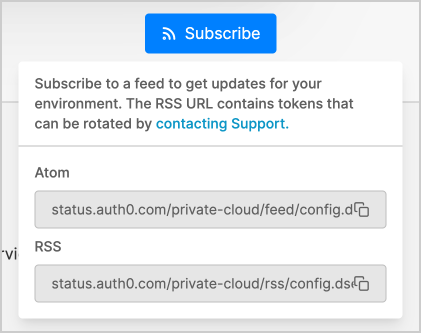
Select an Environment, and then select **Subscribe**.
Subscribe to the Auth0 Atom or RSS feed by copying the generated URL in the 'Subscribe' box to get status updates that affect your environment.
The generated ATOM / RSS Feed URL is unique per Private Cloud environment and contains tokens that can be rotated by [contacting Support](https://support.auth0.com/).