> ## Documentation Index
> Fetch the complete documentation index at: https://auth0.com/llms.txt
> Use this file to discover all available pages before exploring further.
> Provides steps for when you change authentication factors or lose/retire a device
# Remove or Change Dashboard Multi-Factor Authentication
Dashboard users can remove or change multi-factor authentication (MFA) factors that are no longer available or wanted. To learn more about MFA for Dashboard users, read [Multi-Factor Authentication for Dashboard Users](/docs/get-started/manage-dashboard-access/add-change-remove-mfa).
Auth0 recommends WebAuthn factors as the most secure and usable authentication methods. To learn more, read [FIDO Authentication with WebAuthn](/docs/secure/multi-factor-authentication/fido-authentication-with-webauthn).
Admins must enable at least one factor to use MFA. Auth0 highly recommends setting up multiple factors so you can still access your account if you lose your primary device.
An ideal setup is to use three factors:
1. WebAuthn, Guardian, or OTP as the primary method.
2. One or more SMS numbers as a backup (available only on tenants attached to a subscription plan).
3. A recovery code.
If you can't provide your MFA token and you don’t have proper backup methods, your account may be irrecoverable.
## Remove or change an MFA factor from the Dashboard
You can’t add a device biometrics factor (such as the MacBook Touch Bar, Windows Hello, iOS Touch ID or Face ID, or Android fingerprint or face recognition) from the Dashboard. To learn how to add a device biometrics authentication factor, read [Add Multi-factor Authentication for Dashboard Users.](/docs/get-started/manage-dashboard-access/add-change-remove-mfa/add-mfa)
Dashboard users who can log in with their current MFA factors can follow these steps:
1. In the top right corner of the Dashboard, click your user name and click [Your profile](https://manage.auth0.com/#/profile).
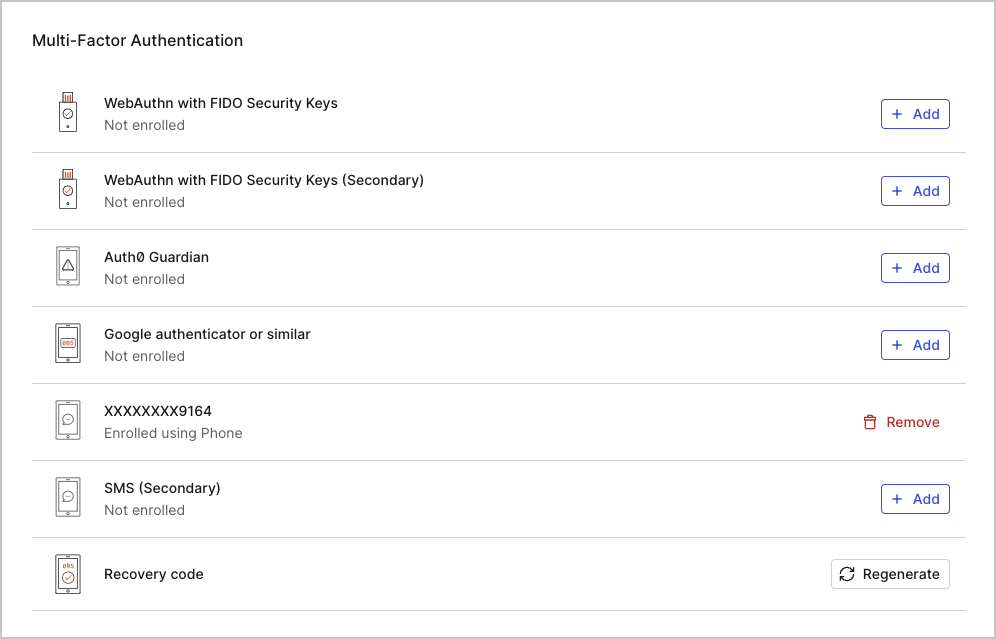 2. Find the new authentication factor you want to use and click **+ ADD** in that row. Follow the on-screen instructions to complete the enrollment.
3. Still in [Your profile](https://manage.auth0.com/#/profile), find the authentication factor you want to stop using and click **REMOVE**.
4. Click **Yes** to confirm the removal.
5. Auth0 prompts you to authenticate with your current (old) factors. After a successful authentication, Auth0 removes the factor.
## Remove or change a lost MFA factor
Dashboard users who **can’t** log in with their current MFA factors can follow these steps:
1. Attempt to log in to the Dashboard. Auth0 prompts you to authenticate with your current factors.
2. When Auth0 asks for the device or credentials you’ve lost, click on **Try another method**.
3. In the Other Methods box, click a different method to authenticate.
4. Log in to access the Dashboard.
5. In the top right corner of the Dashboard, click your user name and click [Your profile](https://manage.auth0.com/#/profile).
6. Find the authentication method you can no longer use and click **REMOVE**.
7. Click **Yes** to confirm the removal.
8. Auth0 prompts you to authenticate using your current factors again. Repeat steps 2-4 to verify your identity. Auth0 removes the lost factor.
## Get help from Auth0 support
If you are locked out and don’t have access to any of your enabled MFA factors, there is no guarantee that you can regain access to your account. Another administrator must file an Auth0 support ticket on your behalf. In some cases, Auth0 can verify the request and proceed with an MFA reset. However, we may not be able to confirm account ownership. This is why it’s so important to enable multiple and varied factors.
Auth0 support does not reset **end-user** accounts. You are responsible for accounts that access your applications and APIs. To learn about end-user accounts, read [Manage Users](/docs/manage-users).
## Learn more
* [Multi-Factor Authentication for Dashboard Users](/docs/get-started/manage-dashboard-access/add-change-remove-mfa)
* [Add Multi-Factor Authentication for Auth0 Dashboard Access](/docs/get-started/manage-dashboard-access/add-change-remove-mfa/add-mfa)
2. Find the new authentication factor you want to use and click **+ ADD** in that row. Follow the on-screen instructions to complete the enrollment.
3. Still in [Your profile](https://manage.auth0.com/#/profile), find the authentication factor you want to stop using and click **REMOVE**.
4. Click **Yes** to confirm the removal.
5. Auth0 prompts you to authenticate with your current (old) factors. After a successful authentication, Auth0 removes the factor.
## Remove or change a lost MFA factor
Dashboard users who **can’t** log in with their current MFA factors can follow these steps:
1. Attempt to log in to the Dashboard. Auth0 prompts you to authenticate with your current factors.
2. When Auth0 asks for the device or credentials you’ve lost, click on **Try another method**.
3. In the Other Methods box, click a different method to authenticate.
4. Log in to access the Dashboard.
5. In the top right corner of the Dashboard, click your user name and click [Your profile](https://manage.auth0.com/#/profile).
6. Find the authentication method you can no longer use and click **REMOVE**.
7. Click **Yes** to confirm the removal.
8. Auth0 prompts you to authenticate using your current factors again. Repeat steps 2-4 to verify your identity. Auth0 removes the lost factor.
## Get help from Auth0 support
If you are locked out and don’t have access to any of your enabled MFA factors, there is no guarantee that you can regain access to your account. Another administrator must file an Auth0 support ticket on your behalf. In some cases, Auth0 can verify the request and proceed with an MFA reset. However, we may not be able to confirm account ownership. This is why it’s so important to enable multiple and varied factors.
Auth0 support does not reset **end-user** accounts. You are responsible for accounts that access your applications and APIs. To learn about end-user accounts, read [Manage Users](/docs/manage-users).
## Learn more
* [Multi-Factor Authentication for Dashboard Users](/docs/get-started/manage-dashboard-access/add-change-remove-mfa)
* [Add Multi-Factor Authentication for Auth0 Dashboard Access](/docs/get-started/manage-dashboard-access/add-change-remove-mfa/add-mfa)