> ## Documentation Index
> Fetch the complete documentation index at: https://auth0.com/llms.txt
> Use this file to discover all available pages before exploring further.
> Learn how to import your own signing keys to use with Auth0.
# Customer Provided Public Signing Keys
Customer Provided Signing Key is currently in Early Access. To learn more, read Product Release Stages. If you want to participate in Customer Provided Signing Keys, you must have an Enterprise plan. Contact your Technical Account Manager for more information.
Auth0 uses cryptographic keys to sign access tokens to ensure that tokens are issued by Auth0. Auth0 signs the tokens with a private signing key and publishes the public key to the tenant’s “well-known” JSON Web Token Key Set ([JWKS](/docs/secure/tokens/json-web-tokens/json-web-key-sets)) endpoint: `https://{yourDomain}/.well-known/``jwks.json`.
If you generate your own signing keys, you can import the public key to your tenant’s `/.well-known` JWKS endpoint. Auth0 can be the single distribution point for Auth0 signing keys and your custom signing keys. If your business case requires your application to be embedded in remote devices, you can migrate your existing signing keys for Auth0 to publish the public key to your `/.well-known` endpoint.
When access tokens with your custom signing keys are being issued as a result of a user authentication and authorization flow:
* Auth0's Key Management System is responsible for protecting the signing keys you generate and provide.
* Auth0 issues tokens for [authentication and authorization](/docs/get-started/identity-fundamentals/authentication-and-authorization) as the identity provider.
* Auth0 publishes a list of valid public keys at a distribution URL specific to the tenant.
* A proxy solution receives Auth0 issued tokens and makes them available to legacy applications and APIs.
Tokens signed by customer keys cannot be consumed by [Auth0 APIs](/docs/api).
* Customer applications use the issued access tokens to consume APIs and resources.
* APIs and resources servers validate the signature of the access tokens presented to them by retrieving the public key from Auth0’s JWKS distribution to perform the token signature verification.
## How it works
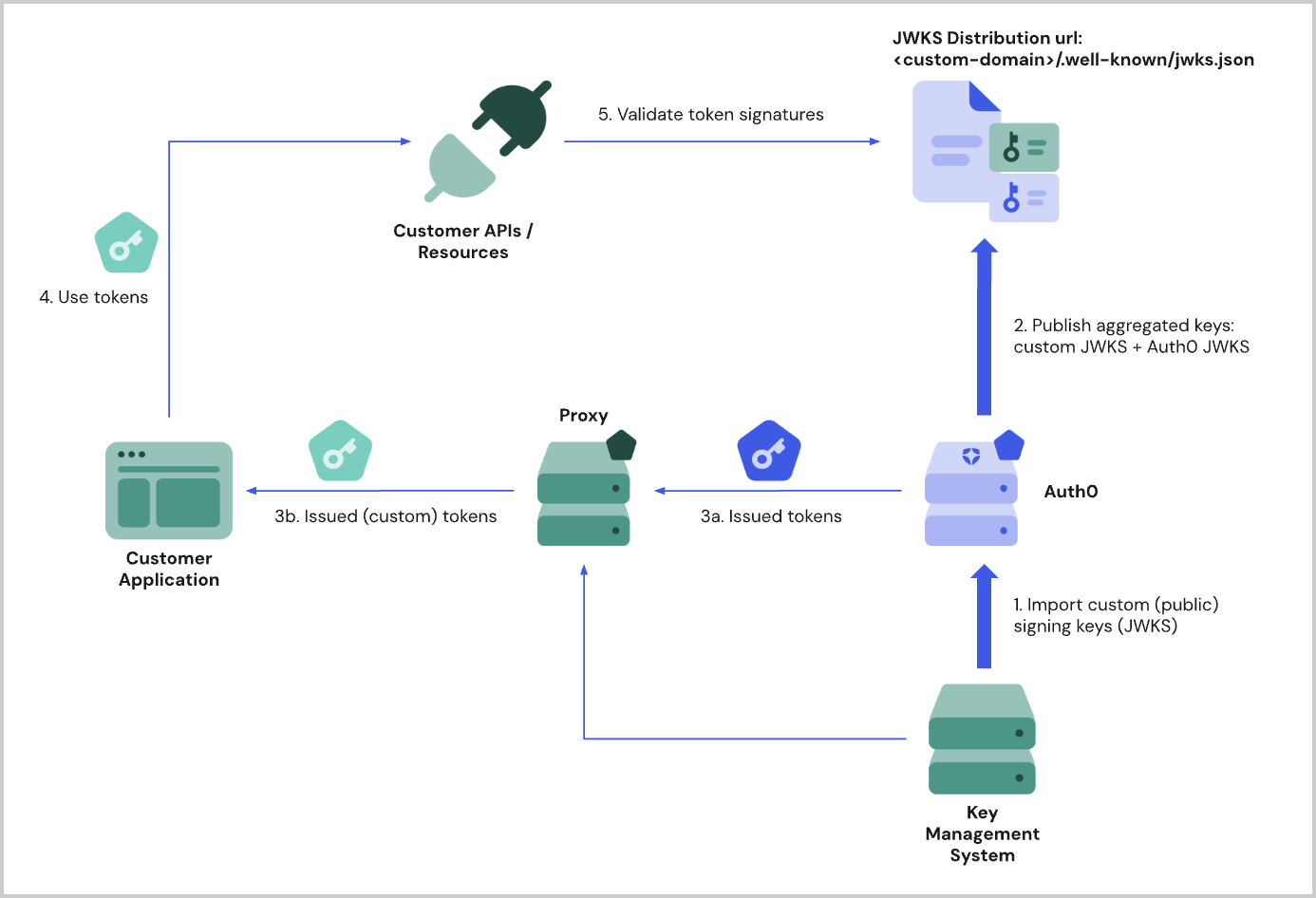 1. The public part of the signing key is imported to Auth0 and pend publication to Auth0 keys as an aggregated [JWKS](/docs/secure/tokens/json-web-tokens/json-web-key-sets).
2. The public signing key is published to the well-known endpoint of your tenant’s [custom domain](/docs/customize/custom-domains): `{yourCustomDomain}/.well-known/jwks.json`.
3. Auth0 issues access tokens. Those tokens are customized and re-signed with your signing key
4. Your application uses the customized tokens for access to your resources, such as APIs.
5. Auth0 distributes your key by publishing to the `/.wellknown` endpoint.
## Prerequisites
To import custom signing keys into Auth0, you must:
* Configure a Custom Domain. The aggregated JWKS is served from a custom domain and is not available on the canonical domain. To learn more, read [Custom Domains.](/docs/customize/custom-domains)
* Use Auth0’s Private Cloud. You can only import signing keys in Private Cloud environments. To learn more, read about our Private Cloud on [AWS](/docs/deploy-monitor/deploy-private-cloud/private-cloud-on-aws) and [Azure](/docs/deploy-monitor/deploy-private-cloud/private-cloud-on-azure).
## Configure your custom keys with Management API
Use the Management API to upload your custom keys in the form of JWKS.
To create new (replace all existing) custom keys, make a `PUT` call to the [Create or replace custom signing keys](https://auth0.com/docs/api/management/v2/keys/put-custom-signing-keys) endpoint to import a set of custom public keys into Auth0. Existing custom keys will be replaced by the new set. You can import up to ten custom keys in JWKS format.
Once imported, the custom public keys prepend to the list of Auth0-generated keys and will be published to your tenant’s well known endpoint URL for distributing JWKS.
To get a list of existing custom keys, make a `GET` call to the [Get custom signing keys](https://auth0.com/docs/api/management/v2/keys/get-custom-signing-keys) endpoint to retrieve the set of custom keys as an array of JWK objects.
To delete existing custom keys, make a `DELETE` call to the [Delete custom keys](https://auth0.com/docs/api/management/v2/keys/delete-custom-signing-keys) endpoint to delete the custom keys.
1. The public part of the signing key is imported to Auth0 and pend publication to Auth0 keys as an aggregated [JWKS](/docs/secure/tokens/json-web-tokens/json-web-key-sets).
2. The public signing key is published to the well-known endpoint of your tenant’s [custom domain](/docs/customize/custom-domains): `{yourCustomDomain}/.well-known/jwks.json`.
3. Auth0 issues access tokens. Those tokens are customized and re-signed with your signing key
4. Your application uses the customized tokens for access to your resources, such as APIs.
5. Auth0 distributes your key by publishing to the `/.wellknown` endpoint.
## Prerequisites
To import custom signing keys into Auth0, you must:
* Configure a Custom Domain. The aggregated JWKS is served from a custom domain and is not available on the canonical domain. To learn more, read [Custom Domains.](/docs/customize/custom-domains)
* Use Auth0’s Private Cloud. You can only import signing keys in Private Cloud environments. To learn more, read about our Private Cloud on [AWS](/docs/deploy-monitor/deploy-private-cloud/private-cloud-on-aws) and [Azure](/docs/deploy-monitor/deploy-private-cloud/private-cloud-on-azure).
## Configure your custom keys with Management API
Use the Management API to upload your custom keys in the form of JWKS.
To create new (replace all existing) custom keys, make a `PUT` call to the [Create or replace custom signing keys](https://auth0.com/docs/api/management/v2/keys/put-custom-signing-keys) endpoint to import a set of custom public keys into Auth0. Existing custom keys will be replaced by the new set. You can import up to ten custom keys in JWKS format.
Once imported, the custom public keys prepend to the list of Auth0-generated keys and will be published to your tenant’s well known endpoint URL for distributing JWKS.
To get a list of existing custom keys, make a `GET` call to the [Get custom signing keys](https://auth0.com/docs/api/management/v2/keys/get-custom-signing-keys) endpoint to retrieve the set of custom keys as an array of JWK objects.
To delete existing custom keys, make a `DELETE` call to the [Delete custom keys](https://auth0.com/docs/api/management/v2/keys/delete-custom-signing-keys) endpoint to delete the custom keys.