> ## Documentation Index
> Fetch the complete documentation index at: https://auth0.com/llms.txt
> Use this file to discover all available pages before exploring further.
> Learn how to rotate your tenant's application or API signing key using the Auth0 Dashboard or the Management API.
# Rotate Signing Keys
export const AuthCodeGroup = ({children, dropdown}) => {
const [processedChildren, setProcessedChildren] = useState(children);
useEffect(() => {
let unsubscribe = null;
function init() {
unsubscribe = window.autorun(() => {
const processChildren = node => {
if (typeof node === "string") {
let processedNode = node;
for (const [key, value] of window.rootStore.variableStore.values.entries()) {
const escapedKey = key.replaceAll(/[.*+?^${}()|[\]\\]/g, (String.raw)`\$&`);
processedNode = processedNode.replaceAll(new RegExp(escapedKey, "g"), value);
}
return processedNode;
} else if (Array.isArray(node)) {
return node.map(processChildren);
} else if (node && node.props && node.props.children) {
return {
...node,
props: {
...node.props,
children: processChildren(node.props.children)
}
};
}
return node;
};
setProcessedChildren(processChildren(children));
});
}
if (window.rootStore) {
init();
} else {
window.addEventListener("adu:storeReady", init);
}
return () => {
window.removeEventListener("adu:storeReady", init);
unsubscribe?.();
};
}, [children]);
return {processedChildren};
};
export const AuthCodeBlock = ({filename, icon, language, highlight, children}) => {
const [displayText, setDisplayText] = useState(children);
const [copyText, setCopyText] = useState(children);
const wrapperRef = React.useRef(null);
useEffect(() => {
let unsubscribe = null;
function init() {
if (!window.autorun || !window.rootStore) {
return;
}
unsubscribe = window.autorun(() => {
let processedChildrenForDisplay = children;
let processedChildrenForCopy = children;
for (const [key, value] of window.rootStore.variableStore.values.entries()) {
const escapedKey = key.replaceAll(/[.*+?^${}()|[\]\\]/g, (String.raw)`\$&`);
let displayValue = value;
if (key === "{yourClientSecret}" && value !== "{yourClientSecret}") {
displayValue = value.substring(0, 3) + "*****MASKED*****";
}
processedChildrenForDisplay = processedChildrenForDisplay.replaceAll(new RegExp(escapedKey, "g"), displayValue);
processedChildrenForCopy = processedChildrenForCopy.replaceAll(new RegExp(escapedKey, "g"), value);
}
setDisplayText(processedChildrenForDisplay);
setCopyText(processedChildrenForCopy);
});
}
if (window.rootStore) {
init();
} else {
window.addEventListener("adu:storeReady", init);
}
return () => {
window.removeEventListener("adu:storeReady", init);
unsubscribe?.();
};
}, [children]);
useEffect(() => {
if (!wrapperRef.current) return;
const originalWriteText = navigator.clipboard.writeText.bind(navigator.clipboard);
let isOverriding = false;
const handleClick = e => {
const button = e.target.closest('[data-testid="copy-code-button"]');
if (!button || !wrapperRef.current.contains(button)) return;
isOverriding = true;
navigator.clipboard.writeText = text => {
if (isOverriding) {
isOverriding = false;
navigator.clipboard.writeText = originalWriteText;
return originalWriteText(copyText);
}
return originalWriteText(text);
};
setTimeout(() => {
if (isOverriding) {
isOverriding = false;
navigator.clipboard.writeText = originalWriteText;
}
}, 100);
};
const wrapper = wrapperRef.current;
wrapper.addEventListener('click', handleClick, true);
return () => {
wrapper.removeEventListener('click', handleClick, true);
if (navigator.clipboard.writeText !== originalWriteText) {
navigator.clipboard.writeText = originalWriteText;
}
};
}, [copyText]);
return
{displayText}
;
};
You can manually rotate a signing key periodically to change the JSON web key (JWK) key used by applications and APIs to validate tokens. If your application or API **does not** allow for this key change, and it attempts to use an expired signing key to verify a token, the authentication request will fail.
Auth0 recommends that you execute signing key rotation on a development tenant first, then verify that your applications and APIs still work as expected. After you verify that everything is working properly, perform the same signing key rotation on your production tenant.
Although Auth0 signs with only one signing key at a time, your tenant's OpenID Connect (OIDC) discovery document always contains multiple keys. The OIDC discovery document will always include both the current key and the next key, and it may also include the previous key if the previous key has not yet been revoked. To provide a seamless experience in case of an emergency, your application should be able to use any of the keys specified in the document. To learn more about OpenID Connect discovery documents, read [Locate JSON Web Key Sets](/docs/secure/tokens/json-web-tokens/locate-json-web-key-sets).
To allow you time to update your application with the new signing key, all tokens signed with the previous key will still be valid until you revoke the previous key. To learn more, read [Revoke Signing Keys](/docs/get-started/tenant-settings/signing-keys/revoke-signing-keys).
You can rotate your tenant's application signing key using the Auth0 Dashboard or the Auth0 Management API.
## Use the Dashboard
1. Go to [Dashboard > Settings > Signing Keys](https://manage.auth0.com/#/tenant/signing_keys).
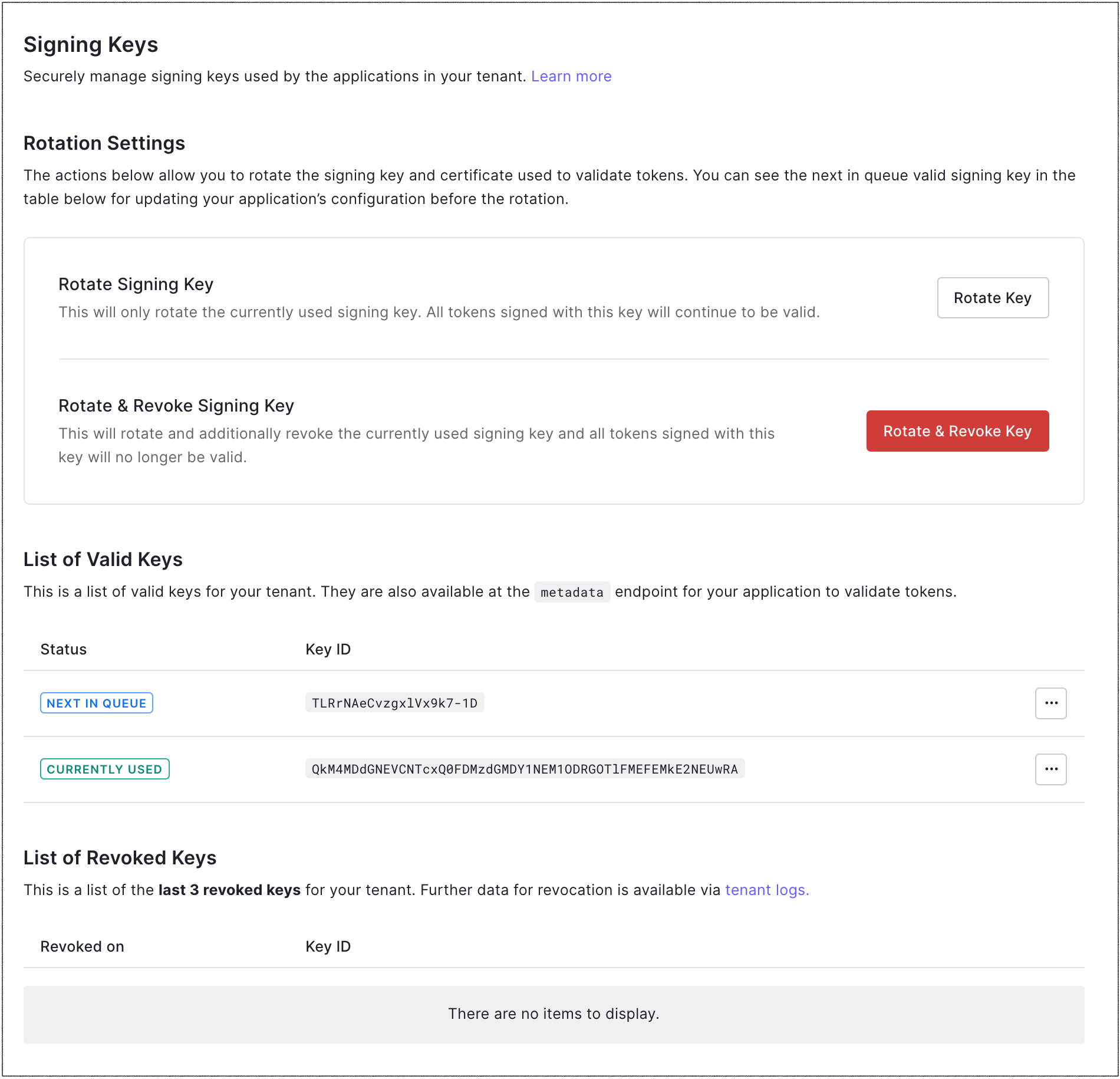 2. Under **Rotation Settings**, locate **Rotate Signing Key**, and select **Rotate Key**.
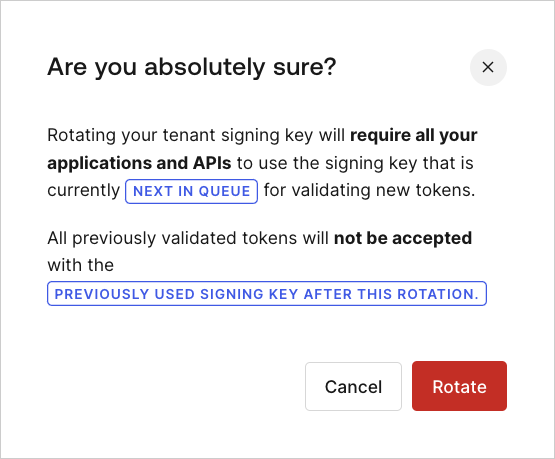
3. Click **Rotate** to confirm.
2. Under **Rotation Settings**, locate **Rotate Signing Key**, and select **Rotate Key**.
3. Click **Rotate** to confirm.
 ## Use the Management API
1. To get a list of the signing keys, make a `GET` call to the [Get all Application Signing Keys](https://auth0.com/docs/api/management/v2#!/Keys/get_signing_keys) endpoint.
2. To rotate the signing key, make a `POST` call to the [Rotate the Application Signing Key](https://auth0.com/docs/api/management/v2#!/Keys/post_signing_keys) endpoint. Be sure to replace the `MGMT_API_ACCESS_TOKEN` placeholder value with your Management API access token.
```bash cURL theme={null}
curl --request POST \
--url 'https://{yourDomain}/api/v2/keys/signing/rotate' \
--header 'authorization: Bearer {yourMgmtApiAccessToken}'
```
```csharp C# theme={null}
var client = new RestClient("https://{yourDomain}/api/v2/keys/signing/rotate");
var request = new RestRequest(Method.POST);
request.AddHeader("authorization", "Bearer {yourMgmtApiAccessToken}");
IRestResponse response = client.Execute(request);
```
```go Go theme={null}
package main
import (
"fmt"
"net/http"
"io/ioutil"
)
func main() {
url := "https://{yourDomain}/api/v2/keys/signing/rotate"
req, _ := http.NewRequest("POST", url, nil)
req.Header.Add("authorization", "Bearer {yourMgmtApiAccessToken}")
res, _ := http.DefaultClient.Do(req)
defer res.Body.Close()
body, _ := ioutil.ReadAll(res.Body)
fmt.Println(res)
fmt.Println(string(body))
}
```
```java Java theme={null}
HttpResponse response = Unirest.post("https://{yourDomain}/api/v2/keys/signing/rotate")
.header("authorization", "Bearer {yourMgmtApiAccessToken}")
.asString();
```
```javascript Node.JS theme={null}
var axios = require("axios").default;
var options = {
method: 'POST',
url: 'https://{yourDomain}/api/v2/keys/signing/rotate',
headers: {authorization: 'Bearer {yourMgmtApiAccessToken}'}
};
axios.request(options).then(function (response) {
console.log(response.data);
}).catch(function (error) {
console.error(error);
});
```
```php PHP theme={null}
$curl = curl_init();
curl_setopt_array($curl, [
CURLOPT_URL => "https://{yourDomain}/api/v2/keys/signing/rotate",
CURLOPT_RETURNTRANSFER => true,
CURLOPT_ENCODING => "",
CURLOPT_MAXREDIRS => 10,
CURLOPT_TIMEOUT => 30,
CURLOPT_HTTP_VERSION => CURL_HTTP_VERSION_1_1,
CURLOPT_CUSTOMREQUEST => "POST",
CURLOPT_HTTPHEADER => [
"authorization: Bearer {yourMgmtApiAccessToken}"
],
]);
$response = curl_exec($curl);
$err = curl_error($curl);
curl_close($curl);
if ($err) {
echo "cURL Error #:" . $err;
} else {
echo $response;
}
```
```python Python theme={null}
import http.client
conn = http.client.HTTPSConnection("")
headers = { 'authorization': "Bearer {yourMgmtApiAccessToken}" }
conn.request("POST", "/{yourDomain}/api/v2/keys/signing/rotate", headers=headers)
res = conn.getresponse()
data = res.read()
print(data.decode("utf-8"))
```
```ruby Ruby theme={null}
require 'uri'
require 'net/http'
require 'openssl'
url = URI("https://{yourDomain}/api/v2/keys/signing/rotate")
http = Net::HTTP.new(url.host, url.port)
http.use_ssl = true
http.verify_mode = OpenSSL::SSL::VERIFY_NONE
request = Net::HTTP::Post.new(url)
request["authorization"] = 'Bearer {yourMgmtApiAccessToken}'
response = http.request(request)
puts response.read_body
```
| Value | Description |
| ----------------------- | ------------------------------------------------------------------------------------------------------------------------------------------------------- |
| `MGMT_API_ACCESS_TOKEN` | [Access Token for the Management API](https://auth0.com/docs/api/management/v2/tokens) with the scopes `create:signing_keys` and `update:signing_keys`. |
## Key rotation impact
### APIs and API gateways accepting access tokens
Most middleware and API gateways leverage the JSON web key set (JWKS) endpoint to retrieve the current and future signing keys at a certain interval. If your middleware and/or API gateways **do not** support this endpoint and require you to manually configure a `*.cer` file, you will need to coordinate the signing key rotation in Auth0 with the reconfiguration of your middleware and gateways.
### Regular web applications
When rotating the signing key in Auth0, you will need to coordinate the reconfiguration of your applications which leverage WS-Fed or SAML. This typically happens when you upload the new public certificate or reconfigure the application by entering the WS-Fed/SAML metadata URL. This will change the JWKS key, which is used by applications to validate tokens, make sure your implementation does not assume JWKS keys don’t change.
## Learn more
* [Revoke Signing Keys](/docs/get-started/tenant-settings/signing-keys/revoke-signing-keys)
* [Locate JSON Web Key Sets](/docs/secure/tokens/json-web-tokens/locate-json-web-key-sets)
* [Change Application Signing Algorithms](/docs/get-started/applications/change-application-signing-algorithms)
* [View Signing Certificates](/docs/get-started/tenant-settings/signing-keys/view-signing-certificates)
## Use the Management API
1. To get a list of the signing keys, make a `GET` call to the [Get all Application Signing Keys](https://auth0.com/docs/api/management/v2#!/Keys/get_signing_keys) endpoint.
2. To rotate the signing key, make a `POST` call to the [Rotate the Application Signing Key](https://auth0.com/docs/api/management/v2#!/Keys/post_signing_keys) endpoint. Be sure to replace the `MGMT_API_ACCESS_TOKEN` placeholder value with your Management API access token.
```bash cURL theme={null}
curl --request POST \
--url 'https://{yourDomain}/api/v2/keys/signing/rotate' \
--header 'authorization: Bearer {yourMgmtApiAccessToken}'
```
```csharp C# theme={null}
var client = new RestClient("https://{yourDomain}/api/v2/keys/signing/rotate");
var request = new RestRequest(Method.POST);
request.AddHeader("authorization", "Bearer {yourMgmtApiAccessToken}");
IRestResponse response = client.Execute(request);
```
```go Go theme={null}
package main
import (
"fmt"
"net/http"
"io/ioutil"
)
func main() {
url := "https://{yourDomain}/api/v2/keys/signing/rotate"
req, _ := http.NewRequest("POST", url, nil)
req.Header.Add("authorization", "Bearer {yourMgmtApiAccessToken}")
res, _ := http.DefaultClient.Do(req)
defer res.Body.Close()
body, _ := ioutil.ReadAll(res.Body)
fmt.Println(res)
fmt.Println(string(body))
}
```
```java Java theme={null}
HttpResponse response = Unirest.post("https://{yourDomain}/api/v2/keys/signing/rotate")
.header("authorization", "Bearer {yourMgmtApiAccessToken}")
.asString();
```
```javascript Node.JS theme={null}
var axios = require("axios").default;
var options = {
method: 'POST',
url: 'https://{yourDomain}/api/v2/keys/signing/rotate',
headers: {authorization: 'Bearer {yourMgmtApiAccessToken}'}
};
axios.request(options).then(function (response) {
console.log(response.data);
}).catch(function (error) {
console.error(error);
});
```
```php PHP theme={null}
$curl = curl_init();
curl_setopt_array($curl, [
CURLOPT_URL => "https://{yourDomain}/api/v2/keys/signing/rotate",
CURLOPT_RETURNTRANSFER => true,
CURLOPT_ENCODING => "",
CURLOPT_MAXREDIRS => 10,
CURLOPT_TIMEOUT => 30,
CURLOPT_HTTP_VERSION => CURL_HTTP_VERSION_1_1,
CURLOPT_CUSTOMREQUEST => "POST",
CURLOPT_HTTPHEADER => [
"authorization: Bearer {yourMgmtApiAccessToken}"
],
]);
$response = curl_exec($curl);
$err = curl_error($curl);
curl_close($curl);
if ($err) {
echo "cURL Error #:" . $err;
} else {
echo $response;
}
```
```python Python theme={null}
import http.client
conn = http.client.HTTPSConnection("")
headers = { 'authorization': "Bearer {yourMgmtApiAccessToken}" }
conn.request("POST", "/{yourDomain}/api/v2/keys/signing/rotate", headers=headers)
res = conn.getresponse()
data = res.read()
print(data.decode("utf-8"))
```
```ruby Ruby theme={null}
require 'uri'
require 'net/http'
require 'openssl'
url = URI("https://{yourDomain}/api/v2/keys/signing/rotate")
http = Net::HTTP.new(url.host, url.port)
http.use_ssl = true
http.verify_mode = OpenSSL::SSL::VERIFY_NONE
request = Net::HTTP::Post.new(url)
request["authorization"] = 'Bearer {yourMgmtApiAccessToken}'
response = http.request(request)
puts response.read_body
```
| Value | Description |
| ----------------------- | ------------------------------------------------------------------------------------------------------------------------------------------------------- |
| `MGMT_API_ACCESS_TOKEN` | [Access Token for the Management API](https://auth0.com/docs/api/management/v2/tokens) with the scopes `create:signing_keys` and `update:signing_keys`. |
## Key rotation impact
### APIs and API gateways accepting access tokens
Most middleware and API gateways leverage the JSON web key set (JWKS) endpoint to retrieve the current and future signing keys at a certain interval. If your middleware and/or API gateways **do not** support this endpoint and require you to manually configure a `*.cer` file, you will need to coordinate the signing key rotation in Auth0 with the reconfiguration of your middleware and gateways.
### Regular web applications
When rotating the signing key in Auth0, you will need to coordinate the reconfiguration of your applications which leverage WS-Fed or SAML. This typically happens when you upload the new public certificate or reconfigure the application by entering the WS-Fed/SAML metadata URL. This will change the JWKS key, which is used by applications to validate tokens, make sure your implementation does not assume JWKS keys don’t change.
## Learn more
* [Revoke Signing Keys](/docs/get-started/tenant-settings/signing-keys/revoke-signing-keys)
* [Locate JSON Web Key Sets](/docs/secure/tokens/json-web-tokens/locate-json-web-key-sets)
* [Change Application Signing Algorithms](/docs/get-started/applications/change-application-signing-algorithms)
* [View Signing Certificates](/docs/get-started/tenant-settings/signing-keys/view-signing-certificates)