> ## Documentation Index
> Fetch the complete documentation index at: https://auth0.com/llms.txt
> Use this file to discover all available pages before exploring further.
> Learn how to authorize M2M access for your application.
# Authorize M2M Access
export const AuthCodeBlock = ({filename, icon, language, highlight, children}) => {
const [displayText, setDisplayText] = useState(children);
const [copyText, setCopyText] = useState(children);
const wrapperRef = React.useRef(null);
useEffect(() => {
let unsubscribe = null;
function init() {
if (!window.autorun || !window.rootStore) {
return;
}
unsubscribe = window.autorun(() => {
let processedChildrenForDisplay = children;
let processedChildrenForCopy = children;
for (const [key, value] of window.rootStore.variableStore.values.entries()) {
const escapedKey = key.replaceAll(/[.*+?^${}()|[\]\\]/g, (String.raw)`\$&`);
let displayValue = value;
if (key === "{yourClientSecret}" && value !== "{yourClientSecret}") {
displayValue = value.substring(0, 3) + "*****MASKED*****";
}
processedChildrenForDisplay = processedChildrenForDisplay.replaceAll(new RegExp(escapedKey, "g"), displayValue);
processedChildrenForCopy = processedChildrenForCopy.replaceAll(new RegExp(escapedKey, "g"), value);
}
setDisplayText(processedChildrenForDisplay);
setCopyText(processedChildrenForCopy);
});
}
if (window.rootStore) {
init();
} else {
window.addEventListener("adu:storeReady", init);
}
return () => {
window.removeEventListener("adu:storeReady", init);
unsubscribe?.();
};
}, [children]);
useEffect(() => {
if (!wrapperRef.current) return;
const originalWriteText = navigator.clipboard.writeText.bind(navigator.clipboard);
let isOverriding = false;
const handleClick = e => {
const button = e.target.closest('[data-testid="copy-code-button"]');
if (!button || !wrapperRef.current.contains(button)) return;
isOverriding = true;
navigator.clipboard.writeText = text => {
if (isOverriding) {
isOverriding = false;
navigator.clipboard.writeText = originalWriteText;
return originalWriteText(copyText);
}
return originalWriteText(text);
};
setTimeout(() => {
if (isOverriding) {
isOverriding = false;
navigator.clipboard.writeText = originalWriteText;
}
}, 100);
};
const wrapper = wrapperRef.current;
wrapper.addEventListener('click', handleClick, true);
return () => {
wrapper.removeEventListener('click', handleClick, true);
if (navigator.clipboard.writeText !== originalWriteText) {
navigator.clipboard.writeText = originalWriteText;
}
};
}, [copyText]);
return
{displayText}
;
};
export const codeExample = `curl -X POST --location "https://{yourDomain}/api/v2/organizations/{ORG_id}/client-grants" \\
--header 'authorization: Bearer MGMT_API_ACCESS_TOKEN' \\
--header 'content-type: application/json' \\
--data '{
"grant_id": "GRANT_ID"
}'
`;
To authorize Machine-to-Machine access for an application, you must enable it to use an organization for a specific API. To do so, you must associate the application's client grant to the corresponding API with the organization. Once associated, the application can use the organization when requesting tokens for the API and scopes defined in the client grant. You will need to define this association for each API your application needs to access for the organization.
You can authorize M2M access for an application using the [Auth0 Dashboard](https://manage.auth0.com/) or [Management API](https://auth0.com/docs/api/management/v2).
To associate an application’s client grant to an organization via the Auth0 Dashboard:
1. Navigate to **Organizations** and choose the organization you want to associate with.
2. Select the **Machine-to-Machine Access** tab.
3. Click **Add Access.**
4. Click the application you want to associate with the organization.
5. Select an API.
6. Click **Save.**
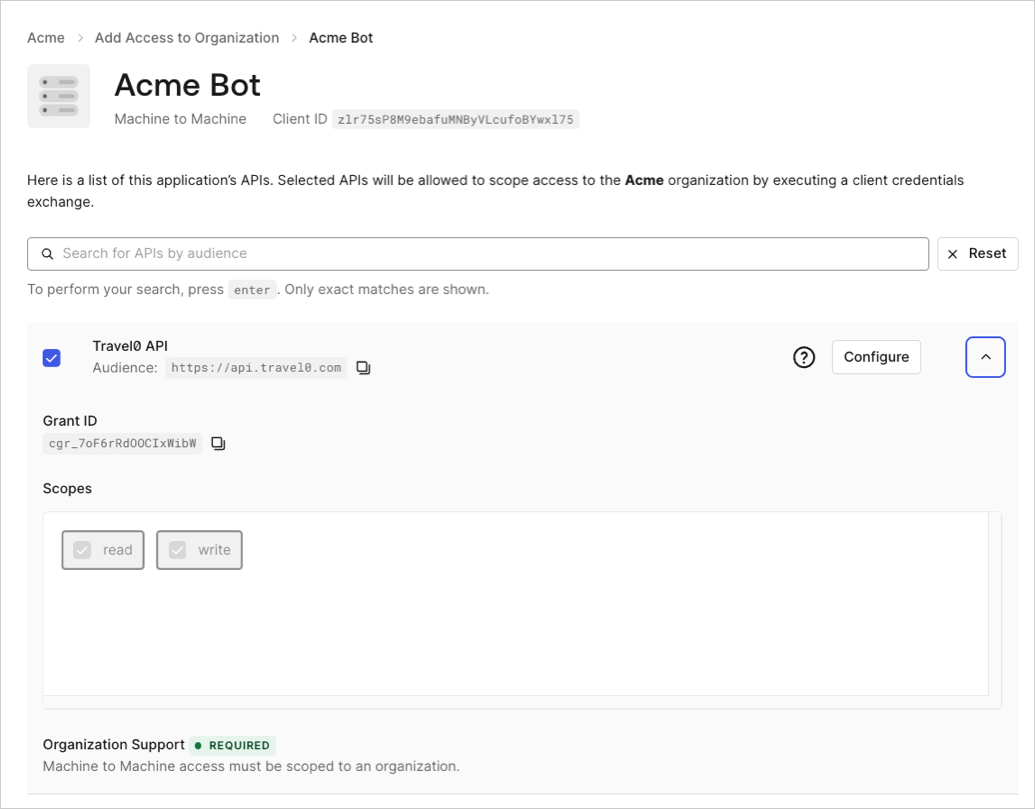 Application client grants can be associated with an organization via the [Associate client grant to organization](https://auth0.com/docs/api/management/v2/organizations/create-organization-client-grants) endpoint: