> ## Documentation Index
> Fetch the complete documentation index at: https://auth0.com/llms.txt
> Use this file to discover all available pages before exploring further.
> Learn how to configure your application for M2M access using the Auth0 Dashboard and Management API.
# Configure Your Application For M2M Access
export const AuthCodeBlock = ({filename, icon, language, highlight, children}) => {
const [displayText, setDisplayText] = useState(children);
const [copyText, setCopyText] = useState(children);
const wrapperRef = React.useRef(null);
useEffect(() => {
let unsubscribe = null;
function init() {
if (!window.autorun || !window.rootStore) {
return;
}
unsubscribe = window.autorun(() => {
let processedChildrenForDisplay = children;
let processedChildrenForCopy = children;
for (const [key, value] of window.rootStore.variableStore.values.entries()) {
const escapedKey = key.replaceAll(/[.*+?^${}()|[\]\\]/g, (String.raw)`\$&`);
let displayValue = value;
if (key === "{yourClientSecret}" && value !== "{yourClientSecret}") {
displayValue = value.substring(0, 3) + "*****MASKED*****";
}
processedChildrenForDisplay = processedChildrenForDisplay.replaceAll(new RegExp(escapedKey, "g"), displayValue);
processedChildrenForCopy = processedChildrenForCopy.replaceAll(new RegExp(escapedKey, "g"), value);
}
setDisplayText(processedChildrenForDisplay);
setCopyText(processedChildrenForCopy);
});
}
if (window.rootStore) {
init();
} else {
window.addEventListener("adu:storeReady", init);
}
return () => {
window.removeEventListener("adu:storeReady", init);
unsubscribe?.();
};
}, [children]);
useEffect(() => {
if (!wrapperRef.current) return;
const originalWriteText = navigator.clipboard.writeText.bind(navigator.clipboard);
let isOverriding = false;
const handleClick = e => {
const button = e.target.closest('[data-testid="copy-code-button"]');
if (!button || !wrapperRef.current.contains(button)) return;
isOverriding = true;
navigator.clipboard.writeText = text => {
if (isOverriding) {
isOverriding = false;
navigator.clipboard.writeText = originalWriteText;
return originalWriteText(copyText);
}
return originalWriteText(text);
};
setTimeout(() => {
if (isOverriding) {
isOverriding = false;
navigator.clipboard.writeText = originalWriteText;
}
}, 100);
};
const wrapper = wrapperRef.current;
wrapper.addEventListener('click', handleClick, true);
return () => {
wrapper.removeEventListener('click', handleClick, true);
if (navigator.clipboard.writeText !== originalWriteText) {
navigator.clipboard.writeText = originalWriteText;
}
};
}, [copyText]);
return
{displayText}
;
};
export const codeExample1 = `curl --request POST \\
--url 'https://{yourDomain}/api/v2/client-grants' \\
--header 'authorization: Bearer MGMT_API_ACCESS_TOKEN' \\
--header 'content-type: application/json' \\
--data '{
"client_id": "CLIENT_ID",
"audience": "API_IDENTIFIER",
"scope": [
"scope1",
"scope2"
],
"organization_usage": "ORG_USAGE",
"allow_any_organization": false
}'
`;
export const codeExample2 = `curl --request PATCH \\
--url 'https://{yourDomain}/api/v2/client-grants/CLIENT_GRANT_ID' \\
--header 'authorization: Bearer MGMT_API_ACCESS_TOKEN' \\
--header 'content-type: application/json' \\
--data '{
"organization_usage": "ORG_USAGE",
"allow_any_organization": false
}'
`;
export const codeExample3 = `curl -X PATCH --location "https://{yourDomain}/api/v2/clients/{CLIENT_ID}" \\
--header 'authorization: Bearer MGMT_API_ACCESS_TOKEN' \\
--header 'content-type: application/json' \\
--data '{
"default_organization": {
"organization_id": "ORGANIZATION_ID",
"flows": ["client_credentials"]
}
}'
`;
After creating the application, configure it for machine-to-machine access by following these steps:
1. [Define organization behavior](#define-organization-behavior) for each API you need to access.
2. In cases where the application should only access specific organizations i.e. not all of them, [Authorize M2M Access](/docs/manage-users/organizations/organizations-for-m2m-applications/authorize-m2m-access) for each API you need to access for those specific organizations.
## Define organization behavior
You can configure how your application uses Organizations during the Client Credentials Flow for each API, such as whether the application must use an organization or can access any organization or only explicitly associated ones.
The following table explains the fields for defining organization behavior for M2M access:
### Define organization behavior table
| Field | Description | API Mapping |
| --------------------------------------------------- | ----------------------------------------------------------------------------------------------------------------------------------------------------------------------------------------------------------------------------------------------------------------------------------------------------------------------------------------------------------------------------------------------------------------------------------------------------- | ------------------------------------------------------------------------------------------------------------------------------------------------------------------------------------------------- |
| Organization Support | Determines how this application may use organizations when accessing via the Client Credentials Flow.
Options include: - **None:** The application *must not* use organizations. This is the default value.
- **Optional:** The application *may decide* whether to use an organization.
- **Required:** The application *must* use an organization.
| Organization Support maps to `organization_usage`.
Options: - **None** maps to `deny`
- **Optional** maps to `allow`
- **Required** maps to `required`
|
| Allow machine-to-machine access to any organization | Determines whether this application can access any organization or is limited to a set of explicitly associated organizations when using the Client Credentials Flow. By default, this behavior is not allowed.
**Warning:** Enabling machine-to-machine access to any organization allows the application to access any organization without it being explicitly associated. It should only be enabled for trusted internal applications. | Allow machine-to-machine access to any organization maps to `allow_any_organization`.
Options: - Checked maps to `true`
- Unchecked maps to `false`
|
### Define organization behavior for an application
To define organization behavior for an application, use the [Auth0 Dashboard](https://manage.auth0.com/) or [Management API](https://auth0.com/docs/api/management/v2).
For a machine-to-machine application, define organization behavior via the Auth0 Dashboard:
1. Navigate to **Auth0 Dashboard > Applications**, and select the application for which you want to configure Organizations.
2. Switch to the **APIs** tab and expand the `client_grant` details for the API you wish to configure access to.
3. Configure the appropriate settings as explained in the [Define organization behavior table](#define-organization-behavior-table).
4. Select **Save.**
Alternatively, if it is not a machine-to-machine application:
1. Navigate to **Auth0 Dashboard > APIs**, and select the API for which you want to configure Organizations access.
2. Switch to the **Machine To Machine Applications** tab. It shows all applications, not just Machine-to-Machine applications. Locate your application.
3. To authorize access, click the toggle for your application. Then, click your application to expand the configuration details.
4. Configure the appropriate settings as explained in the [Define organization behavior table](#define-organization-behavior-table).
5. Select **Save**.
You can also define organization behavior for an application using the Management API. The `client_grant` object controls your application’s access to an API, where you must configure the `client_grant` for each API your application needs to access. To configure the `client_grant` for M2M access, use the [Create client grant](https://auth0.com/docs/api/management/v2/client-grants/post-client-grants) or [Update client grant](https://auth0.com/docs/api/management/v2/client-grants/patch-client-grants-by-id) endpoints and the [Define organization behavior table](#define-organization-behavior-table) to update the appropriate settings.
The following code sample creates a `client_grant` object with M2M access:
The following code sample updates a `client_grant` object with M2M access:
## Set default organization
Some clients do not support non-standard fields in the [Client Credentials Flow](/docs/get-started/authentication-and-authorization-flow/client-credentials-flow). Therefore, they cannot send the required `organization` parameter to the `/oauth/token` endpoint. For these clients, you can set a default organization that is automatically applied to any Client Credentials request from the application when `none` is specified and organization support is `required` by the API.
Default organization is applied when `organization_usage=require` for the API (i.e. target audience).
The following table explains the fields for setting a default organization for machine-to-machine access:
### Set default organization table
| Field | Description | API Mapping |
| -------------------------------------------------- | ------------------------------------------------------------------------------------------------------ | ------------------------------------------------------------------------------------------------------------------------------------------------------------------------------------------------------------------------------------------------------------------------------------------------------------------------------------------------------------------------- |
| Default Organization for Machine-to-Machine Access | Defines which organization to apply to Client Credentials requests that do not contain an organization | Default Organization for Machine-to-Machine Access maps to the default\_organization object with the following properties: - `organization_id`: The ID of the organization to use
- `flows`: The authentication flow to use for the default organization.
This setting is hidden in the UI and defaults to `["client_credentials"]`
|
### Set default organization for an application
To set the default organization for an application, use the [Auth0 Dashboard](https://manage.auth0.com/) or [Management API](https://auth0.com/docs/api/management/v2).
To enable a default organization for an application via the Auth0 Dashboard:
1. Navigate to **Auth0 Dashboard > Applications**, and select the application for which you want to configure.
2. Select the **Organizations** tab.
3. Configure the appropriate settings as explained in the [Set default organization table](#set-default-organization-table).
4. Click **Save.**
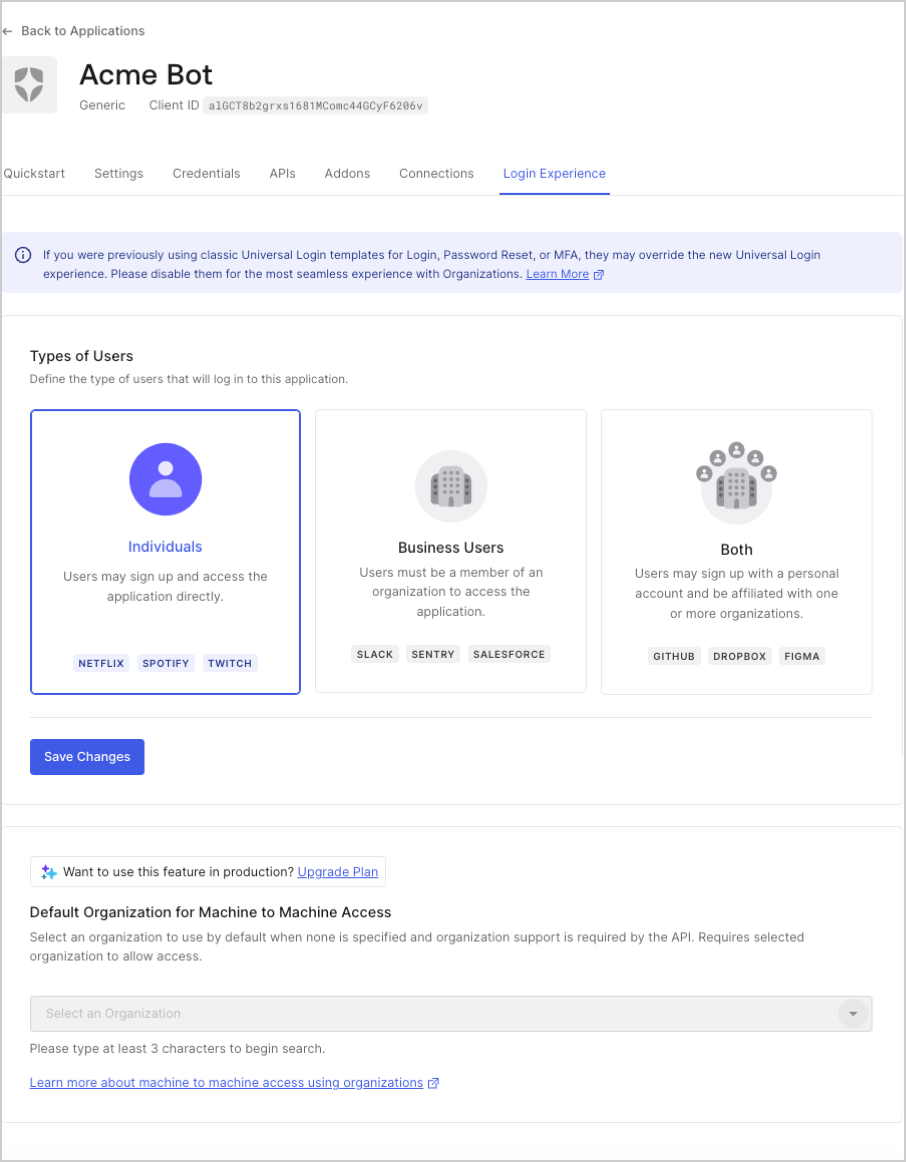 You can configure the default organization for an application via the [Create a client](https://auth0.com/docs/api/management/v2/clients/post-clients) or [Update a client](https://auth0.com/docs/api/management/v2#!/Clients/patch_clients_by_id) endpoints. The only currently supported flow value is `client_credentials`.
The following code sample updates a client with a default organization:
You can configure the default organization for an application via the [Create a client](https://auth0.com/docs/api/management/v2/clients/post-clients) or [Update a client](https://auth0.com/docs/api/management/v2#!/Clients/patch_clients_by_id) endpoints. The only currently supported flow value is `client_credentials`.
The following code sample updates a client with a default organization: