> ## Documentation Index
> Fetch the complete documentation index at: https://auth0.com/llms.txt
> Use this file to discover all available pages before exploring further.
> Learn how to configure an ephemeral sessions in Auth0.
# Use Cases Configure Keep Me Signed In using Sessions
Ensure you have:
* A [Custom Domain](/docs/customize/custom-domains) configured Auth0 tenant configured for your application
* [Auth0 CLI](https://auth0.github.io/auth0-cli/auth0_actions.html) installed and authenticated.
* A [post-login Action](/docs/customize/actions/explore-triggers/signup-and-login-triggers/login-trigger)
* An Auth0 tenant session using the [non-persistent](/docs/manage-users/sessions/session-lifecycle) sessions policy
* (Optional) Configure session's Idle and absolute session timeout values
The **Keep Me Signed In** experience provides users the option to stay logged-in on a trusted device.
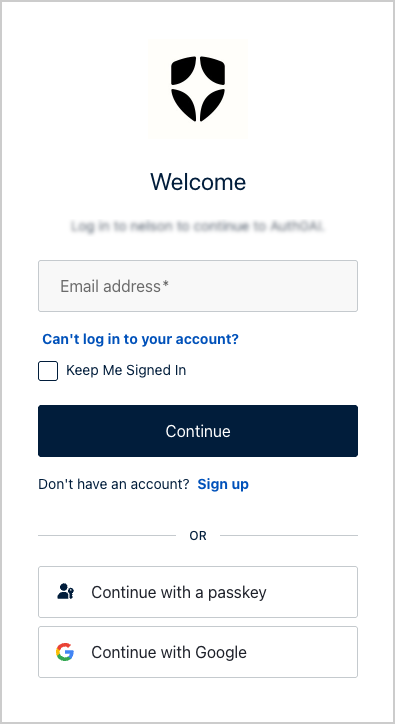
* If the **Keep Me Signed In** checkbox is selected, it sets a persistent session which survives browser restarts.
* If the **Keep Me Signed In** checkbox is not selected, it sets a non-persistent session which expires when the browser closes.
Using [non-persistent (ephemeral) sessions](/docs/manage-users/sessions/session-lifecycle) with [Actions](/docs/customize/actions/explore-triggers/signup-and-login-triggers/login-trigger), the server securely handles this logic without exposing refresh tokens to the frontend.
Using Custom Prompts, Auth0 CLI, and ephemeral sessions via Actions, you can implement a secure and modern "Keep Me Signed In" flow with no refresh tokens, no client-side session hacks, and full backend control.
This solution is ideal for customers prioritizing:
* Zero-trust browser session handling
* Minimal session persistence
* Trusted device overrides
## 1. Configure a Universal Login page and Add a custom prompt
To gather the user’s **Keep Me Signed In** preference, you need to customize [Universal Login](/docs/customize/login-pages/universal-login/customize-signup-and-login-prompts) by configuring a page template and adding a custom prompt using Auth0 CLI.
### Optional: Enable the Universal Login page template
This step is only required if your tenant does not have a Universal Login template configured.
Use the following command to create or update the page template:
```bash lines theme={null}
auth0 universal-login templates update
```
The customization editor opens the login page template. You can use any HTML structure that fits your brand.
Here is a minimal example template with a background and wrapped widget:
```html lines theme={null}
{%- auth0:head -%}
{{ prompt.screen.texts.pageTitle }}
{% if prompt.name == "login" or prompt.name == "signup" %}
{%- auth0:widget -%}
{% else %}
{%- auth0:widget -%}
{% endif %}
```
Save and close the editor, the Auth0 CLI prompts you to confirm:
```bash lines theme={null}
Do you want to save the template? Yes
▸ Successfully updated the template for the New Universal Login Experience!
```
## 2. Add a Keep Me Signed In checkbox using Auth0 CLI
To add a checkbox into the Universal Login screen, follow these steps:
### Launch the customization editor
1. Open the customization editor for the login-id or login prompt depending on your tenant configuration:
```bash lines theme={null}
auth0 universal-login customize -p login-id
```
2. Select **standard** for rendering mode
```bash lines theme={null}
Rendering Mode: standard
```
The customization editor launches at a local address:
```bash lines theme={null}
http://localhost:52649
```
If you are unsure whether your tenant uses `login` or `login-id`, refer to Auth0’s [prompt customization](/docs/customize/login-pages/universal-login/customize-signup-and-login-prompts).
### Configure the checkbox
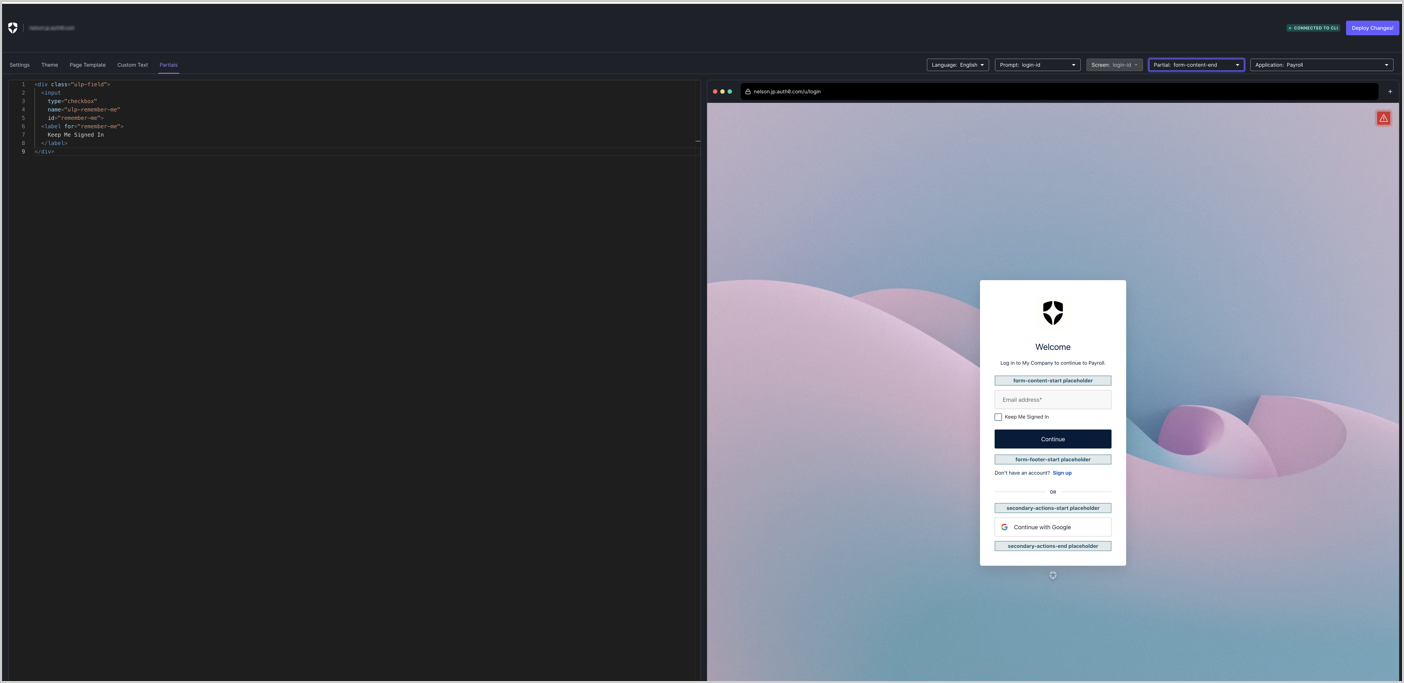
Open the **Partials** option in the customization editor:
1. Set **Prompt** to: `login-id` (or `login`)
2. Set **Screen** to: `login-id` (or `login`)
3. Set **Partial** to: `form-content-end`
Add the following HTML snippet:
```html lines theme={null}
```
This renders the checkbox underneath the login form.
### Deploy your changes
Select **Deploy Changes** in the top-right corner to save and apply the customization.
## Checkpoint
Log in using Universal Login.
The login screen includes a **Keep Me Signed** In checkbox.
## 3. Create a Post-Login Action using Auth0 CLI
Create a new file called `set-session-persistence.js` for use with Auth0 CLI and add the following code:
```javascript lines theme={null}
exports.onExecutePostLogin = async (event, api) => {
// Apply the change only when the parameter is available
if (event.request.body['ulp-remember-me']) {
api.session.setCookieMode('persistent');
}
};
```
This Action makes the session cookie persist across browser restarts when the user checks the box. To also extend the session lifetime for trusted devices, read [Set session duration for trusted devices](#set-session-duration-for-trusted-devices) below.
Use Auth0 CLI to create or update your post-login Action using the `set-session-persistence.js` file:
```bash lines theme={null}
auth0 actions create --name kmsi --trigger post-login --code "$(cat set-session-persistence.js)"
```
Auth0 CLI returns the Action Id:
```bash lines theme={null}
ID f54c4aae-431f-4290-a7e0-cfc6a3f28386
NAME kmsi
TYPE post-login
STATUS pending
DEPLOYED ✗
LAST DEPLOYED
LAST UPDATED 0 seconds ago
CREATED 0 seconds ago
CODE exports.onExecutePostLogin = async (event, api) => {
if (event.request.body['ulp-remember-me']) {
api.session.setCookieMode("persistent");
} else {
api.session.setCookieMode("non-persistent");
}
};
```
Deploy your Action using its `id`:
```bash lines theme={null}
auth0 actions deploy
```
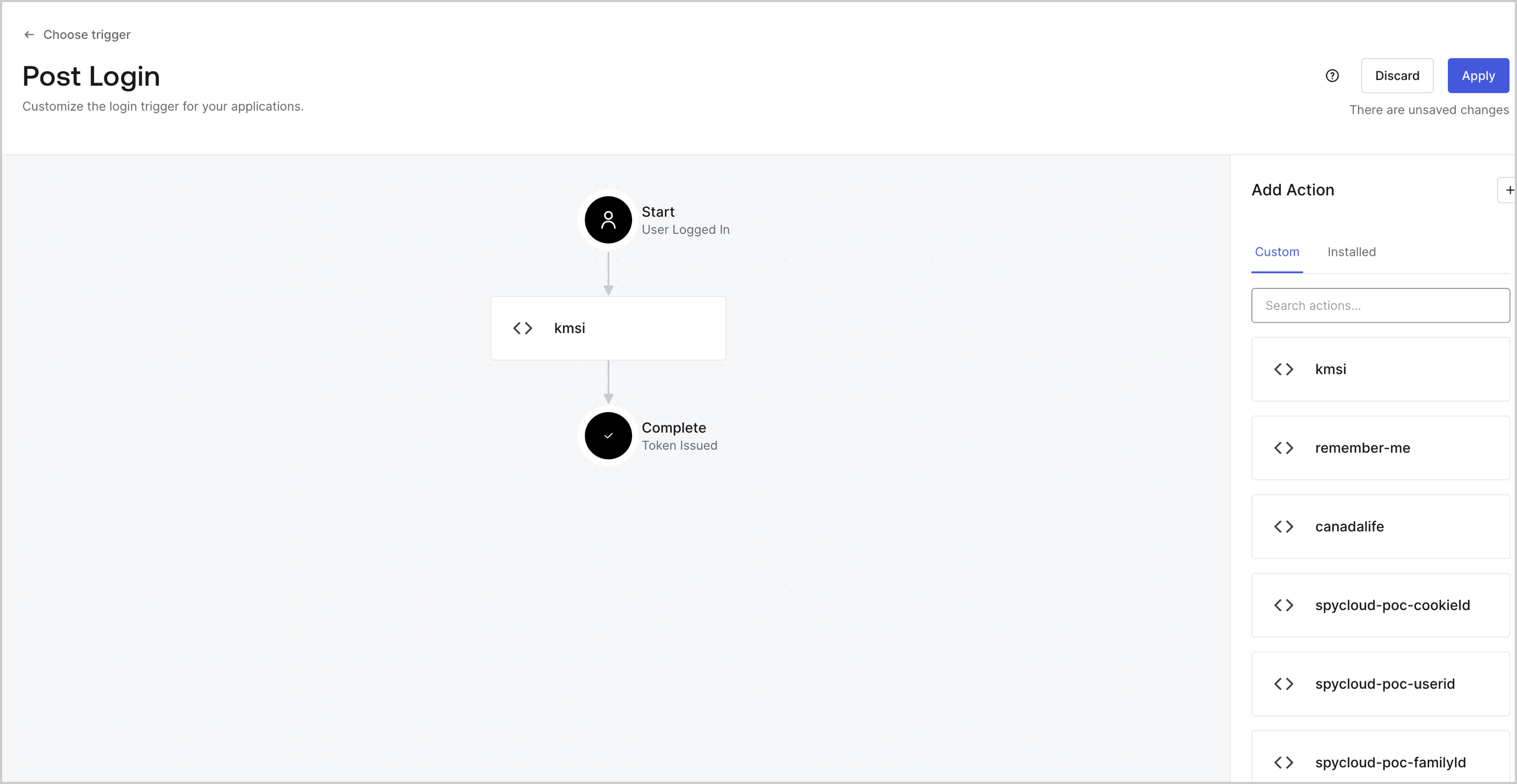
Navigate to the [Auth0 Dashboard > Actions > Triggers > Post-Login](https://manage.auth0.com/#/actions/triggers/post-login) to add the new action to the current flow and select **Apply**.
### Set session duration for trusted devices
[`setCookieMode()`](/docs/customize/actions/explore-triggers/signup-and-login-triggers/login-trigger/post-login-api-object#api-session-setcookiemode-mode) only controls how the session cookie is delivered to the browser. A persistent cookie survives browser restarts while a non-persistent (session) cookie is cleared when the browser closes. It does not change the backend session's expiration time. If you want trusted devices to have a longer session lifetime, you must explicitly set the expiration using `api.session.setExpiresAt()` or `api.session.setIdleExpiresAt()`.
To give trusted devices a longer session lifetime, use `api.session.setExpiresAt()` or `api.session.setIdleExpiresAt()` alongside `setCookieMode()`:
```javascript lines theme={null}
exports.onExecutePostLogin = async (event, api) => {
if (event.request.body['ulp-remember-me']) {
api.session.setCookieMode("persistent");
const now = Date.now();
api.session.setExpiresAt(now + 7 * 24 * 60 * 60 * 1000); // 7 days
} else {
api.session.setCookieMode("nonpersistent");
}
};
```
## 4. Test implementation
To verify the session behavior, you can:
Log in using Universal Login, and select the **Keep Me Signed** In checkbox.
* In the tenant logs, search for (event types `s` or `ssa`)
* `cookie: { mode: "non-persistent" }`
* `cookie: { mode: "persistent" }`
* Search for `event.session.cookie.mode` in your Actions
 ### Set session duration for trusted devices
 * If the **Keep Me Signed In** checkbox is selected, it sets a persistent session which survives browser restarts.
* If the **Keep Me Signed In** checkbox is not selected, it sets a non-persistent session which expires when the browser closes.
Using [non-persistent (ephemeral) sessions](/docs/manage-users/sessions/session-lifecycle) with [Actions](/docs/customize/actions/explore-triggers/signup-and-login-triggers/login-trigger), the server securely handles this logic without exposing refresh tokens to the frontend.
Using Custom Prompts, Auth0 CLI, and ephemeral sessions via Actions, you can implement a secure and modern "Keep Me Signed In" flow with no refresh tokens, no client-side session hacks, and full backend control.
This solution is ideal for customers prioritizing:
* Zero-trust browser session handling
* Minimal session persistence
* Trusted device overrides
## 1. Configure a Universal Login page and Add a custom prompt
To gather the user’s **Keep Me Signed In** preference, you need to customize [Universal Login](/docs/customize/login-pages/universal-login/customize-signup-and-login-prompts) by configuring a page template and adding a custom prompt using Auth0 CLI.
### Optional: Enable the Universal Login page template
* If the **Keep Me Signed In** checkbox is selected, it sets a persistent session which survives browser restarts.
* If the **Keep Me Signed In** checkbox is not selected, it sets a non-persistent session which expires when the browser closes.
Using [non-persistent (ephemeral) sessions](/docs/manage-users/sessions/session-lifecycle) with [Actions](/docs/customize/actions/explore-triggers/signup-and-login-triggers/login-trigger), the server securely handles this logic without exposing refresh tokens to the frontend.
Using Custom Prompts, Auth0 CLI, and ephemeral sessions via Actions, you can implement a secure and modern "Keep Me Signed In" flow with no refresh tokens, no client-side session hacks, and full backend control.
This solution is ideal for customers prioritizing:
* Zero-trust browser session handling
* Minimal session persistence
* Trusted device overrides
## 1. Configure a Universal Login page and Add a custom prompt
To gather the user’s **Keep Me Signed In** preference, you need to customize [Universal Login](/docs/customize/login-pages/universal-login/customize-signup-and-login-prompts) by configuring a page template and adding a custom prompt using Auth0 CLI.
### Optional: Enable the Universal Login page template
 Add the following HTML snippet:
```html lines theme={null}
Add the following HTML snippet:
```html lines theme={null}