> ## Documentation Index
> Fetch the complete documentation index at: https://auth0.com/llms.txt
> Use this file to discover all available pages before exploring further.
> Learn how to configure Token Vault.
# Configure Token Vault
Once a user authenticates with a [supported external provider](/docs/secure/tokens/token-vault#supported-external-providers) and authorizes the connection, your application can access Token Vault to exchange an Auth0 token for an extenal provider's access token.
To configure Token Vault, you need to:
1. [Configure Connected Accounts for Token Vault](/docs/secure/tokens/token-vault/configure-token-vault#configure-connected-accounts-for-token-vault) for a supported social or enterprise connection.
2. [Configure your application](#configure-application) with the Token Vault grant type.
3. Configure the token exchange for your application:
* [Refresh token exchange](#configure-refresh-token-exchange)
* [Access token exchange](#configure-access-token-exchange)
If you have previously set your MFA policy to **Always** in the Auth0 Dashboard, you need to set it to **Never** to retrieve an access token from Token Vault. Otherwise, you will receive an error. To learn more about the different MFA policies, read [Enable MFA in the Auth0 Dashboard](/docs/secure/multi-factor-authentication/enable-mfa#enable-mfa-in-the-auth0-dashboard).
If you need to trigger MFA challenges for interactive flows, enable **Customize MFA Factors using Actions** when [setting up MFA for your tenant](/docs/secure/multi-factor-authentication/customize-mfa/customize-mfa-selection-universal-login#prepare-your-tenant). You can then use an Action to trigger an MFA challenge based on the `event.transaction.protocol` property. To learn more, read [Customize MFA selection for Universal Login](/docs/secure/multi-factor-authentication/customize-mfa/customize-mfa-selection-universal-login).
## Configure Connected Accounts for Token Vault
Connected Accounts for Token Vault manages a unified Auth0 user profile linked to multiple external accounts. Your application then fetches the stored credentials in Token Vault to interact with external APIs on the user’s behalf.
If your application uses [Organizations](/docs/manage-users/organizations), configure the connection, then authenticate the user with the target organization before initiating the Connected Accounts flow. The connected account and stored tokens remain tied to the user’s Auth0 profile.
You can configure Connected Accounts for supported social and enterprise connections. To learn more, read [Configure Connected Accounts](/docs/secure/tokens/token-vault/connected-accounts-for-token-vault#configure-connected-accounts).
## Configure application
Configure your application with the Token Vault grant type using the Auth0 Dashboard or Management API.
Only certain types of clients can use the Token Vault grant type:
1. The client must be a first-party client, i.e. the `is_first_party` property is `true`.
2. The client must be a confidential client with a valid authentication mechanism, i.e. the `token_endpoint_auth_method` property must not be set to `none`.
3. The client must be OIDC conformant, i.e. the `oidc_conformant` must be `true`.
1) Navigate to **Applications > Applications**.
2) Select the application you want to configure.
3) Under **Advanced Settings > Grant Types**, select the **Token Vault** grant type.
4) Select **Save Changes**.
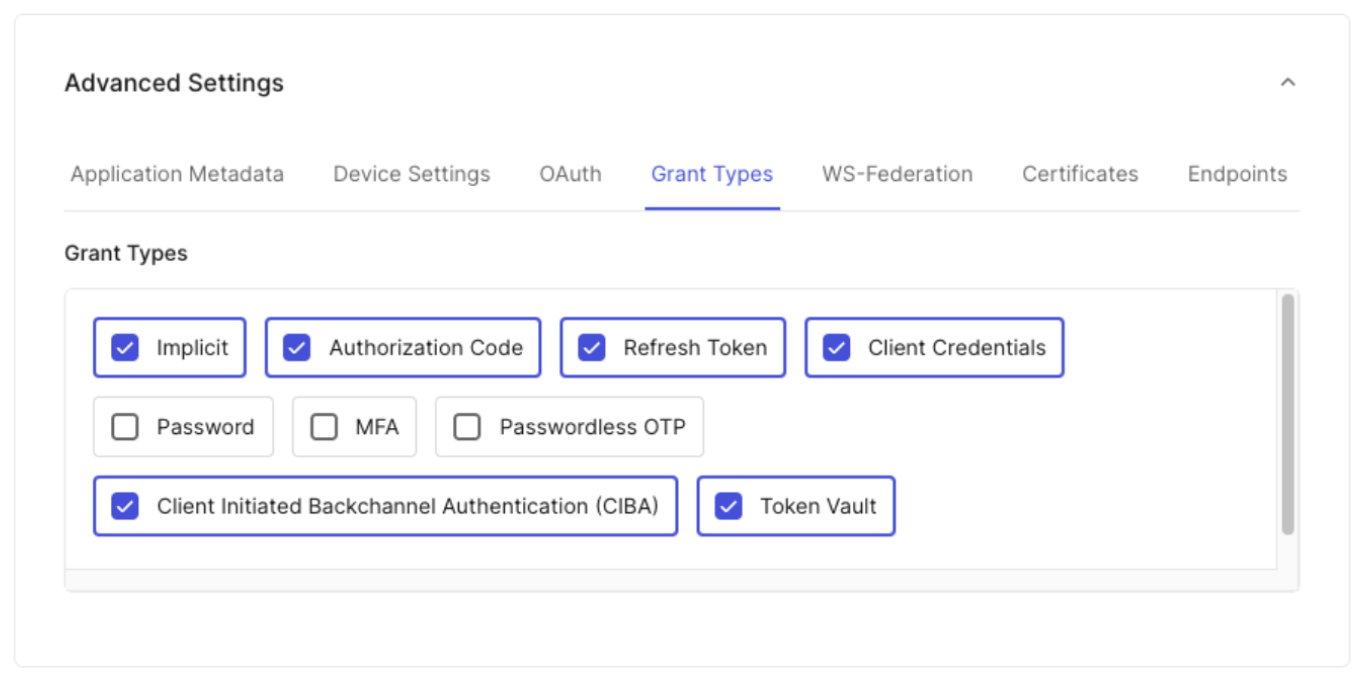 To enable Token Vault for an application, make a `PATCH` call to the [Update a Client](https://auth0.com/docs/api/management/v2/clients/patch-clients-by-id) endpoint to add the `urn:auth0:params:oauth:grant-type:token-exchange:federated-connection-access-token` grant type to the client JSON object:
```bash lines theme={null}
curl --location --request PATCH 'https://{yourDomain}/api/v2/clients/{clientId}' \
--header 'Content-Type: application/json' \
--header 'Authorization: Bearer ' \
--data '{
"grant_types": [
"authorization_code",
"refresh_token",
"urn:auth0:params:oauth:grant-type:token-exchange:federated-connection-access-token"
]
}'
```
## Configure token exchange
To call an external provider’s APIs, your application must exchange a valid Auth0 token for an external provider’s access token from Token Vault. The type of Auth0 token used for the exchange depends on your client type and use case. To learn more, read [Supported token exchanges](/docs/secure/tokens/token-vault#supported-token-exchanges).
### Configure refresh token exchange
To use the [refresh token exchange with Token Vault](/docs/secure/tokens/token-vault/refresh-token-exchange-with-token-vault), you need to configure your application with the following grant types:
* Authorization Code: Enables your application to perform the initial user login, where your application exchanges a temporary authorization code for an Auth0 access token, refresh token, and ID token.
* Refresh token: Enables your application to use a long-lived Auth0 refresh token to request a new Auth0 access token without requiring the user to log in again.
* Token Vault: Enables your application to exchange an Auth0 refresh token for an external provider’s access token stored in the Token Vault.
To configure your application for the refresh token exchange:
* Navigate to **Applications > Applications**.
* Select the application you want to configure.
* Under **Advanced Settings > Grant Types**, select the **Refresh Token**, **Authorization Code**, and **Token Vault** grant types.
* Select **Save Changes**.
To configure your application for the refresh token exchange, make a `PATCH` call to the [Update a Client](https://auth0.com/docs/api/management/v2/clients/patch-clients-by-id) endpoint to add the `refresh_token`, `authorization_code,` and `urn:auth0:params:oauth:grant-type:token-exchange:federated-connection-access-token` grant types to the client JSON object:
```bash lines theme={null}
curl --location --request PATCH 'https://{yourDomain}/api/v2/clients/{clientId}' \
--header 'Content-Type: application/json' \
--header 'Authorization: Bearer ' \
--data '{
"grant_types": [
"authorization_code",
"refresh_token",
"urn:auth0:params:oauth:grant-type:token-exchange:federated-connection-access-token"
]
}'
```
### Configure access token exchange
To use the [access token exchange with Token Vault](/docs/secure/tokens/token-vault/access-token-exchange-with-token-vault), you need to:
* [Configure your SPA](#configure-your-spa) with the `authorization_code` grant type.
* [Create a backend API](#create-backend-api) that the SPA can request an Auth0 access token for by specifying it as the audience.
* [Create a Custom API Client](#create-custom-api-client) that is linked to the backend API with the Token Vault grant type enabled.
#### Configure your SPA
Configure your SPA with the `authorization_code` grant type. This enables the SPA to request an Auth0 access token scoped to the backend API from the Auth0 Authorization Server.
To configure your SPA with the `authorization_code` grant type:
* Navigate to **Applications > Applications**.
* Select the application you want to configure.
* Under **Advanced Settings > Grant Types**, select the **Authorization Code** grant type.
* Select **Save Changes**.
To configure your SPA, make a `PATCH` call to the [Update a Client](https://auth0.com/docs/api/management/v2/clients/patch-clients-by-id) endpoint to add the `authorization_code` grant type to the client JSON object:
```bash lines theme={null}
curl --request PATCH 'https://{yourDomain}/api/v2/clients/{clientId}' \
--header 'Content-Type: application/json' \
--header 'Authorization: Bearer ' \
--data '{
"grant_types": [
"authorization_code"
]
}'
```
#### Create backend API
Create a backend API with a unique identifier and the desired scopes that will perform the access token exchange with the Auth0 Authorization Server.
To create a backend API in the Auth0 Dashboard:
* Navigate to **Applications > APIs**, and click **Create API**.
* To create your API, follow the instructions in [Register APIs](/docs/get-started/auth0-overview/set-up-apis). **Note:** Once you set an identifier for your API, you cannot change it.
* Click **Create**.
* Once you’ve created your API, you need to add scopes for the API. Navigate to the **Permissions** tab. Under **Add a Permission**, add your scopes.
To create a backend API using the Management API, make a `POST` request to the `/resource-servers` endpoint:
```bash lines theme={null}
curl --request POST 'https://{yourDomain}/api/v2/resource-servers' \
--header 'Content-Type: application/json' \
--header 'Authorization: Bearer ' \
--data '{
"name": "My API Resource Server",
"identifier": "https://my-api.example.com",
"scopes": [
{
"value": "read:calendar",
"description": "Read calendar events"
},
{
"value": "write:calendar",
"description": "Write calendar events"
}
]
}'
```
#### Create Custom API Client
For the access token exchange, you need to create a Custom API Client linked to the backend API. The SPA will be able to request an access token to the backend API by specifying it as the audience in the authorization request to the Auth0 Authorization Server. The Custom API Client has the same identifier as your backend API and has the Token Vault grant type enabled.
When the backend API performs the access token exchange, it authenticates itself by passing the Custom API Client’s credentials to the Auth0 Authorization Server, proving that it is the same entity that was registered in the Auth0 Dashboard.
To create a Custom API Client in the Auth0 Dashboard:
* Navigate to **Applications > APIs** and select your backend API.
* Select **Add Application** and enter an application name.
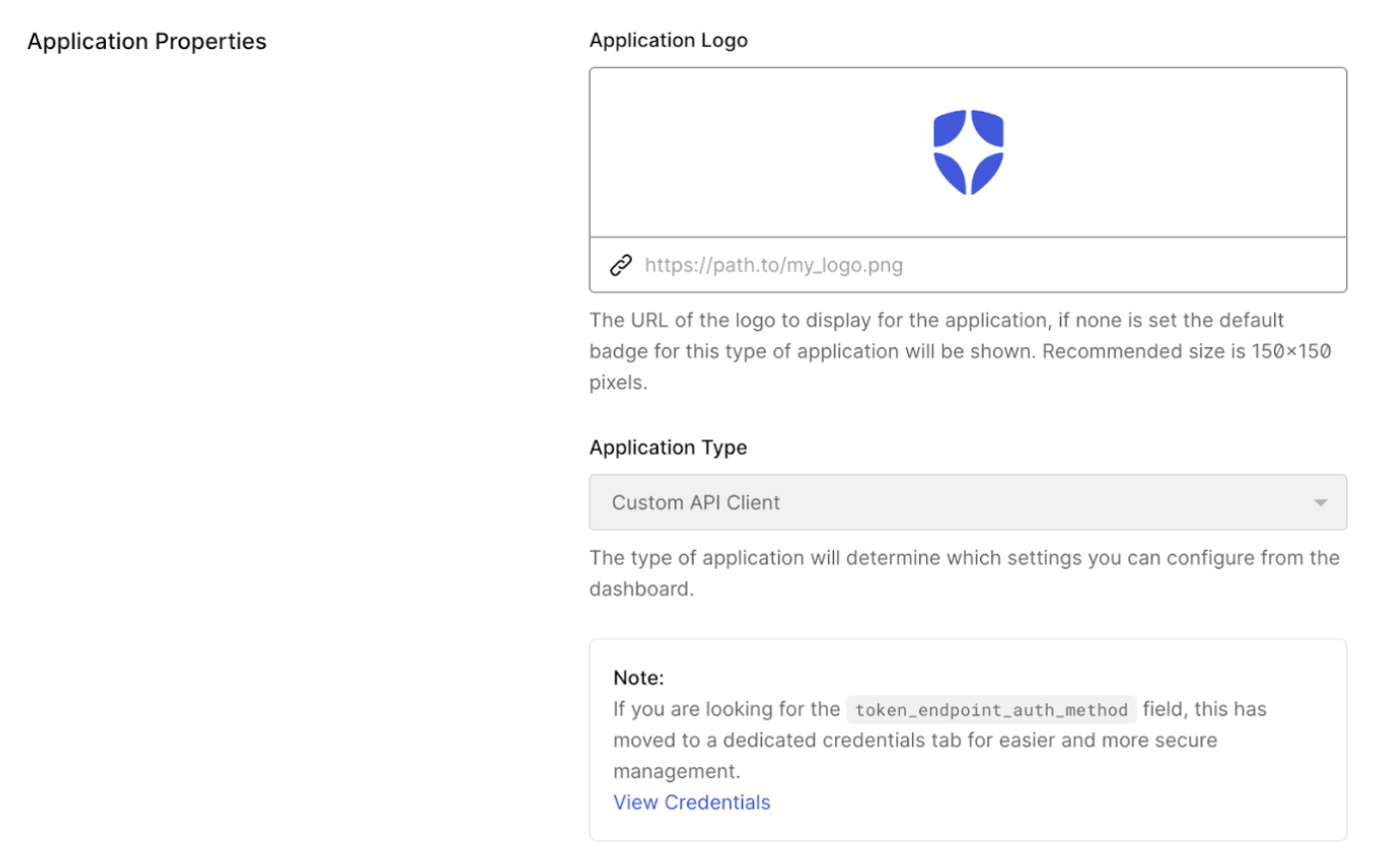
* Click **Add**. Once the application has been successfully created, click **Configure Application** and scroll to **Application Properties**. The **Application Type** is a Custom API Client.
* Under **Advanced Settings > Grant Types**, the **Token Vault** grant type should already be enabled for the Custom API Client.
To enable Token Vault for an application, make a `PATCH` call to the [Update a Client](https://auth0.com/docs/api/management/v2/clients/patch-clients-by-id) endpoint to add the `urn:auth0:params:oauth:grant-type:token-exchange:federated-connection-access-token` grant type to the client JSON object:
```bash lines theme={null}
curl --location --request PATCH 'https://{yourDomain}/api/v2/clients/{clientId}' \
--header 'Content-Type: application/json' \
--header 'Authorization: Bearer ' \
--data '{
"grant_types": [
"authorization_code",
"refresh_token",
"urn:auth0:params:oauth:grant-type:token-exchange:federated-connection-access-token"
]
}'
```
## Configure token exchange
To call an external provider’s APIs, your application must exchange a valid Auth0 token for an external provider’s access token from Token Vault. The type of Auth0 token used for the exchange depends on your client type and use case. To learn more, read [Supported token exchanges](/docs/secure/tokens/token-vault#supported-token-exchanges).
### Configure refresh token exchange
To use the [refresh token exchange with Token Vault](/docs/secure/tokens/token-vault/refresh-token-exchange-with-token-vault), you need to configure your application with the following grant types:
* Authorization Code: Enables your application to perform the initial user login, where your application exchanges a temporary authorization code for an Auth0 access token, refresh token, and ID token.
* Refresh token: Enables your application to use a long-lived Auth0 refresh token to request a new Auth0 access token without requiring the user to log in again.
* Token Vault: Enables your application to exchange an Auth0 refresh token for an external provider’s access token stored in the Token Vault.
To configure your application for the refresh token exchange:
* Navigate to **Applications > Applications**.
* Select the application you want to configure.
* Under **Advanced Settings > Grant Types**, select the **Refresh Token**, **Authorization Code**, and **Token Vault** grant types.
* Select **Save Changes**.
To configure your application for the refresh token exchange, make a `PATCH` call to the [Update a Client](https://auth0.com/docs/api/management/v2/clients/patch-clients-by-id) endpoint to add the `refresh_token`, `authorization_code,` and `urn:auth0:params:oauth:grant-type:token-exchange:federated-connection-access-token` grant types to the client JSON object:
```bash lines theme={null}
curl --location --request PATCH 'https://{yourDomain}/api/v2/clients/{clientId}' \
--header 'Content-Type: application/json' \
--header 'Authorization: Bearer ' \
--data '{
"grant_types": [
"authorization_code",
"refresh_token",
"urn:auth0:params:oauth:grant-type:token-exchange:federated-connection-access-token"
]
}'
```
### Configure access token exchange
To use the [access token exchange with Token Vault](/docs/secure/tokens/token-vault/access-token-exchange-with-token-vault), you need to:
* [Configure your SPA](#configure-your-spa) with the `authorization_code` grant type.
* [Create a backend API](#create-backend-api) that the SPA can request an Auth0 access token for by specifying it as the audience.
* [Create a Custom API Client](#create-custom-api-client) that is linked to the backend API with the Token Vault grant type enabled.
#### Configure your SPA
Configure your SPA with the `authorization_code` grant type. This enables the SPA to request an Auth0 access token scoped to the backend API from the Auth0 Authorization Server.
To configure your SPA with the `authorization_code` grant type:
* Navigate to **Applications > Applications**.
* Select the application you want to configure.
* Under **Advanced Settings > Grant Types**, select the **Authorization Code** grant type.
* Select **Save Changes**.
To configure your SPA, make a `PATCH` call to the [Update a Client](https://auth0.com/docs/api/management/v2/clients/patch-clients-by-id) endpoint to add the `authorization_code` grant type to the client JSON object:
```bash lines theme={null}
curl --request PATCH 'https://{yourDomain}/api/v2/clients/{clientId}' \
--header 'Content-Type: application/json' \
--header 'Authorization: Bearer ' \
--data '{
"grant_types": [
"authorization_code"
]
}'
```
#### Create backend API
Create a backend API with a unique identifier and the desired scopes that will perform the access token exchange with the Auth0 Authorization Server.
To create a backend API in the Auth0 Dashboard:
* Navigate to **Applications > APIs**, and click **Create API**.
* To create your API, follow the instructions in [Register APIs](/docs/get-started/auth0-overview/set-up-apis). **Note:** Once you set an identifier for your API, you cannot change it.
* Click **Create**.
* Once you’ve created your API, you need to add scopes for the API. Navigate to the **Permissions** tab. Under **Add a Permission**, add your scopes.
To create a backend API using the Management API, make a `POST` request to the `/resource-servers` endpoint:
```bash lines theme={null}
curl --request POST 'https://{yourDomain}/api/v2/resource-servers' \
--header 'Content-Type: application/json' \
--header 'Authorization: Bearer ' \
--data '{
"name": "My API Resource Server",
"identifier": "https://my-api.example.com",
"scopes": [
{
"value": "read:calendar",
"description": "Read calendar events"
},
{
"value": "write:calendar",
"description": "Write calendar events"
}
]
}'
```
#### Create Custom API Client
For the access token exchange, you need to create a Custom API Client linked to the backend API. The SPA will be able to request an access token to the backend API by specifying it as the audience in the authorization request to the Auth0 Authorization Server. The Custom API Client has the same identifier as your backend API and has the Token Vault grant type enabled.
When the backend API performs the access token exchange, it authenticates itself by passing the Custom API Client’s credentials to the Auth0 Authorization Server, proving that it is the same entity that was registered in the Auth0 Dashboard.
To create a Custom API Client in the Auth0 Dashboard:
* Navigate to **Applications > APIs** and select your backend API.
* Select **Add Application** and enter an application name.
* Click **Add**. Once the application has been successfully created, click **Configure Application** and scroll to **Application Properties**. The **Application Type** is a Custom API Client.
* Under **Advanced Settings > Grant Types**, the **Token Vault** grant type should already be enabled for the Custom API Client.
 The following code sample creates a Custom API Client with the same identifier as your backend API and adds the Token Vault grant type:
```bash lines theme={null}
curl --request POST 'https://{yourDomain}/api/v2/clients' \
--header 'Content-Type: application/json' \
--header 'Authorization: Bearer ' \
--data '{
"name": "Custom API Client",
"app_type": "resource_server",
"resource_server_identifier": "https://my-api.example.com",
"grant_types": [
"urn:auth0:params:oauth:grant-type:token-exchange:federated-connection-access-token"
]
}'
```
| Parameter | Description |
| ---------------------------- | ---------------------------------------------------------------------------------------------------------------------------------------------------------------------------- |
| `name` | Name of your Custom API Client. |
| `app_type` | The application type of your Custom API Client. To register the client as a resource server, set to `resource_server`. |
| `resource_server_identifier` | The unique identifier for your Custom API Client. Set to the audience of your backend API i.e. `https://my-api.example.com.` |
| `grant_types` | The grant types enabled for your Custom API Client. Set to the Token Vault grant type: `urn:auth0:params:oauth:grant-type:token-exchange:federated-connection-access-token`. |
Once you’ve successfully created the Custom API Client, the user will be redirected to it instead of the SPA after logging in.
The following code sample creates a Custom API Client with the same identifier as your backend API and adds the Token Vault grant type:
```bash lines theme={null}
curl --request POST 'https://{yourDomain}/api/v2/clients' \
--header 'Content-Type: application/json' \
--header 'Authorization: Bearer ' \
--data '{
"name": "Custom API Client",
"app_type": "resource_server",
"resource_server_identifier": "https://my-api.example.com",
"grant_types": [
"urn:auth0:params:oauth:grant-type:token-exchange:federated-connection-access-token"
]
}'
```
| Parameter | Description |
| ---------------------------- | ---------------------------------------------------------------------------------------------------------------------------------------------------------------------------- |
| `name` | Name of your Custom API Client. |
| `app_type` | The application type of your Custom API Client. To register the client as a resource server, set to `resource_server`. |
| `resource_server_identifier` | The unique identifier for your Custom API Client. Set to the audience of your backend API i.e. `https://my-api.example.com.` |
| `grant_types` | The grant types enabled for your Custom API Client. Set to the Token Vault grant type: `urn:auth0:params:oauth:grant-type:token-exchange:federated-connection-access-token`. |
Once you’ve successfully created the Custom API Client, the user will be redirected to it instead of the SPA after logging in.