> ## Documentation Index
> Fetch the complete documentation index at: https://auth0.com/llms.txt
> Use this file to discover all available pages before exploring further.
> Learn how an application can access the Token Vault to exchange a JWT bearer token for an access or refresh token to call external APIs.
# Privileged Worker Token Exchange with Token Vault
Privileged Worker Token Exchange with Token Vault is currently in Beta. To learn more about Auth0’s product release cycle, read [Product Release Stages](/docs/troubleshoot/product-lifecycle/product-release-stages). To participate in this program, contact [Auth0 Support](https://support.auth0.com/) or your Technical Account Manager.
Token Vault supports the Privileged Worker Token Exchange, which enables a client application to exchange a signed JWT (subject token) for an external provider’s access or refresh token (requested token).
After successful user authentication and authorization, a client application typically passes the user context, which contains the user's identity, permissions, and session state, as an access or refresh token to perform the token exchange with Token Vault. In service-to-service flows, a client application, such as a backend application or service worker, may need to access resources on the user’s behalf, but because the “user is not present” in an interactive session, the client application doesn’t have access to the user context.
In these service-to-service scenarios, the client application can generate a signed JWT bearer token and use it as the subject token to perform the token exchange and receive the necessary tokens to call external APIs. This means the client application can perform actions on the user’s behalf without an active user interaction or session.
To use the Privileged Worker Token Exchange with Token Vault, the client application must be a highly privileged client that can also request refresh tokens from external providers via Token Vault. It should authenticate with Token Vault using asymmetric cryptographic methods such as [Private Key JWT](/docs/get-started/authentication-and-authorization-flow/authenticate-with-private-key-jwt) assertion or [mutual TLS authentication](/docs/get-started/authentication-and-authorization-flow/authenticate-with-mtls).
## Prerequisites
Only certain types of clients can use the Privileged Worker Token Exchange with Token Vault:
* The client must be a first-party client, i.e. the `is_first_party property` is `true`.
* The client must be a confidential client with a valid authentication mechanism, i.e. the `token_endpoint_auth_method` property must not be set to `none`.
* The client must be OIDC conformant, i.e. the `oidc_conformant` must be `true`.
Before configuring Privileged Worker Token Exchange for your client application:
1. [Enable the Token Vault grant type](/docs/secure/tokens/token-vault/configure-token-vault#configure-application) for your client application.
2. Configure [Private Key JWT](/docs/get-started/authentication-and-authorization-flow/authenticate-with-private-key-jwt) or [mutual TLS authentication](/docs/get-started/authentication-and-authorization-flow/authenticate-with-mtls) for your client application.
## Configure client application
To configure the client application's privileged access to Token Vault, you need to provide a public key that will be used to verify a signed JWT as the subject token.
1. Navigate to **Applications > Applications** and select your application.
2. Select the **Settings** tab, scroll to the **Privileged Worker** section, and toggle on **Enable Privileged Worker**. In the modal, select an existing public key credential or upload a new one, then select **Save**.
3. Once the credential is saved, enter at least one IP address or CIDR range in the **IP Allowlist** field.
4. Select **Save Changes**.
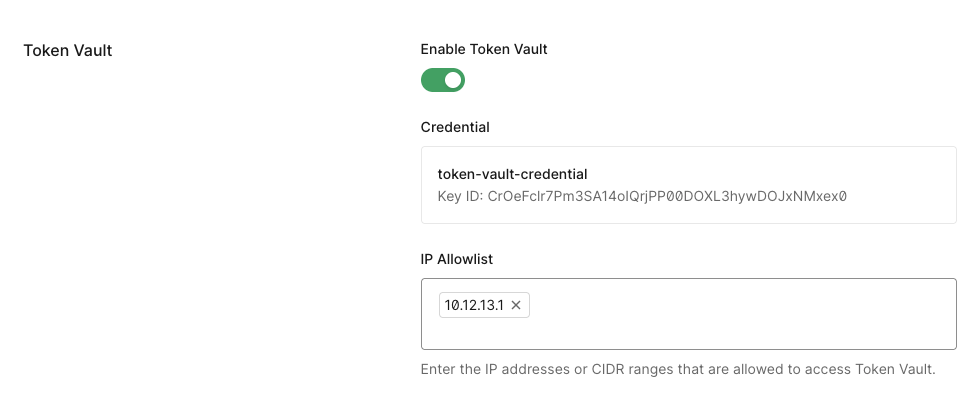 Similar to [configuring JAR](/docs/get-started/applications/configure-jar#configure-jwt-secured-authorization-requests-jar), you can set the Token Vault privileged access public key when creating a new client:
```bash lines theme={null}
POST https://{yourDomain}.auth0.com/api/v2/clients
Authorization: Bearer
Content-Type: application/json
{
"name": "My App using JAR",
“grant_types”: [“urn:auth0:params:oauth:grant-type:token-exchange:federated-connection-access-token”],
“oidc_conformant”: true,
“is_first_party”: true,
“jwt_configuration”: {
“alg”: 'RS256',
},
"token_vault_privileged_access": {
"credentials": [{
"name": "My credential for Token Vault Privileged Access",
"credential_type": "public_key",
"pem": "",
"alg": "RS256"
}]
},
}
```
You can also update an existing client with the Token Vault privileged access public key:
```bash lines theme={null}
PATCH https://{yourDomain}.auth0.com/api/v2/clients/{yourClientId}
Authorization: Bearer
Content-Type: application/json
{
"token_vault_privileged_access": {
"credentials": [{"id": ""}]
}
}
```
The credential `id` is returned in the response when you created your client. If you need to look it up, retrieve it with a GET request:
```bash lines theme={null}
GET https://{yourDomain}.auth0.com/api/v2/clients/{yourClientId}
Authorization: Bearer
```
The `token_vault_privileged_access.credentials[].id` field in the response contains the credential ID.
### Configure IP allowlist
To restrict which IP addresses may make Privileged Worker exchange requests, configure an `ip_allowlist` on your client. This binds the client credential to known server egress IPs, so a leaked credential cannot be used from an arbitrary IP address. Both IPv4 and IPv6 addresses and CIDR ranges are supported, with a maximum of 10 entries.
```bash lines theme={null}
PATCH https://{yourDomain}.auth0.com/api/v2/clients/{yourClientId}
Authorization: Bearer
Content-Type: application/json
{
"token_vault_privileged_access": {
"credentials": [{"id": ""}],
"ip_allowlist": [""]
}
}
```
Configuring an `ip_allowlist` is required as part of the client configuration. Any Privileged Worker token exchange request from an IP not in the list will be rejected.
## Create signed JWT subject token
After [configuring your client application with the public key](#configure-client-application), you need to create the subject token that will be exchanged for an access token for an external API. The subject token is a JSON Web Token (JWT) with the necessary claims. It is signed with the private key.
The JWT has a standard format and claims:
**Header**
| **Claim** | **Description** |
| --------- | ------------------------------------------------------------------ |
| `typ` | Required. Must be `token-vault-req+jwt`. |
| `kid` | Optional. Only needed if you have multiple public keys configured. |
**Payload**
| **Claim** | **Description** |
| --------------- | --------------------------------------------------------------------------------------------------------------- |
| `sub` | Required. The user ID for whom you want to get the token. |
| `aud` | Required. Your tenant host. |
| `iss` | Required. Your client ID making the request. |
| `iat` | Required. Issued-at timestamp. |
| `exp` | Optional. Expiration timestamp. Tokens older than 60 seconds are rejected regardless. |
| `jti` | Required. A unique identifier for this JWT (UUID v4 recommended) for replay protection. |
| `audit_context` | Required. A human-readable string (1–256 characters) describing the business reason for this privileged access. |
The following is an example JWT:
```json lines theme={null}
{
alg: "RS256"
typ: "token-vault-req+jwt"
}
.
{
sub: "auth0|000012030101231",
aud: "https://{yourDomain}.auth0.com/",
iss: "",
iat: 1758799540,
exp: 1758800540,
nbf: 1758799540,
jti: "",
audit_context: ""
}
```
Do not include personally identifiable information (PII) in `audit_context`. This value is recorded in tenant logs and may be visible to administrators and log streaming destinations.
The following code sample is a script that generates a signed JWT subject token:
```tsx lines theme={null}
import * as jwt from 'jsonwebtoken';
const privateKey = ‘-----BEGIN RSA PRIVATE KEY-----........’;
const subjectToken = jwt.sign(
{
iss: CLIENT_ID,
aud: 'https://' + TENANT_DOMAIN + '/',
sub: USER_ID,
jti: uuidv4(),
audit_context: 'Automated nightly sync for compliance report',
},
privateKey,
{
algorithm: 'RS256',
header: {
typ: 'token-vault-req+jwt',
},
}
);
```
## Request token for external API
Once you have the signed JWT, you can make a request for the access token for the external API:
```bash lines theme={null}
curl --request POST 'https://{yourDomain}/oauth/token' \
--header 'Content-Type: application/json' \
--data '{
"client_id": "",
"client_secret": "",
"subject_token": "",
"grant_type": "urn:auth0:params:oauth:grant-type:token-exchange:federated-connection-access-token",
"subject_token_type": "urn:ietf:params:oauth:token-type:jwt",
"requested_token_type": "http://auth0.com/oauth/token-type/token-vault-access-token",
"connection": "google-oauth2"
}'
```
| Parameter | Description |
| ---------------------- | ---------------------------------------------------------------------------------------------------------------------------- |
| `grant_type` | The grant type. For Token Vault, set to `urn:auth0:params:oauth:grant-type:token-exchange:federated-connection-access-token` |
| `client_id` | Client application ID |
| `client_secret` | Client secret. **Note:** For Privileged Worker Token Exchange, we recommend using Private Key JWT or mTLS authentication. |
| `subject_token_type` | Type of subject token. For Privileged Worker Token Exchange, set to JWT: `urn:ietf:params:oauth:token-type:jwt` |
| `subject_token` | The signed JWT bearer token that the Auth0 Authorization Server validates to identify the user. |
| `requested_token_type` | The requested token type. For Privileged Worker Token Exchange, you can request an access or refresh token. |
| `connection` | The connection name, in this case, `google-oauth2`. |
Similar to [configuring JAR](/docs/get-started/applications/configure-jar#configure-jwt-secured-authorization-requests-jar), you can set the Token Vault privileged access public key when creating a new client:
```bash lines theme={null}
POST https://{yourDomain}.auth0.com/api/v2/clients
Authorization: Bearer
Content-Type: application/json
{
"name": "My App using JAR",
“grant_types”: [“urn:auth0:params:oauth:grant-type:token-exchange:federated-connection-access-token”],
“oidc_conformant”: true,
“is_first_party”: true,
“jwt_configuration”: {
“alg”: 'RS256',
},
"token_vault_privileged_access": {
"credentials": [{
"name": "My credential for Token Vault Privileged Access",
"credential_type": "public_key",
"pem": "",
"alg": "RS256"
}]
},
}
```
You can also update an existing client with the Token Vault privileged access public key:
```bash lines theme={null}
PATCH https://{yourDomain}.auth0.com/api/v2/clients/{yourClientId}
Authorization: Bearer
Content-Type: application/json
{
"token_vault_privileged_access": {
"credentials": [{"id": ""}]
}
}
```
The credential `id` is returned in the response when you created your client. If you need to look it up, retrieve it with a GET request:
```bash lines theme={null}
GET https://{yourDomain}.auth0.com/api/v2/clients/{yourClientId}
Authorization: Bearer
```
The `token_vault_privileged_access.credentials[].id` field in the response contains the credential ID.
### Configure IP allowlist
To restrict which IP addresses may make Privileged Worker exchange requests, configure an `ip_allowlist` on your client. This binds the client credential to known server egress IPs, so a leaked credential cannot be used from an arbitrary IP address. Both IPv4 and IPv6 addresses and CIDR ranges are supported, with a maximum of 10 entries.
```bash lines theme={null}
PATCH https://{yourDomain}.auth0.com/api/v2/clients/{yourClientId}
Authorization: Bearer
Content-Type: application/json
{
"token_vault_privileged_access": {
"credentials": [{"id": ""}],
"ip_allowlist": [""]
}
}
```
Configuring an `ip_allowlist` is required as part of the client configuration. Any Privileged Worker token exchange request from an IP not in the list will be rejected.
## Create signed JWT subject token
After [configuring your client application with the public key](#configure-client-application), you need to create the subject token that will be exchanged for an access token for an external API. The subject token is a JSON Web Token (JWT) with the necessary claims. It is signed with the private key.
The JWT has a standard format and claims:
**Header**
| **Claim** | **Description** |
| --------- | ------------------------------------------------------------------ |
| `typ` | Required. Must be `token-vault-req+jwt`. |
| `kid` | Optional. Only needed if you have multiple public keys configured. |
**Payload**
| **Claim** | **Description** |
| --------------- | --------------------------------------------------------------------------------------------------------------- |
| `sub` | Required. The user ID for whom you want to get the token. |
| `aud` | Required. Your tenant host. |
| `iss` | Required. Your client ID making the request. |
| `iat` | Required. Issued-at timestamp. |
| `exp` | Optional. Expiration timestamp. Tokens older than 60 seconds are rejected regardless. |
| `jti` | Required. A unique identifier for this JWT (UUID v4 recommended) for replay protection. |
| `audit_context` | Required. A human-readable string (1–256 characters) describing the business reason for this privileged access. |
The following is an example JWT:
```json lines theme={null}
{
alg: "RS256"
typ: "token-vault-req+jwt"
}
.
{
sub: "auth0|000012030101231",
aud: "https://{yourDomain}.auth0.com/",
iss: "",
iat: 1758799540,
exp: 1758800540,
nbf: 1758799540,
jti: "",
audit_context: ""
}
```
Do not include personally identifiable information (PII) in `audit_context`. This value is recorded in tenant logs and may be visible to administrators and log streaming destinations.
The following code sample is a script that generates a signed JWT subject token:
```tsx lines theme={null}
import * as jwt from 'jsonwebtoken';
const privateKey = ‘-----BEGIN RSA PRIVATE KEY-----........’;
const subjectToken = jwt.sign(
{
iss: CLIENT_ID,
aud: 'https://' + TENANT_DOMAIN + '/',
sub: USER_ID,
jti: uuidv4(),
audit_context: 'Automated nightly sync for compliance report',
},
privateKey,
{
algorithm: 'RS256',
header: {
typ: 'token-vault-req+jwt',
},
}
);
```
## Request token for external API
Once you have the signed JWT, you can make a request for the access token for the external API:
```bash lines theme={null}
curl --request POST 'https://{yourDomain}/oauth/token' \
--header 'Content-Type: application/json' \
--data '{
"client_id": "",
"client_secret": "",
"subject_token": "",
"grant_type": "urn:auth0:params:oauth:grant-type:token-exchange:federated-connection-access-token",
"subject_token_type": "urn:ietf:params:oauth:token-type:jwt",
"requested_token_type": "http://auth0.com/oauth/token-type/token-vault-access-token",
"connection": "google-oauth2"
}'
```
| Parameter | Description |
| ---------------------- | ---------------------------------------------------------------------------------------------------------------------------- |
| `grant_type` | The grant type. For Token Vault, set to `urn:auth0:params:oauth:grant-type:token-exchange:federated-connection-access-token` |
| `client_id` | Client application ID |
| `client_secret` | Client secret. **Note:** For Privileged Worker Token Exchange, we recommend using Private Key JWT or mTLS authentication. |
| `subject_token_type` | Type of subject token. For Privileged Worker Token Exchange, set to JWT: `urn:ietf:params:oauth:token-type:jwt` |
| `subject_token` | The signed JWT bearer token that the Auth0 Authorization Server validates to identify the user. |
| `requested_token_type` | The requested token type. For Privileged Worker Token Exchange, you can request an access or refresh token. |
| `connection` | The connection name, in this case, `google-oauth2`. |