> ## Documentation Index
> Fetch the complete documentation index at: https://auth0.com/llms.txt
> Use this file to discover all available pages before exploring further.
> Learn how to get an Access Token manually for testing purposes.
# Get Management API Access Tokens for Testing
This method for obtaining Access Tokens is **only for test purposes**. Do not get manually long-lived tokens and use them in your applications because that nullifies the security advantages that tokens offer.
The first time you get a test token for the Management API is when you complete the configuration in the Auth0 Dashboard. You won't have to do this again unless you create a new tenant. We recommend that you create a test token exclusively for authorizing access to the Management API instead of reusing another one you might have.
## Prerequisites
* [Create Machine-to-Machine Applications for Testing](/docs/get-started/apis/create-m2m-app-test)
## Get Access Tokens Manually
1. On your Auth0 Dashboard, navigate to **Applications > APIs >** [Auth0 Management API](https://manage.auth0.com/#/apis/management/explorer). Select the **API Explorer** tab and locate an auto-generated token in the **Token** section.
2. Select the **Copy** icon to the right of the token. You can now make authorized calls to the [Management API](https://auth0.com/docs/api/management/v2) using this token.
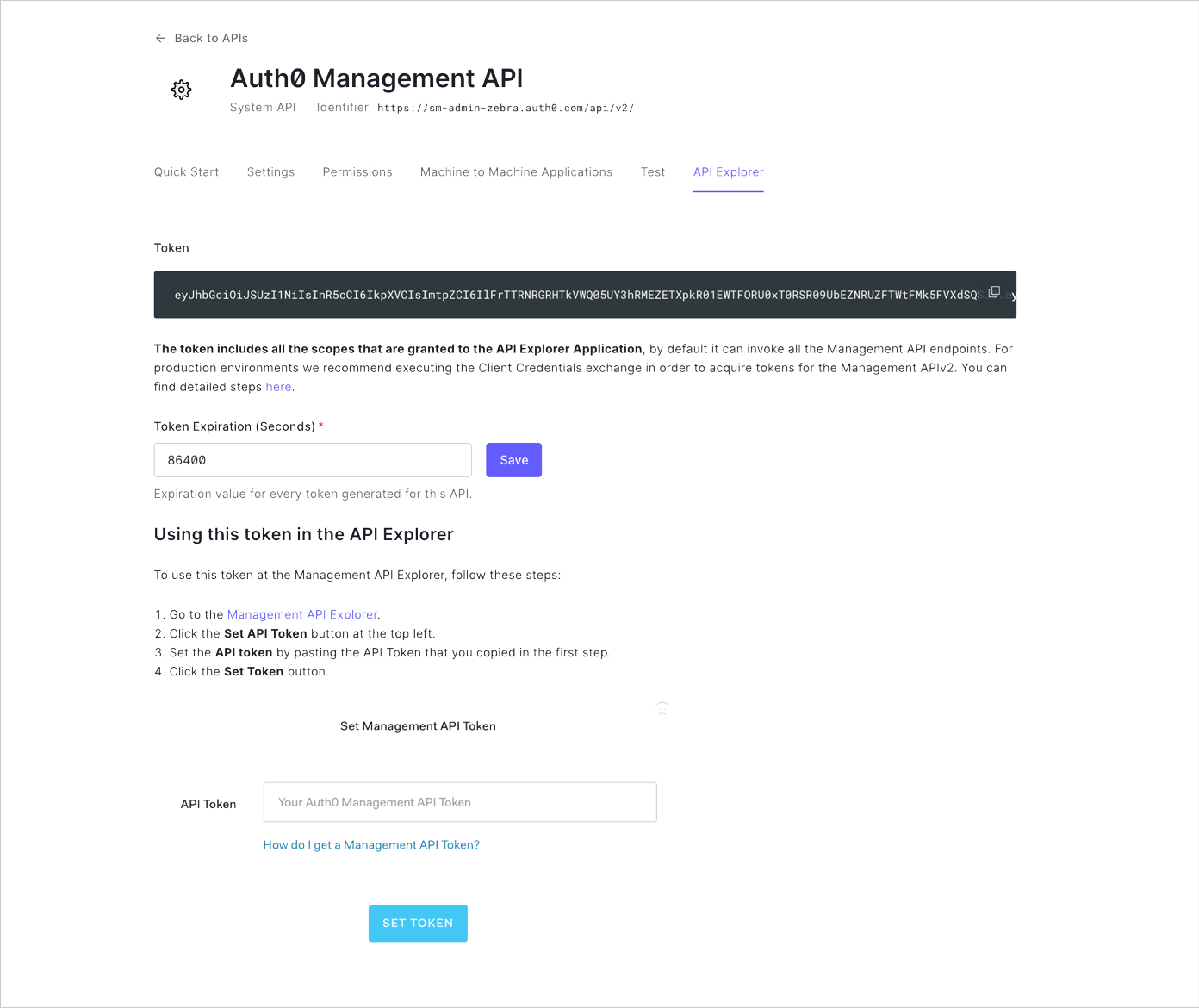 3. Optionally set the expiration time. By default, the token has an expiration time of 86400 seconds, which is 24 hours. After that period, the token expires and can no longer be used. To change the expiration time, update **Token Expiration (Seconds)** and click **Update & Regenerate Token**.
These tokens **cannot be revoked** so long expiration times are not recommended. Instead we recommend that you use short expiration times and issue a new one every time you need it. You can verify expiration by using [jwt.io](https://jwt.io/) to decode the token.
## Use Access Tokens for Testing
You can use the Access Token you just created for testing purposes to manually call an endpoint through the [Management API Explorer](https://auth0.com/docs/api/management/v2).
1. Visit the [Management API Explorer](https://auth0.com/docs/api/management/v2#!), and select the **Set API Token** button.
2. Complete the **API Token** field. Additional information then displays on the popup, such as the scopes granted to the application.
3. Select **Set Token** to save your token and close the popup. Notice that the Set API Token button now displays as **Authorized**.
4. To begin testing, navigate to an endpoint you wish to call and enter any required or optional parameters in the fields to the right. Then, select **Test Endpoint**.
## Learn more
* [Get Management API Access Tokens for Production](/docs/secure/tokens/access-tokens/management-api-access-tokens/get-management-api-access-tokens-for-production)
* [Applications in Auth0](/docs/get-started/applications)
3. Optionally set the expiration time. By default, the token has an expiration time of 86400 seconds, which is 24 hours. After that period, the token expires and can no longer be used. To change the expiration time, update **Token Expiration (Seconds)** and click **Update & Regenerate Token**.
These tokens **cannot be revoked** so long expiration times are not recommended. Instead we recommend that you use short expiration times and issue a new one every time you need it. You can verify expiration by using [jwt.io](https://jwt.io/) to decode the token.
## Use Access Tokens for Testing
You can use the Access Token you just created for testing purposes to manually call an endpoint through the [Management API Explorer](https://auth0.com/docs/api/management/v2).
1. Visit the [Management API Explorer](https://auth0.com/docs/api/management/v2#!), and select the **Set API Token** button.
2. Complete the **API Token** field. Additional information then displays on the popup, such as the scopes granted to the application.
3. Select **Set Token** to save your token and close the popup. Notice that the Set API Token button now displays as **Authorized**.
4. To begin testing, navigate to an endpoint you wish to call and enter any required or optional parameters in the fields to the right. Then, select **Test Endpoint**.
## Learn more
* [Get Management API Access Tokens for Production](/docs/secure/tokens/access-tokens/management-api-access-tokens/get-management-api-access-tokens-for-production)
* [Applications in Auth0](/docs/get-started/applications)