> ## Documentation Index
> Fetch the complete documentation index at: https://auth0.com/llms.txt
> Use this file to discover all available pages before exploring further.
> Learn how to configure the refresh token expiration lifetimes.
# Configure Refresh Token Expiration
Refresh tokens can be a target for abuse if leaked because they can be used to acquire new access tokens. To mitigate this risk, Auth0 recommends using Automatic Reuse Detection and Refresh Token Rotation. Refresh Token Rotation issues a refresh token that expires after a preset lifetime. After expiration, the user gets a new refresh token in the same family, or refresh tokens that share a family ID, or a new access token/refresh token pair. To learn more, read [Refresh Token Rotation](/docs/secure/tokens/refresh-tokens/refresh-token-rotation).
You can enable and configure two refresh token lifetime settings, maximum and idle refresh expiration, using either the Auth0 Dashboard or the Auth0 Management API. You can use a combination of maximum and idle refresh expiration periods to create a balance between security and user experience that suits your business needs.
* **Maximum Lifetime**: Set a refresh token or refresh token family lifetime after which the user must re-authenticate before being issued a new access token. If you disable this setting, the maximum lifetime will be indefinite.
* **Idle Lifetime**: Set the idle lifetime of issued refresh tokens to expire if the user is not active in your application during a specified period.
## Use the Dashboard
1. Go to [Dashboard > Applications](https://manage.auth0.com/#/applications).
2. Select the application you want to configure.
3. Go to the **Settings** tab.
4. Under **Refresh Token Expiration**, enable **Set Idle Refresh Token Lifetime**. When enabled, a refresh token will expire based on the idle refresh token lifetime, after which the token can no longer be used. If rotation is enabled, an expiration lifetime must be set.
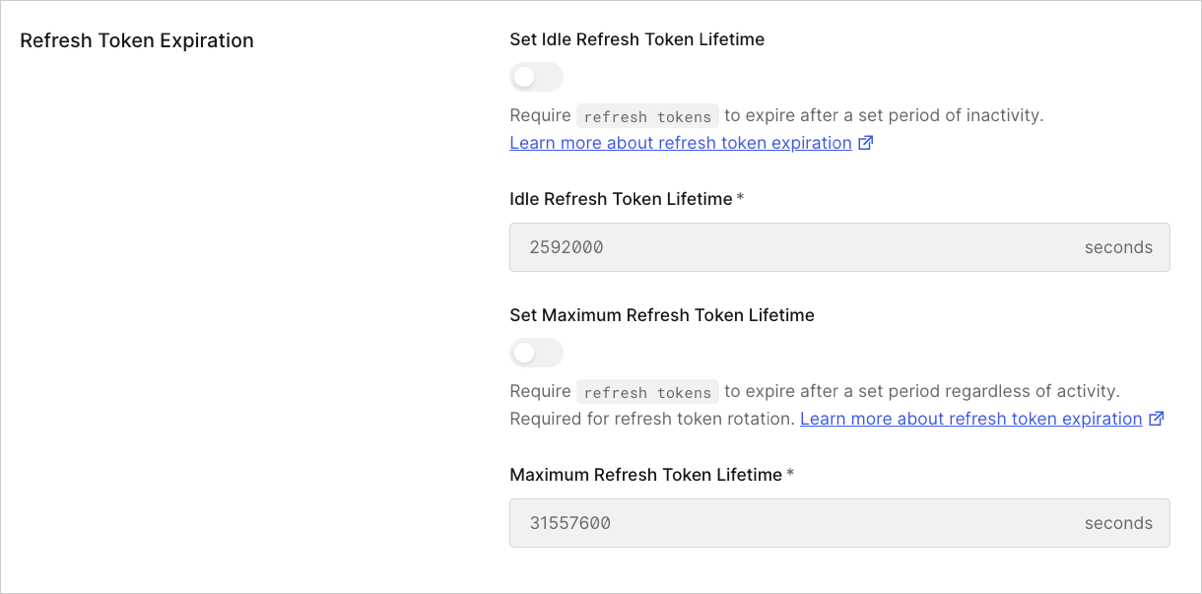 5. Enter **Idle Refresh Token Lifetime** in seconds. The refresh token expires after the specified interval and can no longer be used to get a new access token. When rotation is enabled, the idle refresh token lifetime also applies to the ability to get new tokens.
| Lifetime | Value |
| -------- | --------------------------- |
| Default | 2,592,000 seconds (30 days) |
| Minimum | 1 second |
| Maximum | 31,557,600 seconds (1 year) |
* The **Idle Refresh Token Lifetime** can not exceed the **Maximum Refresh Token Lifetime**.
* The calculation for one year is equivalent to 365.25 days to account for leap years.
6. Enable **Set Maximum Refresh Token Lifetime**. When enabled, a refresh token will expire based on a specified maximum refresh token lifetime, after which the token can no longer be used.
7. Enter **Maximum Refresh Token Lifetime** in seconds. If the refresh token is not exchanged within the specified interval, the refresh token expires and can no longer be used to get a new access token. The idle refresh token lifetime expiration period is renewed each time the refresh token is exchanged for a new access token within the interval.
| Lifetime | Value |
| -------- | --------------------------- |
| Minimum | 1 second |
| Maximum | 31,557,600 seconds (1 year) |
8. Select **Save Changes**.
## Use the Management API
You can configure the maximum and idle lifetime settings in the payload for the Management API [/api/v2/clients/{id}](https://auth0.com/docs/api/management/v2#!/Clients/patch_clients_by_id) endpoint. Here is an example that sets expiration lifetime for a non-rotating refresh token:
```json lines theme={null}
PATCH /api/v2/clients/{id}
{
"refresh_token": {
"rotation_type": "non-rotating",
"expiration_type": "expiring",
"token_lifetime": 2592000,
"infinite_token_lifetime": false,
"idle_token_lifetime": 604800,
"infinite_idle_token_lifetime": false
}
}
```
## Support and limitations
* The **maximum refresh token lifetime** is determined at issuance and remains fixed throughout its lifetime, even if the application's maximum refresh token lifetime is updated. However, you can actively override the maximum refresh token lifetime at issuance using [sessions with Actions](/docs/manage-users/sessions/manage-sessions-actions), including during successful refresh token exchanges.
* The **idle refresh token lifetime** reflects current application settings and updates with each successful refresh token exchange.
* If you configure the Maximum Refresh Token Lifetime for an application, any non-expiring refresh tokens issued by that application becomes expiring refresh tokens after a successful Refresh Token exchange.
* Once a non-expiring refresh token becomes a expiring refresh token, it cannot be reverted back to a non-expiring refresh token.
* You can opt-in to use refresh token expiration capabilities; no action is required by you. Existing refresh tokens are not affected.
* Refresh token expiration works with the following flows:
* [Authorization Code Flow](/docs/get-started/authentication-and-authorization-flow/authorization-code-flow)
* [Authorization Code Flow with Proof Key for Code Exchange](/docs/get-started/authentication-and-authorization-flow/authorization-code-flow-with-pkce)
* [Device Authorization Flow](/docs/get-started/authentication-and-authorization-flow/device-authorization-flow)
* [Resource Owner Password Flow](/docs/get-started/authentication-and-authorization-flow/resource-owner-password-flow)
* All Auth0 SDKs support refresh token expiration.
* The refresh token expiration feature complies with the [OAuth 2.0 Security BCP recommendations](https://www.ietf.org/archive/id/draft-ietf-oauth-security-topics-16.html#section-4.13.2).
The OAuth BCP states that refresh tokens issued for browser-based applications must have an expiration and either enforce sender-constraint or rotate tokens with each request. Therefore, SPAs will default into rotation and **will not support** non-expiring refresh tokens.
## Learn more
* [Get Refresh Tokens](/docs/secure/tokens/refresh-tokens/get-refresh-tokens)
* [Refresh Token Rotation](/docs/secure/tokens/refresh-tokens/refresh-token-rotation)
* [Configure Refresh Token Rotation](/docs/secure/tokens/refresh-tokens/configure-refresh-token-rotation)
* [Revoke Refresh Tokens](/docs/secure/tokens/refresh-tokens/revoke-refresh-tokens)
5. Enter **Idle Refresh Token Lifetime** in seconds. The refresh token expires after the specified interval and can no longer be used to get a new access token. When rotation is enabled, the idle refresh token lifetime also applies to the ability to get new tokens.
| Lifetime | Value |
| -------- | --------------------------- |
| Default | 2,592,000 seconds (30 days) |
| Minimum | 1 second |
| Maximum | 31,557,600 seconds (1 year) |
* The **Idle Refresh Token Lifetime** can not exceed the **Maximum Refresh Token Lifetime**.
* The calculation for one year is equivalent to 365.25 days to account for leap years.
6. Enable **Set Maximum Refresh Token Lifetime**. When enabled, a refresh token will expire based on a specified maximum refresh token lifetime, after which the token can no longer be used.
7. Enter **Maximum Refresh Token Lifetime** in seconds. If the refresh token is not exchanged within the specified interval, the refresh token expires and can no longer be used to get a new access token. The idle refresh token lifetime expiration period is renewed each time the refresh token is exchanged for a new access token within the interval.
| Lifetime | Value |
| -------- | --------------------------- |
| Minimum | 1 second |
| Maximum | 31,557,600 seconds (1 year) |
8. Select **Save Changes**.
## Use the Management API
You can configure the maximum and idle lifetime settings in the payload for the Management API [/api/v2/clients/{id}](https://auth0.com/docs/api/management/v2#!/Clients/patch_clients_by_id) endpoint. Here is an example that sets expiration lifetime for a non-rotating refresh token:
```json lines theme={null}
PATCH /api/v2/clients/{id}
{
"refresh_token": {
"rotation_type": "non-rotating",
"expiration_type": "expiring",
"token_lifetime": 2592000,
"infinite_token_lifetime": false,
"idle_token_lifetime": 604800,
"infinite_idle_token_lifetime": false
}
}
```
## Support and limitations
* The **maximum refresh token lifetime** is determined at issuance and remains fixed throughout its lifetime, even if the application's maximum refresh token lifetime is updated. However, you can actively override the maximum refresh token lifetime at issuance using [sessions with Actions](/docs/manage-users/sessions/manage-sessions-actions), including during successful refresh token exchanges.
* The **idle refresh token lifetime** reflects current application settings and updates with each successful refresh token exchange.
* If you configure the Maximum Refresh Token Lifetime for an application, any non-expiring refresh tokens issued by that application becomes expiring refresh tokens after a successful Refresh Token exchange.
* Once a non-expiring refresh token becomes a expiring refresh token, it cannot be reverted back to a non-expiring refresh token.
* You can opt-in to use refresh token expiration capabilities; no action is required by you. Existing refresh tokens are not affected.
* Refresh token expiration works with the following flows:
* [Authorization Code Flow](/docs/get-started/authentication-and-authorization-flow/authorization-code-flow)
* [Authorization Code Flow with Proof Key for Code Exchange](/docs/get-started/authentication-and-authorization-flow/authorization-code-flow-with-pkce)
* [Device Authorization Flow](/docs/get-started/authentication-and-authorization-flow/device-authorization-flow)
* [Resource Owner Password Flow](/docs/get-started/authentication-and-authorization-flow/resource-owner-password-flow)
* All Auth0 SDKs support refresh token expiration.
* The refresh token expiration feature complies with the [OAuth 2.0 Security BCP recommendations](https://www.ietf.org/archive/id/draft-ietf-oauth-security-topics-16.html#section-4.13.2).
The OAuth BCP states that refresh tokens issued for browser-based applications must have an expiration and either enforce sender-constraint or rotate tokens with each request. Therefore, SPAs will default into rotation and **will not support** non-expiring refresh tokens.
## Learn more
* [Get Refresh Tokens](/docs/secure/tokens/refresh-tokens/get-refresh-tokens)
* [Refresh Token Rotation](/docs/secure/tokens/refresh-tokens/refresh-token-rotation)
* [Configure Refresh Token Rotation](/docs/secure/tokens/refresh-tokens/configure-refresh-token-rotation)
* [Revoke Refresh Tokens](/docs/secure/tokens/refresh-tokens/revoke-refresh-tokens)